Skip to content
View in the app

A better way to browse. Learn more.

LCPDFR.com

A full-screen app on your home screen with push notifications, badges and more.

To install this app on iOS and iPadOS
  1. Tap the Share icon in Safari
  2. Scroll the menu and tap Add to Home Screen.
  3. Tap Add in the top-right corner.
To install this app on Android
  1. Tap the 3-dot menu (⋮) in the top-right corner of the browser.
  2. Tap Add to Home screen or Install app.
  3. Confirm by tapping Install.

Shmurda Senora UM Exploder DLSV2 Config by Lime 1.0.0

(0 reviews)

2 Screenshots

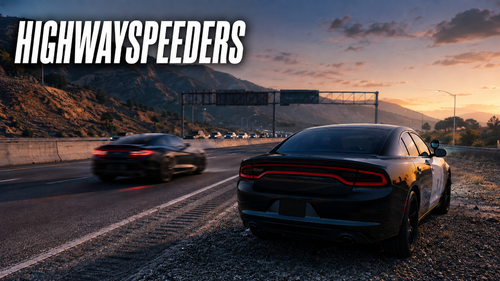
Hello everyone, Lime here with another DLSV2 config, this time for the Senora Unmarked Exploder. Download below:

Enjoy : )


Short Description

DLSV2 config for Shmurda's Senora UM FPIU

User Feedback

Recommended Comments

Thanks for making these. How did you learn to create DLS configs? I haven't seen a whole lot online about it.

LimeGuy36

Members Author

1 hour ago, YourFriendlyKraken said:

Thanks for making these. How did you learn to create DLS configs? I haven't seen a whole lot online about it.

There is virtually no content online. I learned via heavy trial and error from the early DLSV1 days. I recommend doing what I did, which was experiment with existing files on new cars (using something like Notepad++), check the DLS discord, and check out the new DLSV2 website https://themaybeast.gitbook.io/dlsv2

On 12/26/2025 at 2:48 PM, LimeGuy36 said:

There is virtually no content online. I learned via heavy trial and error from the early DLSV1 days. I recommend doing what I did, which was experiment with existing files on new cars (using something like Notepad++), check the DLS discord, and check out the new DLSV2 website https://themaybeast.gitbook.io/dlsv2

Thanks, dawg. I've been wanting to get into this for a while, but I don't even know where to start. I guess I'll just start messing around and hope for the best. Didn't know that website was a thing. Appreciate that resource!

Create an account or sign in to comment

Latest Mods

Account

Navigation

Search

Search

Configure browser push notifications

Chrome (Android)
  1. Tap the lock icon next to the address bar.
  2. Tap Permissions → Notifications.
  3. Adjust your preference.
Chrome (Desktop)
  1. Click the padlock icon in the address bar.
  2. Select Site settings.
  3. Find Notifications and adjust your preference.