


What is in the download/ Included
* cvpi_sign_ 1 - Install THIS!
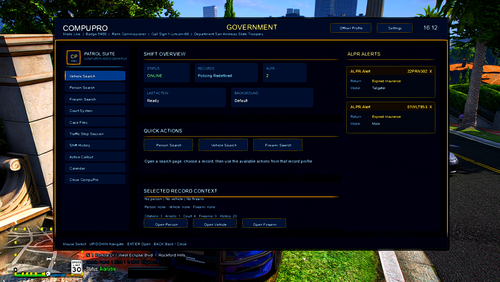
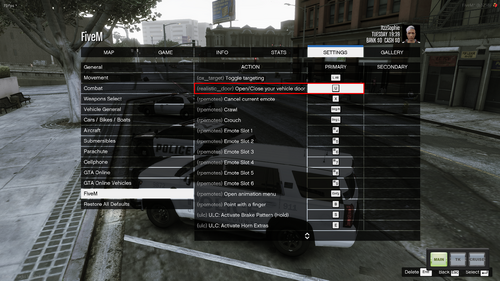
* Three images labeled Install HI Sheriff Skin for guidance.
* Readme
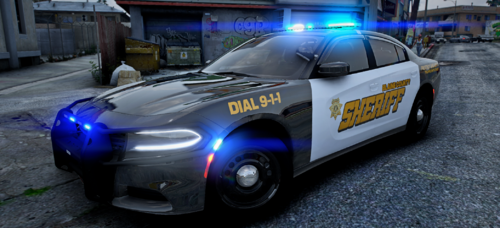
This Hawaii state sheriff skin is to be used on the following vehicle and file, ELS | 1998 Ford Crown Victoria | Whelen Edge Lightbar 1.0.0 by Real Unlimited - https://www.lcpdfr.com/files/file/14261-els-1998-ford-crown-victoria- whelen-edge-lightbar/ .
Installation
1. Download the vehicle model that is linked.
NOTE: THE FILES IN THE LINKED FILE, IS FOR THE POLICE SLOT, BUT YOU CAN RENAME IT TO SHERIFF IF YOU PLAN ON USING FOR THE SHERIFF SLOT.
!!!MAKE SURE EDIT MODE IS TURNED ON IN OPENIV!!!
2. Install the files from that file linked into your OpenIV application.
3. Open up the .ytd and .hi.ytd files that were installed.
4. Replace the cvpi_skin_1 with the one in this file.
5. Once done with the above, click on EDIT in OpenIV to disable that mode.
6. Start up Ragehook and get into GTA V.
7. Once in-game press "F4" and type Spawn Sheriff
8. If the skin is now applied it will show up, if not. Redo the steps again.
See imgur link for visual explanation: https://imgur.com/a/fl4IP3S








![Arkansas State Police [4K]](http://s3-screenshots.int-cdn.lcpdfrusercontent.com/monthly_2026_05/Screenshot_2747.thumb.png.f0b9ad12f59a7855161f08525b0012b6.png)

Recommended Comments
Author known issues
Recommended by Weazelsun
Create an account or sign in to comment