Skip to content
View in the app

A better way to browse. Learn more.

LCPDFR.com

A full-screen app on your home screen with push notifications, badges and more.

To install this app on iOS and iPadOS
  1. Tap the Share icon in Safari
  2. Scroll the menu and tap Add to Home Screen.
  3. Tap Add in the top-right corner.
To install this app on Android
  1. Tap the 3-dot menu (⋮) in the top-right corner of the browser.
  2. Tap Add to Home screen or Install app.
  3. Confirm by tapping Install.

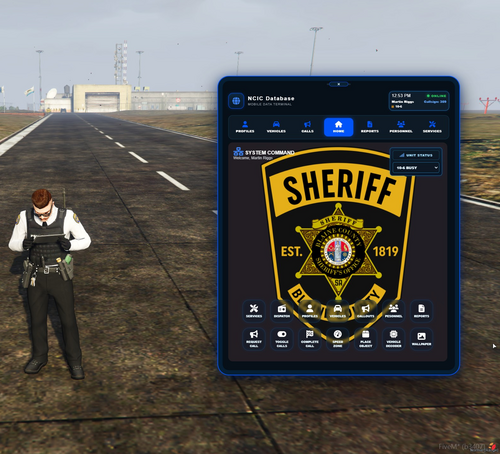
[OUTDATED//EUP 8.0+] Blaine County Sheriff's Office (Wickenburg, AZ) 1.0

(1 review)

5 Screenshots

KUQjMIL.png

YOU WILL NEED EUP LAW & ORDER, SERVE & RESCUE, AND EUP MENU

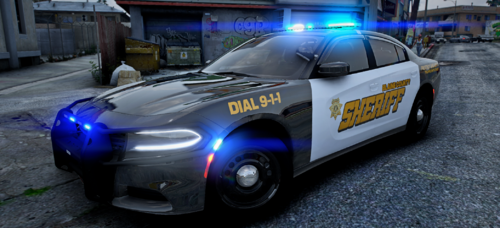
-Matching Vehicle Skins-


Wanna join a group of creators, fellow LSPDfr fans, and Law Enforcement Enthusiasts? Go to my profile or click the link below and join the Thin Blue Designs Discord! We are a group of creators who help each other with decals, Paint.net support, and any other problems you may need help with so join our discord today to get more info and start becoming a member today!


Click here to join the Thin Blue Designs Discord Today!


Edited by Pacific Pig

What's New in Version 1.0

Released

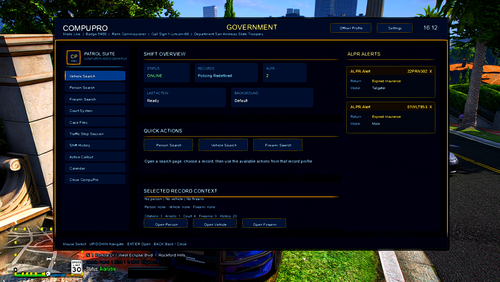
Forgot Screenshots ........


Short Description

Wickenburg, AZ based EUP

User Feedback

Recommended Comments

jmoyerr

Members

First off very nice! but I am having a problem I installed as instructed and when I see the AI they are wearing the green pants not the black pants? 

thisridiculous

Members

(edited)

Uniforms are awesome. However now the EUP AI have a black shirt with everything else green. Not all of us know where to go and what xml to do what in so some help would be great or at least be pointed in the right direction.


Edit: I replaced the A texture in lowr so that fixed the pants but still having peds walk around with green campaign hats instead of the nice black ballcaps 

Edited by thisridiculous

Create an account or sign in to comment

Account

Navigation

Search

Search

Configure browser push notifications

Chrome (Android)
  1. Tap the lock icon next to the address bar.
  2. Tap Permissions → Notifications.
  3. Adjust your preference.
Chrome (Desktop)
  1. Click the padlock icon in the address bar.
  2. Select Site settings.
  3. Find Notifications and adjust your preference.