Skip to content
View in the app

A better way to browse. Learn more.

LCPDFR.com

A full-screen app on your home screen with push notifications, badges and more.

To install this app on iOS and iPadOS
  1. Tap the Share icon in Safari
  2. Scroll the menu and tap Add to Home Screen.
  3. Tap Add in the top-right corner.
To install this app on Android
  1. Tap the 3-dot menu (⋮) in the top-right corner of the browser.
  2. Tap Add to Home screen or Install app.
  3. Confirm by tapping Install.

Alderney State Police (KYSP) Skin Pack. 1.0

(3 reviews)

10 Screenshots

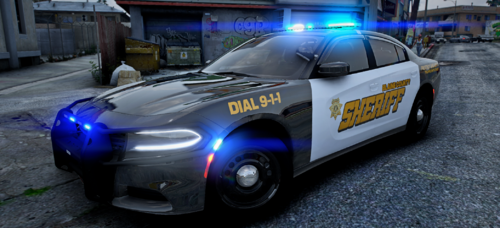
A skin pack that I created for the Alderney State Police. This skin pack contains both ASP and Commercial Vehicle Enforcement versions of the vehicles. All skins and the Alderney State Police logo were designed and created by me (BrokenArrow).

Skins Included

-DSF and Schaefts CVPI's

- Bxbugs123's Tahoe

-Caprice

-trewq34, Mutsu, and Ironic Rainbow's FPIU

Photo Credits

IronicRainbow

User Feedback

Recommended Comments

Mustu

Members

Nice to see my FPIU being put to good use! Awesome, man! 6/5

Mikofiticus

Members

Who's Caprice will work with this pack? This will go great with that Atlanta PD car just released. 5/5.

iEnerrgizer

Members

THANK YOU!!!!!!!!!!!!!! The skins are SEXY!!!!!!!!! :)

IronicRainbow

Members

Nice to see my FPIU being put to good use! Awesome, man! 6/5

Your FPIU base model, my FPIU mod ;)

Love you bae

Agey2

Members

Yesssss! I've been waiting for a good CVE skin! Thanks!

Schecter004

Members

It took 15 min. to download this!

OfficeMerc105

Members

You have POLICE and STATE TROOPER on the same veh

imadoofus

Members

This doesn't specify which Caprice model it uses.

Zarcyne

Members

Very nice...!   Living in Kentucky, I can see the similarities in the vehicles of the KSP and Ky CVE markings.  

Create an account or sign in to comment

Account

Navigation

Search

Search

Configure browser push notifications

Chrome (Android)
  1. Tap the lock icon next to the address bar.
  2. Tap Permissions → Notifications.
  3. Adjust your preference.
Chrome (Desktop)
  1. Click the padlock icon in the address bar.
  2. Select Site settings.
  3. Find Notifications and adjust your preference.