Piarulli246
Members
-
Joined
-
Last visited
Everything posted by Piarulli246
-
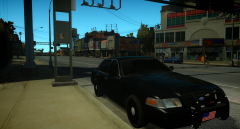
From the album: Images by Foward
Yum. -
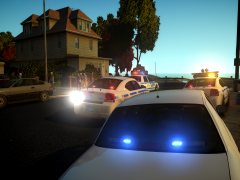 Beautiful!
 -
Hello, I just installed LCPDFR 1.0 on my EFLC and now I want to put it in my regular IV but when I run the install, all I get is the menu to "Modify", "Repair" or "Remove". I do not want to do any of those I just want to install it to regular IV without having to do it by copying it from the EFLC because I don't want to miss anything.. This is what I get:
-
You did a nice job but in my opinion I do not like that strip of lights on the rear bumper. Keep up the good work though!
- 15 comments
- 1 review
-
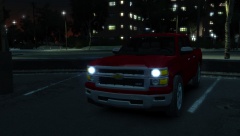 Yep, I'm with ya.
 -
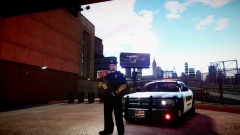 Think it looks great. I love when the sky is nice and blue, I might sound gay lmao but I'm not.
 -
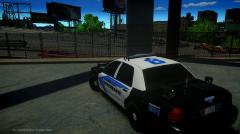
From the album: Foward's WIP
WIP. -
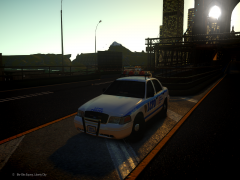 I <3 you !
 -
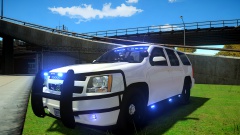 Awhhh shitt, you learned how to make cars. Nice job, looks good!
 -
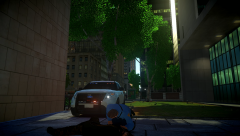 I have like 3 more cars to do so it might take some time because I have been busy but we'll see.
 -
Lmao that is definatly going to be released.
-
When the truck is fully done and I have permission. I will get a picture of the rest of the truck this week so look out.
-
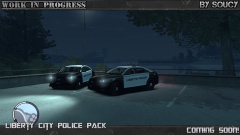 I think that would be good.
 -
Thanks man
-
You should add more to the skin, it just looks plain at the moment. I would tell you what to do to it but I am really not a skinning guy.
-
Lol thanks you. Hopefully I can release it soon but I have to get permissions first and the Explorer isn't even fully done yet, it needs some fixing but I just threw some lights on it anyway.
-
thanks!
-
I made the setup but it is not for release. Might release it one day.
-
From the album: Foward's Patrol
Rolled up on scene with a male not moving so I started working on him. -
-
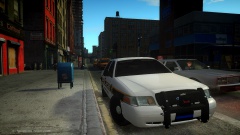
From the album: Images by Foward
... -
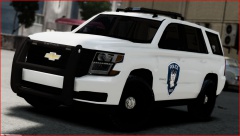 It's pretty cool but I hate that truck in general. They have ruined a beautiful thing!
 -
It is up, just went on it. ELS v7 should not give you a problem so if you want help PM me.
-
Needs a lot of work. Looks like you took it off a picture and just pasted it onto this.
- 6 comments
- 2 reviews
-
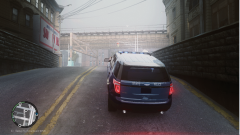 http://gtapolicemods.com/downloads.php?do=file&id=2105