


Piarulli246
Members
-
Joined
-
Last visited
Everything posted by Piarulli246
-
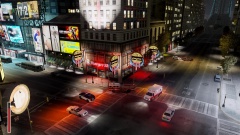 There would be a lot more firetrucks on that block if this were the real city lol. Nice pic.
 -
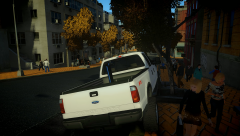 Lmao thanks!
 -
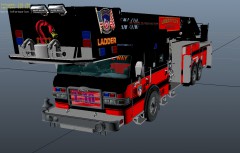 He didn't want it to be ripped so he didn't release it.
 -
Lol. Thanks.
-
Thanks!
-
Yea I'm not really making this a police truck right now. I'm just making it custom.
-
From the album: Images by Foward
Been messing around with this. Going to make it looks pretty custom. Moved out the rims and tires, made a stack, and will be making a custom front bumper. I will also be making one a 250 with a plow and sander on the back. -
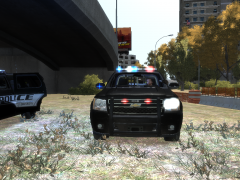 Nooo. The bages saying Tahoe and Lt on the doors and trunk.
 -
They are pretty nice NicolaiB. I'm just not a big fan of those Vertexs on the rear bumper.
- 28 comments
- 8 reviews
-
You need to remove all the badges from the truck.
-
Post a pic of your hierarchy with all the extras open.
-
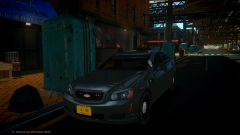 I think someone was. But just save your money. No need to waste it on a car model.
 -
 It won't be released but get on Skype.
 -
Thanks Kevin.
-
Thanks
-
From the album: Scratch Made Parts by Foward
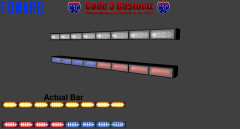
Made by Foward, textures by Lccop. It does have an integrated Traffic Advisor also. -
![[REL] Vermont State Police Classic Pack](//s3-gallery.int-cdn.lcpdfrusercontent.com/gallery/album_338/sml_gallery_14186_338_717302.png) Seriously your game looks fake lol. It all looks awesome.
Seriously your game looks fake lol. It all looks awesome. -
I live in New York and we just got about 7 inches that fell and we had about 5 inches of snow from the other day so it is pretty bad. It's been raining for like 2 hours so it is slushy and slippery and it supposed to start snowing again so it will be real icy.
-
I have Hubcaps but they are not the greatest. I will be making my own and if they don't come out good I will just use the ones I have.
-
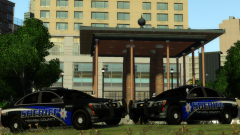 I agree.
 -
Pretty sure that is the one Start has.
-
No problem man.
-
And also we have perms to release this one. As a said, we are just making them better before release.
-
Not even kidding, a lot of modders have the Caprice now and we will be releasing soon but we are trying to get the base model as good as we can before releasing anything. As for the new Ford Interceptor, a few modders are working on a 13 right now. We will be getting that very soon and will be releasing soon.
-
I love the FedSig Smart Siren but there aren't good ones out there.

![[REL] Vermont State Police Classic Pack](http://s3-gallery.int-cdn.lcpdfrusercontent.com/gallery/album_338/sml_gallery_14186_338_717302.png)
