
Bxbugs123
Members
-
Joined
Everything posted by Bxbugs123
-
-
-
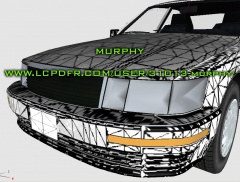 1992 Lexus LS400
 -
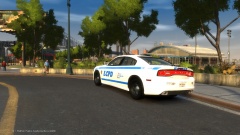 It will be.
 -
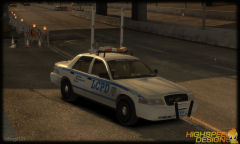 Well its ELS v8 enabled.
 -
-
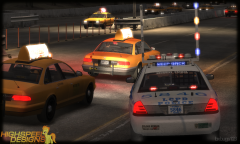
-
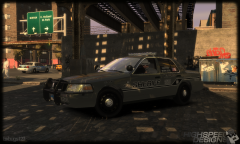
From the album: Bxbugs123's IV Images
-
Because it's GTA. Max Payne is cool & all but people will do anything to mod gta even if it means the impossible it will get done one way or another.
-
Vice City.
-
You need to update. http://www.microsoft.com/en-us/download/details.aspx?id=17851 http://www.microsoft.com/en-ca/download/details.aspx?id=5555 http://www.microsoft.com/en-ca/download/details.aspx?id=30679
-
Wow how you do this?
-
-
The SNT has an option to turn off the lights, & if you doing this in MP you can just turn the vehicle off.
-
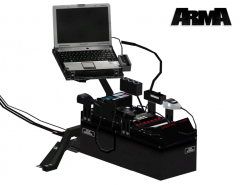 False accusations's? at least i am not the one being creepy & asking other modder's were they live & about their personal life. & before you reply be sure you know all the facts.
 -
Taken from Delta Hawk without permission & converted to IV without permission so stolen & because of people like you they are now taking my stuff i made for IV & converting it to arma without my permission & making money off of it thinking it's ok.
-
Dat stolen model tho.
-
New High Quality Coffee Cup by Bxbugs123 CREDITS Modeled & converted for GTA IV by Bxbugs123 Textures by Bxbugs123 Only bug is sometimes it disappears when using it in a vehicle.
- 9 comments
- 3 reviews
-
NoT worth installing, it replaces the IV map, its very buggy, not many scripts work with, no MP I would wait for a better conversion of it. I find it odd that the converters spent more time then they needed to, they could of just made it an added map & not a full replacement & would of saved time doing so & it would be MP friendly.
-
-
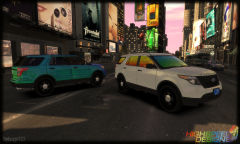
From the album: Bxbugs123's IV Images
Don't forget to remember. -
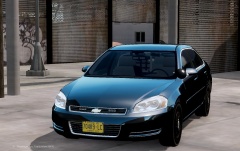 In denial.
 -
Damn son you fucked up my siren box in the grill.
-
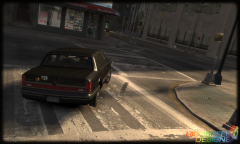
From the album: Bxbugs123's IV Images
-
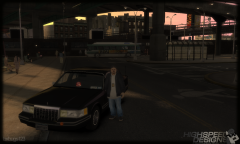 For people who don't know what the real vehicle looks like.