



Bxbugs123
Members
-
Joined
Everything posted by Bxbugs123
-
If you would like to play MP right now, join this TS: ta01.gameservers.com:923
-
 No there not. 2012-2015 rim cap 2011 rim cap as you can see not the same. cap on this explorer.
 -
From the album: Bxbugs123's IV Images
-
From the album: Bxbugs123's IV Images
-
From the album: Bxbugs123's IV Images
-
The Vehicle is from here http://gtapolicemods.com/downloads.php?do=file&id=460 The skin on it is an edited version of the "ASP_CSP" skin in this pack. http://gtapolicemods.com/downloads.php?do=file&id=1398
-
So your the one who needs help right?
-
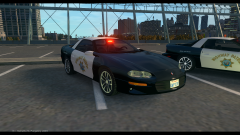 Dat steady burn tho
 -
http://youtu.be/lgSH3LPfo6g
-
![[WIP] 2006 Tahoe PPV V1.0](//s3-gallery.int-cdn.lcpdfrusercontent.com/gallery/album_722/sml_gallery_3386_722_269365.jpg) Sorry but the original model was removed from my dev area over 2 months ago due to request. So any edited version of that model can not be released publicly.
Sorry but the original model was removed from my dev area over 2 months ago due to request. So any edited version of that model can not be released publicly. -
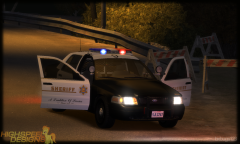
From the album: Bxbugs123's IV Images
-
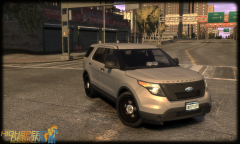
From the album: Bxbugs123's IV Images
Can you guess it? -
Alt+f4
-
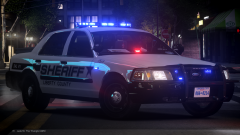 Gotta love it tho.
 -
-
-
-
-
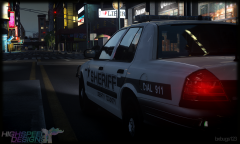
From the album: Bxbugs123's IV Images
Thanks to aCoD Prodigy for his ENB. -
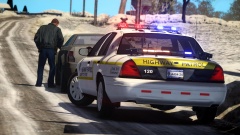 Hes in the car, the cop at the window is an AI.
 -
Soon.
-
I'd get permission 1st.
-
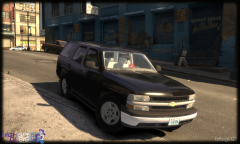
From the album: Bxbugs123's IV Images
-
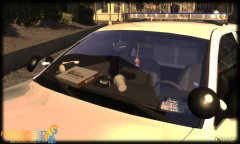 Id like to know what "else" is 1st?
 -
From the album: Bxbugs123's IV Images


![[WIP] 2006 Tahoe PPV V1.0](http://s3-gallery.int-cdn.lcpdfrusercontent.com/gallery/album_722/sml_gallery_3386_722_269365.jpg)
