



Pavy
-
Joined
Everything posted by Pavy
-
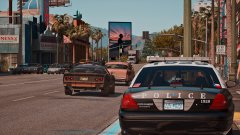
From the album: Random Gallery
-
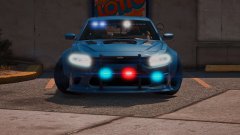
From the album: Random Gallery
-
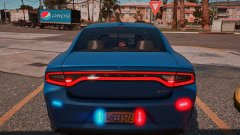
From the album: Random Gallery
-
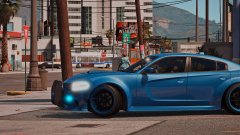
From the album: Random Gallery
-
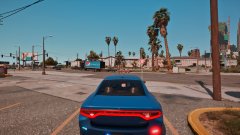
From the album: Random Gallery
-
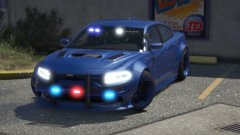
From the album: Random Gallery
-
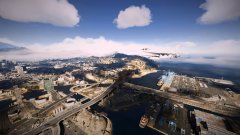
From the album: Random Gallery
-
From the album: Random Gallery
-
From the album: Random Gallery
-
From the album: Random Gallery
-
From the album: Random Gallery
-
From the album: Random Gallery
-
From the album: Random Gallery
-
From the album: New York City/State Police Vehicles
-
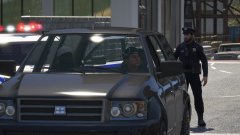
From the album: New York City/State Police Vehicles
-
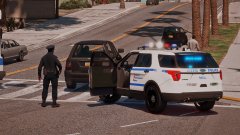
From the album: New York City/State Police Vehicles
-
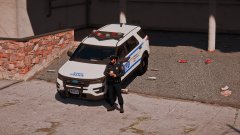
From the album: New York City/State Police Vehicles
-
From the album: New York City/State Police Vehicles
-
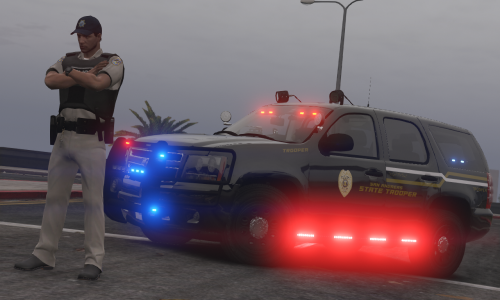 This needs some work. I like what you did with the white/yellow lines The license plates aren't put on properly. Aspect Ratio. The word "State" Gets cut off on the door area. Looks very weird. State trooper font is small on the sides, the back is perfect. If you are gonna make a skin for a Tahoe, you need to fill up the space and not have it look naked. Police looks like it shouldn't even be there. It gets read as State Trooper Police. Its either State Trooper or State Police. You can't have them next to each other like that. That's just my opinion. Edit: Thanks for making the updates.
 -
If you are using Stop the Ped // The probability percentage (0-100) of the ped going to resistance during player interaction with the ped PedResistanceProbability=3 // The probability percentage (0-100) of the ped will attack player instead of fleeing when they resist (determined by "PedResistanceProbability" parameter) PedAttackProbability=50
-
Install this https://www.lcpdfr.com/files/file/9357-radiance-v/ Your post FX and Shader settings must be above High also.
-
What installed method did you use from the vehicles? Please explain what you mean by "Working"
-
What location exactly did you put the vehicles in? Did you create a mods folder?
-
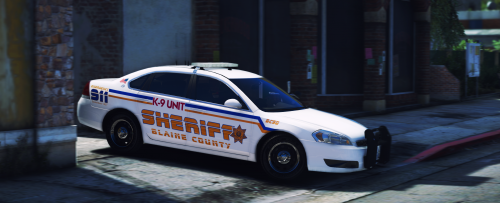 Loving these textures, especially the font and how the vehicles don't look naked.
- 22 comments
- 4 reviews
-
-

- 1
-
-
Why did it not show it before, since it was on search everything? Go to Grand Theft Auto V\Mods\update\update.rpf\common\data and upload ur dlc list.xml

