



Illusionyary
Members
-
Joined
-
Last visited
Everything posted by Illusionyary
-
Exit out of that preview, enable editing mode with OpenIV and drag the visualsettings.dat file out of OpenIV onto your desktop. Open it with NotePad, scroll down until you find the emissive section, then change the number, save it, then drag it back into OpenIV where you found it (update/update.rpf/common/data). Maybe it's hard limited? Because that doesn't look brighter than the 2300 of Radiance.
-
6000?! RadianceV doesn't even go above 2300, 6000 must be blinding!
-
Scroll about a quarter of the way down until you see the "emissive bits" section, and crank up the value of "car.defaultlight.day.emissive.on" and "car.defaultlight.night.emissive.on" to a couple of hundred. The Radiance mod for example has them set to 1700 (day) and 1100 (night), so anywhere around there is fine, the higher the number the brighter the lights. I wouldn't go above 2500 though. Once you've done that just save it and reimport it with OpenIV.
-
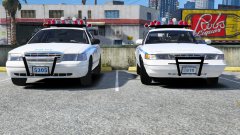
Since we've got a few Japanese police cars here, the R34 is still in service as of December 2016.
-
 Classics.
 -
Sounds like an LOD problem maybe?
-
Create a rectangle and skew it at an angle, then duplicate it a few times while moving the duplicate rectangles to your liking and then flip it to the other side, once that's done just merge them all together and you're finished. If you want to overlay a texture too it (like the honeycomb) either take one from online and overlay it onto your layer and trim it, or make one yourself.
-
GTA IV isn't being updated anymore, so pretty much every mod is for Patch 1.0.7.0, which is the latest one. LCPDFR works great, as do other script and graphical mods.
-
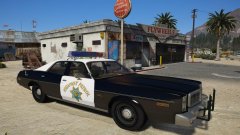 They'd just call in a car with a cage to transport the suspect.
 -
The actual tasing begins at 5:40 for anyone coming for the topic title.
-
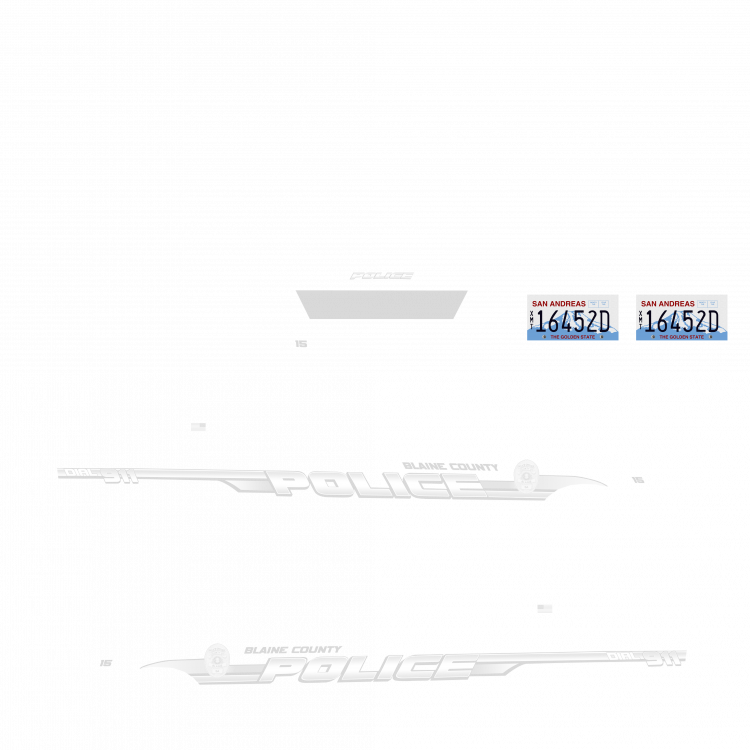
Lower the transparency of the text to say 40% (lower or higher, depending on what you want), then set it to a blank background like this.
-
Man they looks so old now... Looking forward to seeing it though.
-
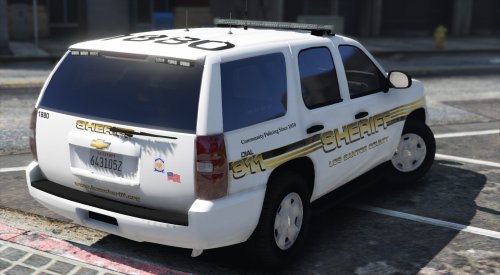 These are just skins, they'll work on any model provided the template is right. Generally speaking templates are pretty consistent between models, so just try them out. I'm unsure if common models have changed since I uploaded this though.
- 41 comments
- 11 reviews
-
*cracks knuckles* Now I await the h3h3 video of Ethan slamming into YouTube. Speaking of which, Logan Paul did get hit with a lot of negative kickback. YouTube canceled his YouTube Red shows, movies and removed him from a few programs. The guys gone into hiding with 24/7 security outside his house. Still, it's not enough though. As long as he has his fanbase and Google's revenue he's going to continue to be a tool, I just hope this dilemma will make him less of a tool.
-
Moving this to the French forum so you'll hopefully get better answers. This topic has been moved to the appropriate forum. Please post in the correct location in the future.
-
.png.72ab5e50baf9b1d8752c9c3d1e8016db.png) Cool image, P-51s generally weren't painted with Shark Mouths though. You want the P-40s for that.
Cool image, P-51s generally weren't painted with Shark Mouths though. You want the P-40s for that. -
While not actively against the rules it could end up tricking some newer users. What I suggest is to change the colour from authoritative pinktm to blue or something similar.I'm not sure a whole collection exists, but it's been years since I modded GTA IV so I could be wrong, but the majority of models you download come with a template included.
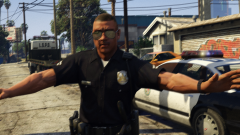 muh elegyLooks the same to me. Uninterested.That's my skin, and I made it for the Forza model.
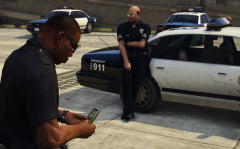 Giant Motorola brick phone when?
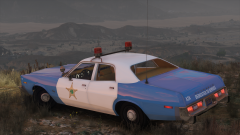 I'm more into the all reds at the moment, especially on the Fury, although all blue is definitely nice too. I've got some 90s cars with the all blue setup that look great.
From the album: GTA V Illusions


.png.72ab5e50baf9b1d8752c9c3d1e8016db.png)
