




Illusionyary
Members
-
Joined
-
Last visited
Everything posted by Illusionyary
-
.png.96360cea14933ed37ab648dbc8ac24bd.png) Nice, I like how it's proper "San Andreas State Police" too and not "Andreas State Police". Looks so much better.
Nice, I like how it's proper "San Andreas State Police" too and not "Andreas State Police". Looks so much better. -
 I don't see why it would have, it was a fantastic feature. It's more likely that Albo accidentally broke it when adding the new features.
- 24 comments
- 2 reviews
-
-

- 1
-
-
Aha! Found some fantastic colour images of NSWPOL vehicles thanks to the New South Wales Historic Patrol Vehicles Facebook page. You wouldn't believe how hard it is to find them in anything but black and white.
-
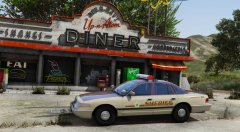
From the album: GTA V Illusions
-
Hmm, weird. I'm using an older version of the mod as I haven't updated it and mine works just fine.
- 24 comments
- 2 reviews
-
-
- 1
-
-
0.40 is way too high. You don't really want to go higher than 0.20, and it should be <Siren1 SirenType="Primary" Volume="0.20">SIREN_NAME</Siren1>.
- 24 comments
- 2 reviews
-
-
- 1
-
-
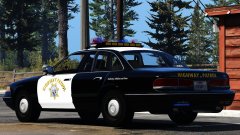 That's because there isn't one. The CHP used 1997 models too anyway.
 -
You could just use a trainer or this to clean your car manually.
-
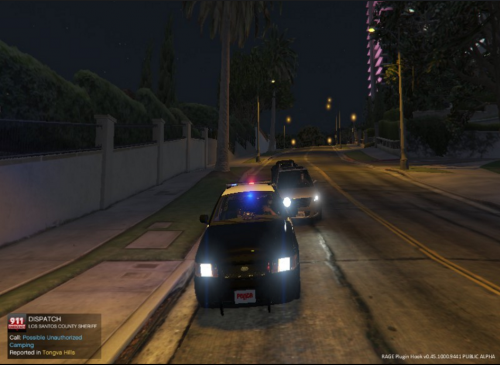 Oh boy where do I start? Your fonts are all over the place. Why you've used two different fonts for each side of the car I don't know. And why does it say "POLICE" "LOS SANTOS POLICE" on it? Police Police? What... anyway, the red and blue stripes aren't even the same shape from side to side, and you're missing white paint in areas. Overall... it's a bad livery, sorry. I can't see anyone using this, especially not me. What I suggest to you, as with anyone who's starting up with skinning, is to look at real police liveries and base yours off of them. I can assure you that not a single one uses a "fancy" typeface for the "Police" decals like you have done. I'd also advise taking better screenshots so people don't have to download your file to see what it is. For anyone who doesn't want to download, here's what it looks like:
- 2 comments
- 1 review
-
-
- 3
-
-
-
 Long gone are the days of fiddling around with frequency and amplying sirens until the file gets distorted and makes your ears bleed just so it's loud in-game, now all you do is throw your wav files into a folder and alter the volume via a decimal number in the ini file. Genius. Absolute 5/5, amazing work. Thank you for taking the hassle out and making siren creation this easy.
- 851 comments
- 108 reviews
-
-
- 3
-
-
-
 With Siren Mastery I suppose it doesn't matter as long as it loops properly. But generally speaking it should be under one second. Getting a bullhorn to loop properly can be an absolute nightmare, so good luck. I believe that's the deeper tone that OfficerFive0 posted above. I had a quick go at making it loop properly but to no avail.
- 13 comments
- 3 reviews
-
-
- 1
-
-
I know that, but what I'm saying is that the manual yelp won't loop properly. You'll just have the same sequence of sounds looping over and over, which I'm not a fan of. The deeper tone could probably be turned into a bullhorn though. You're welcome to add it.
- 13 comments
- 3 reviews
-
-
- 1
-
-
Generally when making bullhorns you want to get the shortest sample length possible to recreate the BAAAAARRHHMMM sound and have it loop properly. I have no idea if that'll work with a manual yelp.
- 13 comments
- 3 reviews
-
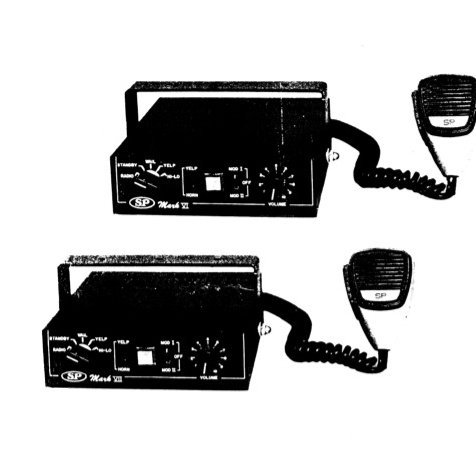
Scientific Prototypes Mark 10 siren used exclusively by the NYPD in the 1970s, 1980s and early 1990s. Includes three tones (Wail, Yelp, Hi Lo) for use with Albo's Siren Mastery plugin. Unfortunately I couldn't find a clip of the bullhorn, so it just uses the default Rockstar one. You're welcome to change it. See changelog. To install, simply drag and drop the contents of the RAR into your \Rockstar Games\Grand Theft Auto V\Plugins\SirenMastery folder. By default, this modification only replaces the sirens of the "POLICE" model. To add more models, open the VehicleSirenSetup.ini file and add a new line below <VehicleModel>POLICE</VehicleModel> with the model you want to add. For example: <VehicleModel>POLICE</VehicleModel> <VehicleModel>POLICE2</VehicleModel> etc. Also included is silent SirenSwitch/SirenToggle files, so no more annoying bleeps. If you're into annoying bleeps, don't install the the SirenSwitch/SirenToggle.wav files included in this file. Tone too loud or quiet? Increase/decrease the decimal value of the tone where it says "Volume=x.x". Thanks for downloading, please leave any feedback below.
- 13 comments
- 3 reviews
-
-
- 3
-
-
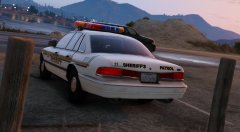 Yeah the car needs more polys, but the livery is pretty much dead accurate. It's nearly impossible to find LASD Diplomats, but those are the only decals they had on them.
 -
Heh I pretty much am, especially now that I'm doing the LASD liveries too. See below. :D
-
From the album: GTA V Illusions
-
I found some more Australian cars... mostly hideous 80s ones though. A bunch of hideous Holden Commodores from the late 1980s on scene of an MVA. Another hideous Holden Commodore belonging to the SAPOL from the 1990s. 1980's Mitsubishi Cordia Turbo used by the NSWPOL. Ford Falcons of the VICPOL, 1970's. Interesting that the siren is on the hood. Bank robber lays dead after a shootout with detectives, 1980s. Another hideous Holden Commodore, 80s.
-
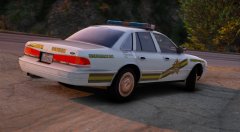 They've since been scaled down. I have an older version of the model.
 -
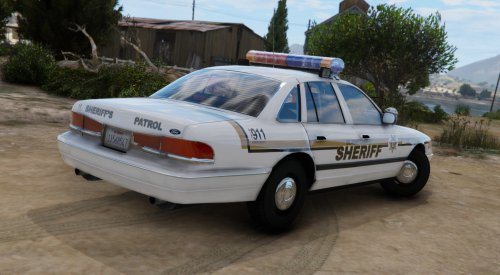 The overall modification I'm using is Next-Gen Shader, although I think I may have installed Vegetation Overhaul alongside it. Probably if I can find a design I like. Thank you!
- 8 comments
- 4 reviews
-
-
- 1
-
-
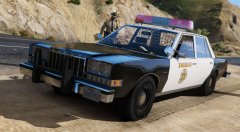 Yeah this was Solo's first scratch make. The front looks great but the rear and sides... not so much. It doesn't help that my ENB emphasizes the problems either.
 -
No you've got to put it inside the ELS folder and then setup the _SLOTCONTROL.ini file accordingly. So say for example the ELS configuration file is called "2011_CVPI.ini", you need to open the _SLOTCONTROL.ini file, find the car model you replaced and change the "File = default_config" line to "File = 2011_CVPI". You may also need to turn the status on or off, depending on which slot you used.
-
Lol yeah, it's great for screenshots but it absolutely nukes my frame-rate, I only get around 24FPS while running this graphic modification as opposed to about 50-60FPS with VisualV. Thanks by the way.
- 8 comments
- 4 reviews

.png.96360cea14933ed37ab648dbc8ac24bd.png)

