



PimDSLR
Members
-
Joined
-
Last visited
Everything posted by PimDSLR
-
HAha
-
BxBugs hasn't done it for V. I think this is the first model with different wheels. BxBugs and I are going to set it right.
-
Amazig man!!!
-
Yeah, I zmod and OpenIV are the wheels correct. But in-game not. Stupid ne doesn't know how to fix it
-
Example off. Heavy rescue vehicels are use this things.
-
Yes I to. Site merged that topics ;)
-
Small chance that BritishPoliceMods is cooperating
-
Yes Be prepared!
-
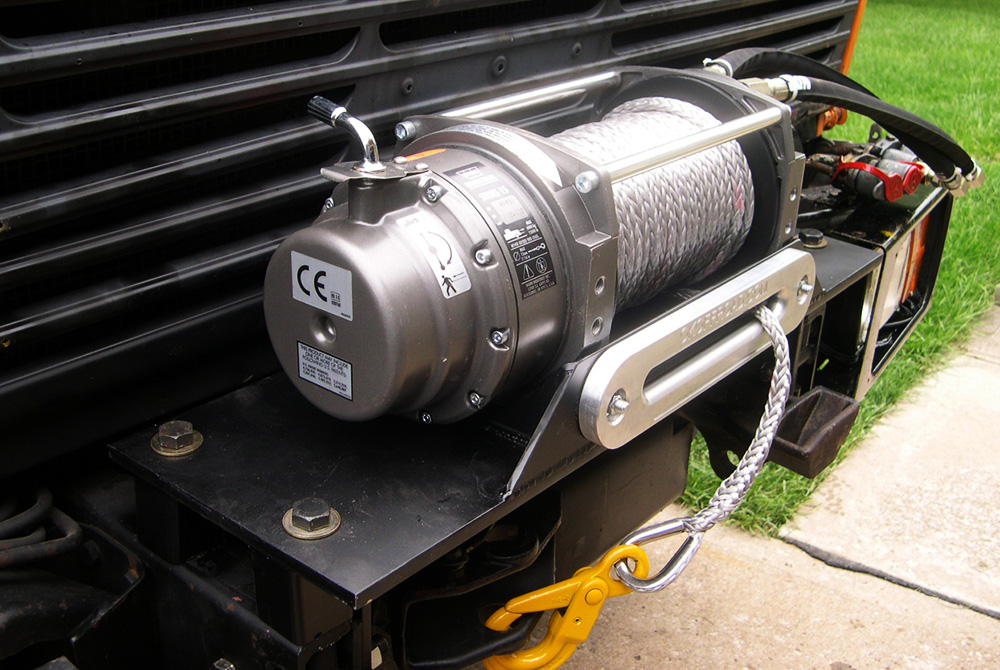
I'm looking for a car winch.
-
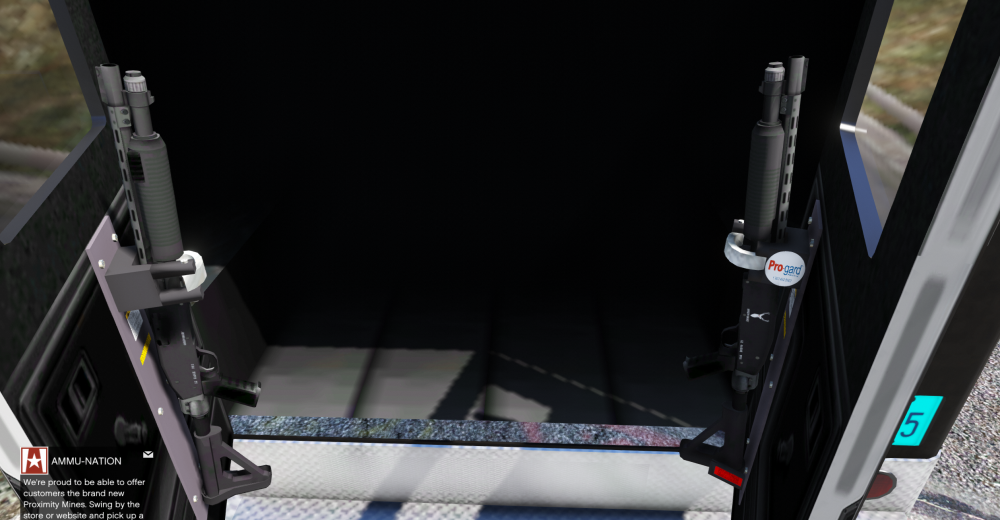
Found that to.I added a police, camera, laptop and a shotgun with stand in the front. Looks sweet. I will mabye release it today.
-
 Thanks! See the WIP forum selection
 -
Way better. Do want a traffic advisor (RED-ORANGE-BLUE) or the Code 3 on the pic?
-
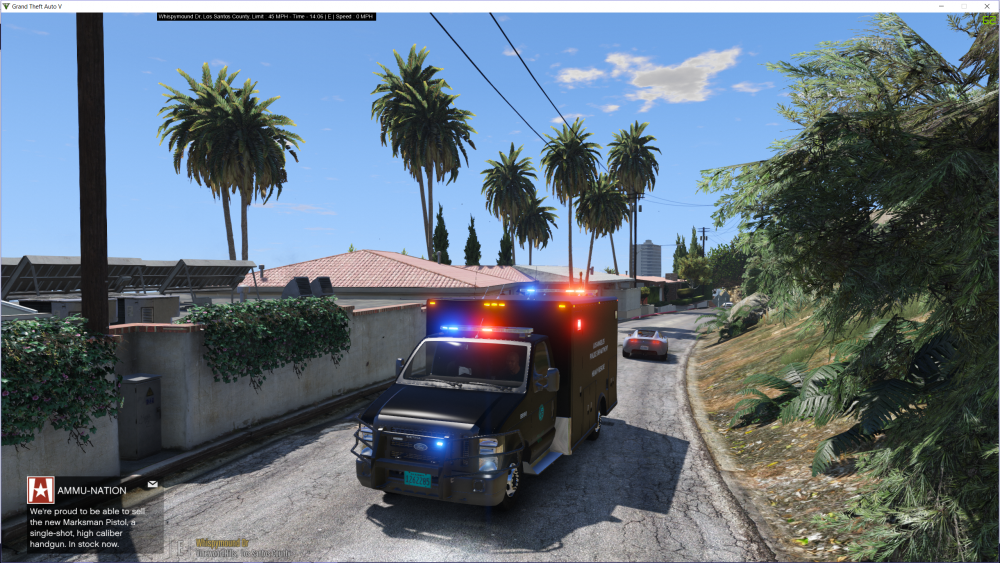
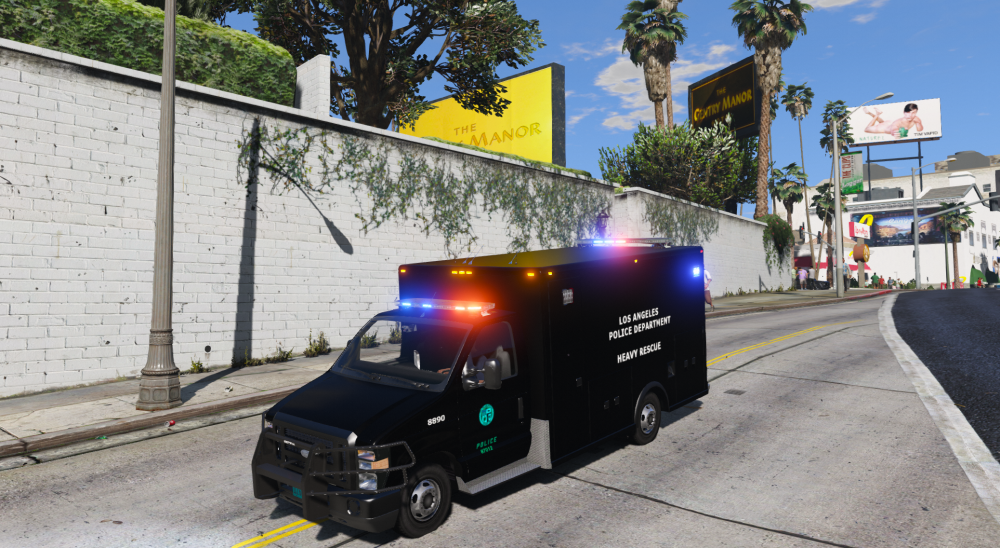
Black looks better, looks beast if you ask me :)
-
Haha yes. They also want to protect the motercap realy good ;) Anny tips for the E350?
-
Yes haha, those flaps ;)
-
What the hell is that ;)
-
Yeah, was inspired by that. Don't known if I will use the code 3 on the back or a traffic advisor.
-
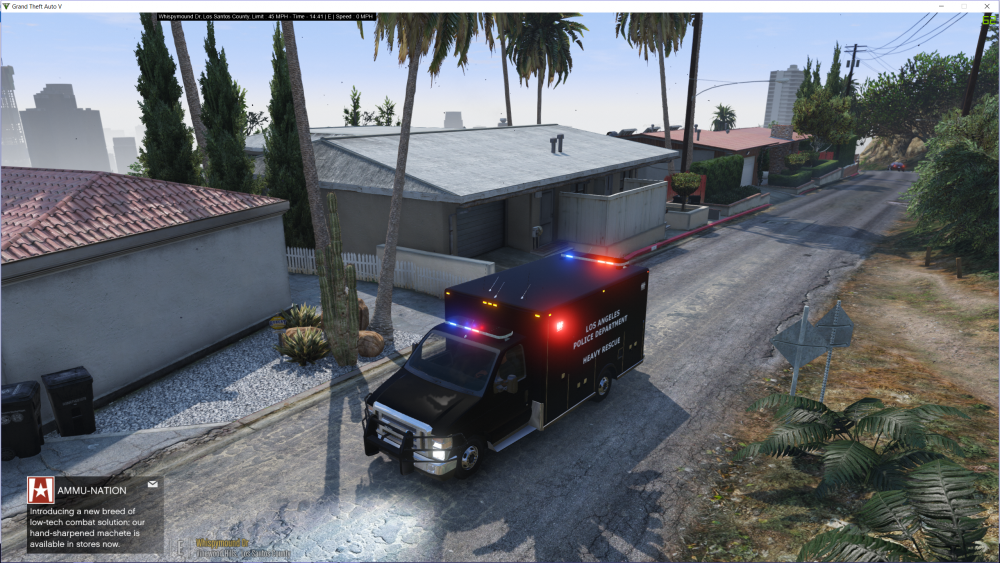
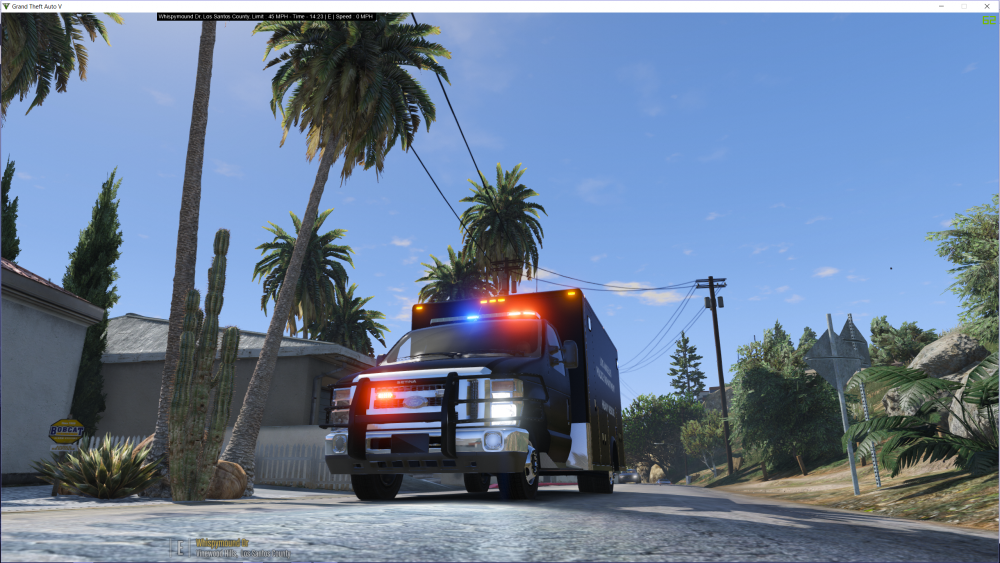
(WIP) Ford E450 Heavy rescue (SWAT) Was playing with it and thought that I would be cool.
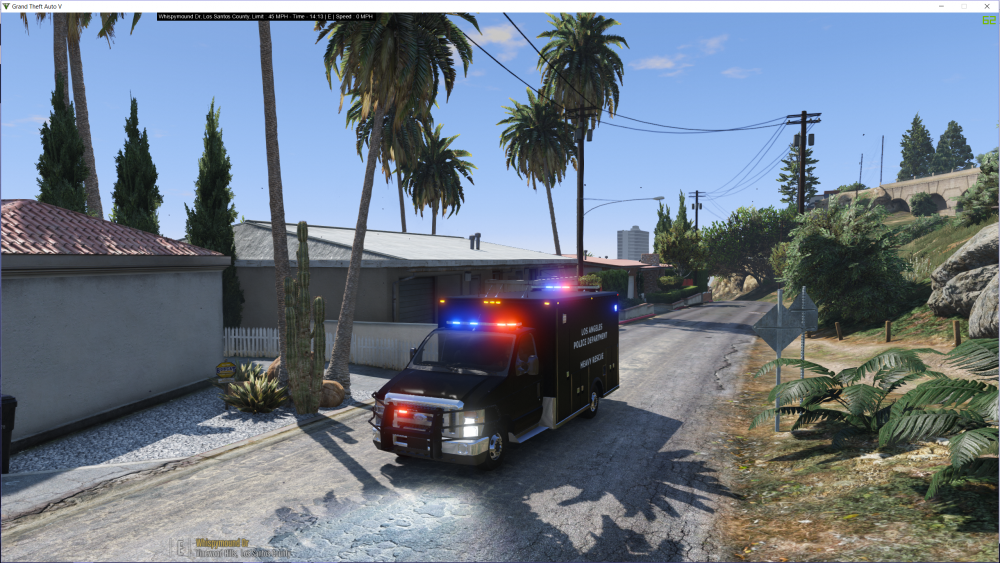
-
-
From the album: (WIP) Ford E450 heavy rescue
-
(WIP) Ford E450 heavy rescue
-
From the album: (WIP) Ford E450 heavy rescue
-
From the album: (WIP) Ford E450 heavy rescue
(WIP) Ford E450 heavy rescue -
From the album: (WIP) Ford E450 heavy rescue
(WIP) Ford E450 heavy rescue. -
yes, was already on ;)





