



TheRealNoodle
Members
-
Joined
-
Last visited
Everything posted by TheRealNoodle
-
I can make that if you don't have anyone yet
-
 awesome :D
 -
-
 will this be released?
 -
nope sorry :(
-
lol yea.... and don't visit anyone who has a pc :D
-
hahaha all your electronica hates you today :DDDDD
-
-
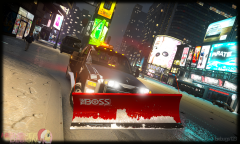
![GTA 4 Biff Snow Plow [ELS V.8] W/ Movable Plow!](//s3-gallery.int-cdn.lcpdfrusercontent.com/gallery/album_2822/sml_gallery_98150_2822_709184.jpg) cool :D
cool :D -
 niceeeeee :D
 -
I love the heli one :D
-
good luck :D
-
-
ok thx :)
-
hi guys, im working on a new car and I putted some thing in it like a coffee cup, a gun etc. now the problem is that the parts don't show up ingame, they show up in zmodeler and openIV but not ingame... all the equipment I used is from the default game so that may be the problem but I don't know how to fix it. here's a picture of how it looks in zmodeler
-
just toggle express mode on in els, I think that its backspace or alt+backspace, that does the same as non els
-
-
love it :D
-
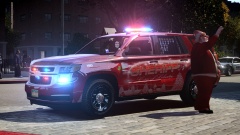 hahaha nice :D
 -
-
:3
-
ok im throwing up...
-
wait wait.. the plow is movable????
-
:3
-
hi guys I made some classic cars :D, they come in 3 versions: dashlight only, dashlight and grille lights, beacon on top and grille lights. in the future I may add a spotlight and some lights in the back. im sorry that this isn't drot but I don't know how to make a drot light :( credits: 1985 chevrolet caprice by Carface (bigfoot2003) templated by kinksta100 Police Radios by PFCBarefoot The Bodyguard Partition & Shot gun by Bxbugs123 Edited by Kinksta100 detective light:Model made by Toothpick22 Textures Made By Toothpick22 grille lights: Model made by Toothpick22 Textures Made By Toothpick22
- 13 comments
- 2 reviews


![GTA 4 Biff Snow Plow [ELS V.8] W/ Movable Plow!](http://s3-gallery.int-cdn.lcpdfrusercontent.com/gallery/album_2822/sml_gallery_98150_2822_709184.jpg)
