


PhillBellic
Members
-
Joined
-
Last visited
Everything posted by PhillBellic
-
Let the Games Modding begin.
-
I certainly do hope that we can properly implement Counties and Jurisdictions into V.
-
![[4k] Officer Patrick Jr. Ready for Duty!](//s3-gallery.int-cdn.lcpdfrusercontent.com/monthly_2015_05/small.2015-05-07_00001.jpg.623cac648462fc226910a1dadc485575.jpg) San Andreas State Prisons Authority? Would that be it?
San Andreas State Prisons Authority? Would that be it? -
It looks very sharp.
-
The cake is a lie.
-
Yard, would you like to upload your modified 'dispatch.meta' file, so I can compare it to the default one?
-
This is an awesome development, Yard.
-
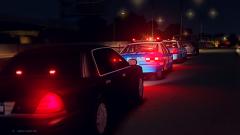 So, the LCPD is just starting to obtain CVPI's? Great photo.
 -
What does it say on the Prison Officer's patch?
-
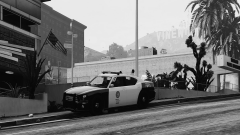 I like this picture as well.
 -
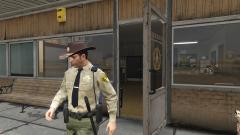 That is an awesome action shot.
 -
-
That is definitely something I have never seen before.
-
It's about time they addressed this.
-
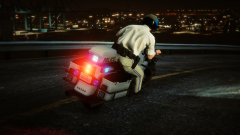 I really like the lighting on the bike. It's a pity that despite its use by the 'SAHP' it has LSPD decals on it.
 -
I certainly hope that mother is charged with wasting police resources.
-
Agreed. Currently, I don't see the need for the 'extras' anymore.
-
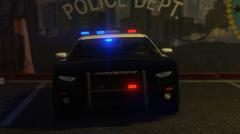 Also, thank God they removed that stupid POLICE text on the sides as well. Sadly they didn't carry it through to the Interceptor.
 -
It was stated a few days ago that the homepage would return, when will that be likely?
-
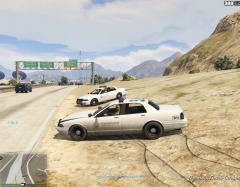 Hmm, get your car repaired. Those Cruisers would look much better as a Black and White.
 -
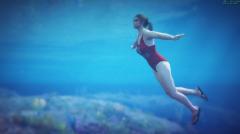 Very nice replication of Pamela Anderson in Baywatch. :)
 -
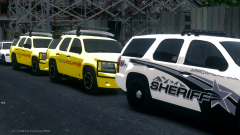 I like the livery on the Sheriff vehicle. :)
 -
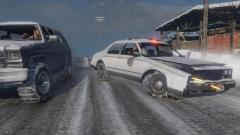 Some serious damage there. Anyway, when we are able to properly edit files, I am so replacing that Esperanto with a CVPI.
 -
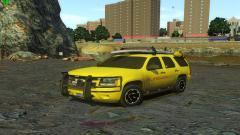 If it has been made for ELS V8/8.5, the surfboard stuff could be set as 'extra 10'. Two versions in one.
 -
I'm sure Alexander Blade is working on it.

![[4k] Officer Patrick Jr. Ready for Duty!](http://s3-gallery.int-cdn.lcpdfrusercontent.com/monthly_2015_05/small.2015-05-07_00001.jpg.623cac648462fc226910a1dadc485575.jpg)

