


Legendk456
Members
-
Joined
-
Last visited
Everything posted by Legendk456
-
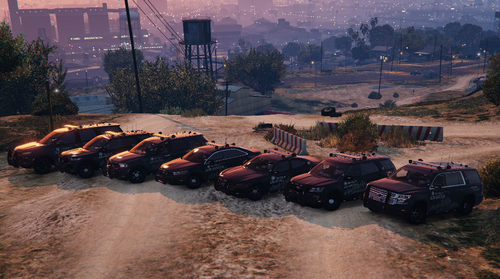 This is great! Question: are the 2015 Tahoes supposed to not have glass around the rear window lightbar?
- 240 comments
- 15 reviews
-
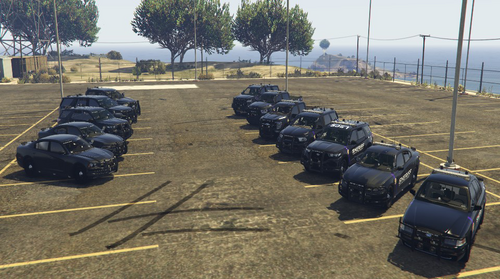 Great pack! I would LOVE to see a 2016 FPIU to go along with the newer one 🙂
- 477 comments
- 18 reviews
-
 Just a little confused, but could someone explain the difference between the police scanner and background scanner?
- 637 comments
- 51 reviews
-
 Thank you for keeping this updated and continually adding to it. It's a fantastic callouts pack, and having something that isn't constantly pursuits is always a plus.
- 160 comments
- 20 reviews
-
-

- 1
-
-
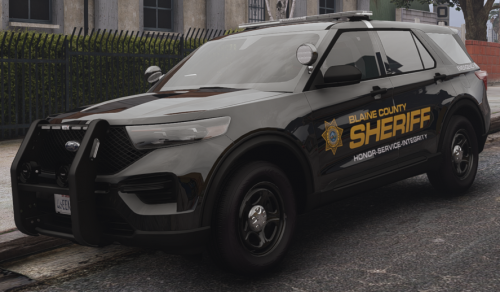 Kinda unfortunate because otherwise it's a pretty good pack, but having the lights shine on the opposite side is really immersion breaking.
- 199 comments
- 16 reviews
-
There seems to be an issue with the ELS lighting and model. When the lights light up on one side, they cast to the opposite side. For instance, if the blue lights are lit up on the lightbar, they cast to the left and not to right, which is the side it's on. I believe the extras need to be switched around in zmodeler from driver side to passenger side and vice versa. I can provide more details if need be.
- 199 comments
- 16 reviews
-
-

- 2
-
-
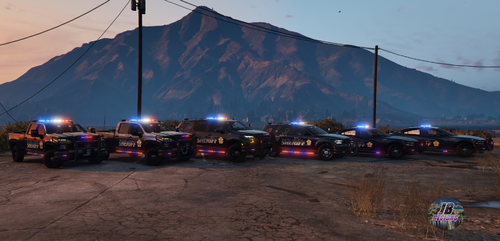 Hey, so I think there might be a slight issue in regards to the model and it's ELS functionality. I believe the lights are mapped wrong in zmodeler. The blue lights when the lightbar is lit up on the right side will shine on the opposite side the car, and vice versa. I believe extra_1 is mapped to the passenger side and extra_4 is mapped to the drivers side, but should be reversed. Or the other way around - I'd have to go back in game and check. I can provide additional details if need be!
- 264 comments
- 15 reviews
-
-
- 1
-

