
Chippy
Members
-
Joined
-
Last visited
Everything posted by Chippy
-
Piloting aircraft in various games.
-
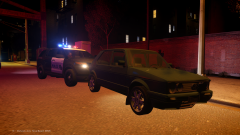
From the album: Chippy's random pictures
It took me a good 20 minutes to catch this little VW. Quick little thing. -
 In love
 -
You can replace the .WFT with any vehicle. I recommend the FXT. You can add the textures in the .WTD my simply opening the .WTD and importing the textures.
- 10 comments
- 1 review
-
You could check his previous Explorer upload.
-
I suggest using the FXT handiling line. This model is provided to you unlocked. Please credit properly and don't credit yourself for minor changes. So for example you move a vertice doesn't mean you "heavily modified" this vehicle. It fades away the original author(s) and makes it look like all work has been done by you. Enjoy, Chippy
- 10 comments
- 1 review
-
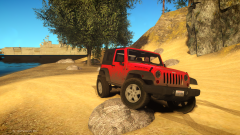
From the album: Chippy's WIPs
Full album here -
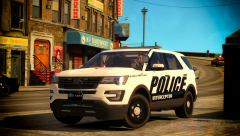 Jesus...
 -
-
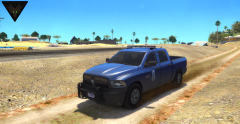
From the album: Chippy's WIPs
-
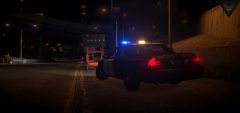
From the album: Chippy's WIPs
-
Absolutely, someone has already started. http://www.gta4-mods.com/weapons/battlefield-hardline-38-snub-nose-f31461
-
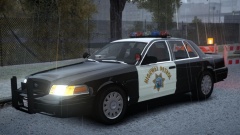 It's a shame you don't see much with the Vision anymore.
 -
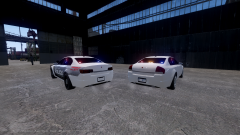 Nicely done
 -
I never watched RWBY or RVB but it's still super sad. :(
-
 Yes
Yes -
Could be
-
From the album: Chippy's WIPs
-
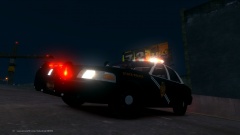 Why don't you help him out and say what he could do to improve it?
 -
 Best picture on the site.
 -
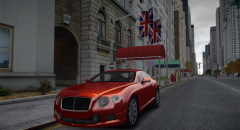
From the album: Chippy's WIPs
Got bored and converted this. -
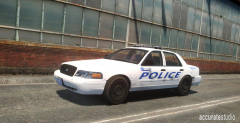 I bet it still runs like a beast.
 -
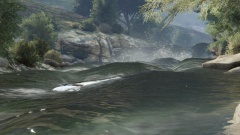 It's just looking for gold.
 -
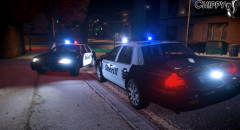 That's the way it light's up. '>
 -
From the album: Chippy's WIPs