

Chippy
Members
-
Joined
-
Last visited
Everything posted by Chippy
-
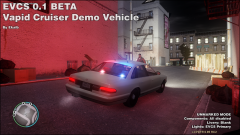 Awesome!
 -
-
Name: 2008 Chevrolet Suburban F.B.I. Lighting Equipment: HG2 Lighting Equipment, Whelen Vertex Other Equipment: None Credits: - Model is original "Chevrolet Tahoe" by 4x4 Full Driver - Hummer H2, modified for and converted to GTAIV by Stiopa. - Converted in to a 2008 Chevrolet Suburban By Bxbugs123, modified by LtCaine - Model improvements & Modifions By Bxbugs123 - HG2 Lighting equipment by EVI - Code 3 Xt6 by BxBugs123 - Whelen Vertex by corleone - Any remaining credit goes to the respective owners. Special thanks to NickieB for his Zmoderler tutorial. A handling line can be found here:
- 8 comments
- 7 reviews
-
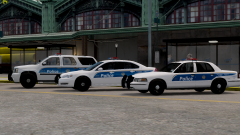 Download here;
 -
The format has to be .mp3 I believe. Only the ones I highlighted work in-game. EDIT: Except First Date
-
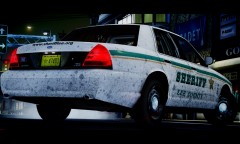 That looks amazing...
 -
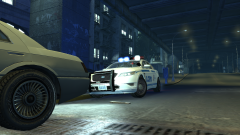
From the album: Chippy's WIPs
-
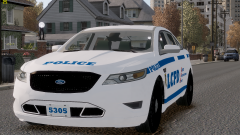 Looking nice!
 -
I would love even a regular one, but I'm pretty sure that gfxle's Sierra is the only one for IV
-
Looks like an Ultra Edge
-
gfxle's Sierra
-
-
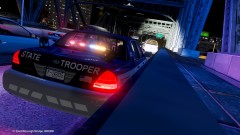 Nice!
Nice! -
-
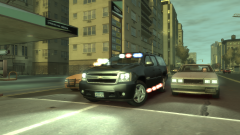
From the album: Chippy's WIPs
-
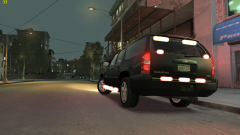
From the album: Chippy's WIPs
-
Hopefully this will be mine soon...
-
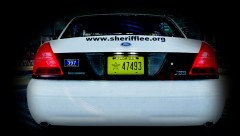 Cant wait!
 -
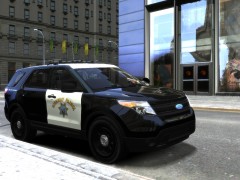 http://www.gta-modding-chest.com/database/144-2013-ford-explorer-msp/index.html
 -
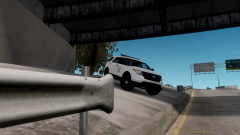
From the album: CHP On Patrol
UndercoverChicken's Utility Interceptor -
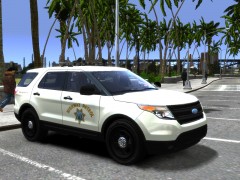 It looks sooo much better in white IMO
 -
 I agree with 7. Can't wait.
 -
Most of the time A-7 or X-3
-
-