



Chippy
Members
-
Joined
-
Last visited
Everything posted by Chippy
-
![[WIP] 2010 Chevy Suburban Chicago Police](//s3-gallery.int-cdn.lcpdfrusercontent.com/gallery/album_1355/sml_gallery_5927_1355_427372.png) Good idea!
Good idea! -
-
I've been using mine a lot lately
-
Most modders convert models from other games, I believe they use Zmodeler, but I'm not entirely sure.
-
-
From the album: Chippy's WIPs
-
![[WIP] 2010 Chevy Suburban Chicago Police](//s3-gallery.int-cdn.lcpdfrusercontent.com/gallery/album_1355/sml_gallery_5927_1355_575505.png)
From the album: Chippy's WIPs
-
![[WIP] 2010 Chevy Suburban Chicago Police](//s3-gallery.int-cdn.lcpdfrusercontent.com/gallery/album_1355/sml_gallery_5927_1355_646660.png)
From the album: Chippy's WIPs
-
![[WIP] 2010 Chevy Suburban Chicago Police](//s3-gallery.int-cdn.lcpdfrusercontent.com/gallery/album_1355/sml_gallery_5927_1355_682888.png)
From the album: Chippy's WIPs
-
![[WIP] 2010 Chevy Suburban Chicago Police](//s3-gallery.int-cdn.lcpdfrusercontent.com/gallery/album_1355/sml_gallery_5927_1355_940961.png)
From the album: Chippy's WIPs
-
![Chicago Police Suburban [WIP]](//s3-gallery.int-cdn.lcpdfrusercontent.com/gallery/album_1355/sml_gallery_5927_1355_1724883.png) Its not my skin, i was going to make my own when I release it, thanks for the tip though
Its not my skin, i was going to make my own when I release it, thanks for the tip though -
![Chicago Police Suburban [WIP]](//s3-gallery.int-cdn.lcpdfrusercontent.com/gallery/album_1355/sml_gallery_5927_1355_816590.png)
From the album: Chippy's WIPs
Added Corleone's Whelen Vertexs in the headlights -
![Chicago Police Suburban [WIP]](//s3-gallery.int-cdn.lcpdfrusercontent.com/gallery/album_1355/sml_gallery_5927_1355_2998914.png)
From the album: Chippy's WIPs
-
From the album: Chippy's WIPs
-
-
-
-
-
Blink 182 or Angels & Airwaves are my favorite!
-
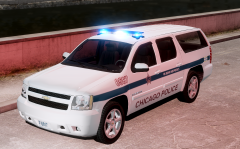
From the album: Chippy's WIPs
WIP -
-
-
Name: 2010 Ford Taurus Sheriff Lighting Equipment: 911EP Galaxy, arrow stick Other Equipment: ALPR system, Unity Spotlight, GARMIN nuvi GPS unit, Sentia The Bodyguard Partition, Rockwell Collins Laptop, Whelen SA314 Series, Go Rino Pushbar Credits: - 2010 Ford Taurus SHO converted from Driver SF by f5544. - Original 911EP galaxy by Boatinman, converted to GTA IV by WarDoG and other few edits by WarDoG. - Arrow stick made by Lt.Caine. - Automatic License Plate Recognition system unit designed from scratch by Dhruv. - Unity Spotlight, GARMIN nuvi GPS Unit, Setina The Bodyguard Partition, Rockwell Collins Laptop (Textures by Bxbugs123 & DoTTGaMMa), Whelen SA314 Series, and Go Rhino Pushbar by Bxbugs123 - Skin by Chippy - Any remaining credit goes to the respective owners. Special thanks to NickieB for his Zmoderler tutorial.
- 17 comments
- 9 reviews
-
Isnt that one non-els?
-
I've been looking for an unlocked ELS arjent for awhile, I've been wanting to make my hometown's cruiser, but cant find the light bar, anyone know where I can get one? Thanks, Chippy
![[WIP] 2010 Chevy Suburban Chicago Police](http://s3-gallery.int-cdn.lcpdfrusercontent.com/gallery/album_1355/sml_gallery_5927_1355_427372.png)
![[WIP] 2010 Chevy Suburban Chicago Police](http://s3-gallery.int-cdn.lcpdfrusercontent.com/gallery/album_1355/sml_gallery_5927_1355_575505.png)
![[WIP] 2010 Chevy Suburban Chicago Police](http://s3-gallery.int-cdn.lcpdfrusercontent.com/gallery/album_1355/sml_gallery_5927_1355_646660.png)
![[WIP] 2010 Chevy Suburban Chicago Police](http://s3-gallery.int-cdn.lcpdfrusercontent.com/gallery/album_1355/sml_gallery_5927_1355_682888.png)
![[WIP] 2010 Chevy Suburban Chicago Police](http://s3-gallery.int-cdn.lcpdfrusercontent.com/gallery/album_1355/sml_gallery_5927_1355_940961.png)
![Chicago Police Suburban [WIP]](http://s3-gallery.int-cdn.lcpdfrusercontent.com/gallery/album_1355/sml_gallery_5927_1355_1724883.png)
![Chicago Police Suburban [WIP]](http://s3-gallery.int-cdn.lcpdfrusercontent.com/gallery/album_1355/sml_gallery_5927_1355_816590.png)
![Chicago Police Suburban [WIP]](http://s3-gallery.int-cdn.lcpdfrusercontent.com/gallery/album_1355/sml_gallery_5927_1355_2998914.png)
