




Chippy
Members
-
Joined
-
Last visited
Everything posted by Chippy
-
Thank you!
-
All I need todo is fix the floating traffic advisor and theyre done!
-
Yeah I might be able to...
-
I have something in mind...
-
-
Thats what I was going to do. I'll PM you
-
A bit more editing and they're yours!
-
Haha I'm glad you like it!
-
Like this one right?When I get home i'll show what I have done so far.Yes of courseUpdate:
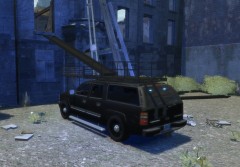 Looking good!
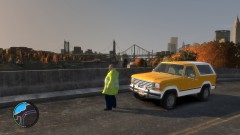 That bronco is awesome!Can you link the model?Name: 2008 Chevrolet Suburban Chicago Police. Lighting Equipment: Federal Signal Legend, SoundOff LED, HG2 Equipment. Other Equipment: Whelen LED Spotlight, Sentia The Bodyguard Partition, Rockwell Collins Laptop, Go Rino Pushbar. Credits: - Model is original "Chevrolet Tahoe" by 4x4 Full Driver - Hummer H2, modified for and converted to GTAIV by Stiopa. - Converted in to a 2008 Chevrolet Suburban By Bxbugs123, modified by LtCaine - Model improvements & Modifions By Bxbugs123 - Hg2 Lighting Equipment, Whelen LED spotlight, FS Legend created by EVI. - Setina The Bodyguard Partition, Rockwell Collins Laptop (Textures by Bxbugs123 & DoTTGaMMa), and Go Rhino Pushbar by Bxbugs123. - SoundOff Signal LED3 by corleone. - Skin by Chippy - Any remaining credit goes to the respective owners. Special thanks to NickieB for his Zmoderler tutorial.
- 15 comments
- 10 reviews
The Caprice was made a civilian version (not made in the US)I could try making this for you!Sorry I'm just now seeing this, but thank you very much corleone, I appreciate it! +1!![2008 Dodge Charger [WIP]](//s3-gallery.int-cdn.lcpdfrusercontent.com/gallery/album_1355/sml_gallery_5927_1355_789595.png)
From the album: Chippy's WIPs
I want to add a bit more lights...


![2008 Dodge Charger [WIP]](http://s3-gallery.int-cdn.lcpdfrusercontent.com/gallery/album_1355/sml_gallery_5927_1355_789595.png)
Account
Navigation
Search
Configure browser push notifications
Chrome (Android)
- Tap the lock icon next to the address bar.
- Tap Permissions → Notifications.
- Adjust your preference.
Chrome (Desktop)
- Click the padlock icon in the address bar.
- Select Site settings.
- Find Notifications and adjust your preference.
Safari (iOS 16.4+)
- Ensure the site is installed via Add to Home Screen.
- Open Settings App → Notifications.
- Find your app name and adjust your preference.
Safari (macOS)
- Go to Safari → Preferences.
- Click the Websites tab.
- Select Notifications in the sidebar.
- Find this website and adjust your preference.
Edge (Android)
- Tap the lock icon next to the address bar.
- Tap Permissions.
- Find Notifications and adjust your preference.
Edge (Desktop)
- Click the padlock icon in the address bar.
- Click Permissions for this site.
- Find Notifications and adjust your preference.
Firefox (Android)
- Go to Settings → Site permissions.
- Tap Notifications.
- Find this site in the list and adjust your preference.
Firefox (Desktop)
- Open Firefox Settings.
- Search for Notifications.
- Find this site in the list and adjust your preference.