
Mr.Quiggles
Members
-
Joined
-
Last visited
Everything posted by Mr.Quiggles
-
-
-
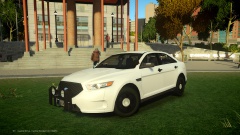 No rages, just I'm honestly completely bewildered on why stuff like this exists.
 -
Why do people even care about that stuff in the first place? If it were me and I made these models, I wouldn't be a bully over who can and can't release my model. I'd see it going to the better good, so I'd say do what you want with it. And I'd smile inside when I saw one in a video. I guess others think differently, and I'll have to come to terms and respect that. <Opinion> I really feel like that stuff has tore this community apart, so much complaining and whining over something to me, is not a big deal on any level whatsoever. </Opinion>
-
My problem is I don't see any logical reason on why NOT to release it. Are you guys too lazy to type out details?
-
I don't get it, you make a nice car, put a lot of work into it, showcase it so everybody sees it, and then keep it for yourself. I don't know why many people do that. I don't know if you guys are selfish, or what. No idea whatsoever.
-
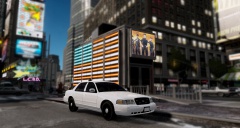 This going to be released? If not, send it to me! I'd love to use it and test it out!
 -
-
-
-
Does the RCMP use spotlights? I wish these models had them. Excellent models 5/5 though! :)
- 18 comments
- 17 reviews
-
-
I thought the NJSP for the longest time was red lights only? I've been through their state a few times, but I've forgot the colors.
- 18 comments
- 13 reviews
-
-
I don't think people understand how police cars are in real life, versus video games. :D
- 21 comments
- 29 reviews
-
-

- 3
-
-
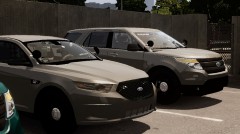 Is there a particular reason why clans make custom cars, and then don't release them to public? I honestly could never find any rational solution to why clans did that. Nice cars though!
 -
-
-
-
-
 This gon be release o wat
 -
-
There is, but I'm not sure what texture it is. Basically you have to find a picture where it's all black, and fill it with transparency. It may take some trial and error, so make backups!
-
-
Very nice, I'm using a custom version of it for my Mass State Trooper. Thanks :)
- 9 comments
- 11 reviews