Michael21107
Insiders
-
Joined
-
Last visited
Everything posted by Michael21107
-
-
-
-
.thumb.png.16c456d0a9d8c4d1168b290ccf85625d.png) did u create the logo?
did u create the logo? -
 incredible thing for realism, and thanks to dash and interior cams you have more ways to see your suspect
- 287 comments
- 27 reviews
-
-
.thumb.jpg.eb60d7ac22389b256d5f24c04810ee3b.jpg) useless
useless -
 do u plan on adding compatibility with Callout Interface?
- 201 comments
- 18 reviews
-
- rph
- lspdfr callout
- legacy
- rph
-
Tagged with:
-
-
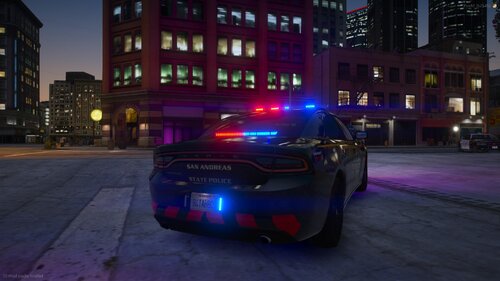 I dont know which are the actual vehicles, installing fivem files to lcdpfr can be pretty tedious, please put it as a DLC, would give these amazing looking cars more use.
 -
 please update the V2 release date
 -
-
-
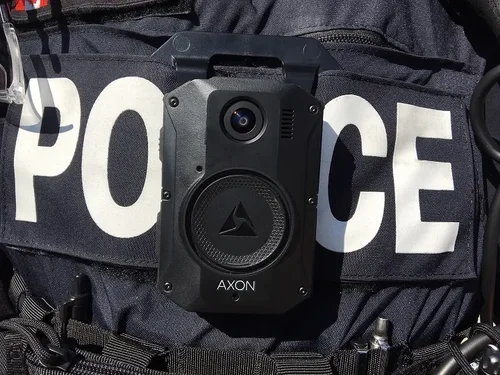 would be good to link Sergeant Nighthawks bodycam plugin
 -
-
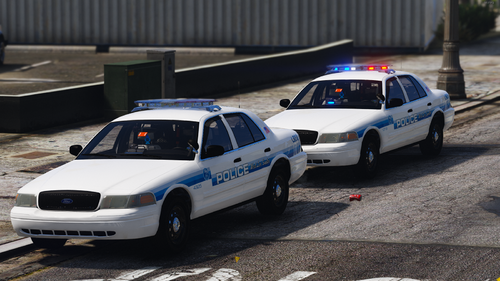 the port authority SUVs have wrong hand placement on the wheel
 -
-
hey Jed or whoever is reading this, I'm looking for good DLC cars for other (meaning not sahp, lssd, bcso, lspd, etc.) agencies that are in eup law and order, I have already found the port authority police but don't have time to look through it all so if you know about any please give me the location thanks
-
you got a typo here
-
the newest 22' pack should be called 2022 not 21 part d
-
there are 20 files under every vehicle folder, replace vehicles have 4 files max, so this tutorial is not really good
-
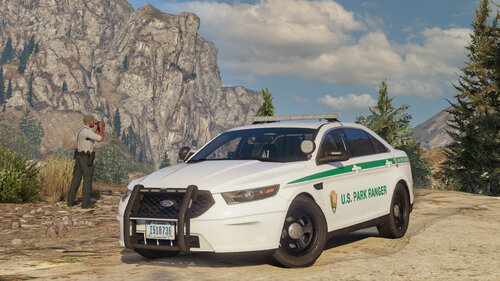 does this come with a siren? if not, which siren do you recommend to go with this?
- 48 comments
- 12 reviews
-
yea
-
-
dlc pls

.thumb.png.16c456d0a9d8c4d1168b290ccf85625d.png)

.thumb.jpg.eb60d7ac22389b256d5f24c04810ee3b.jpg)