Everything posted by Michael21107
-
-
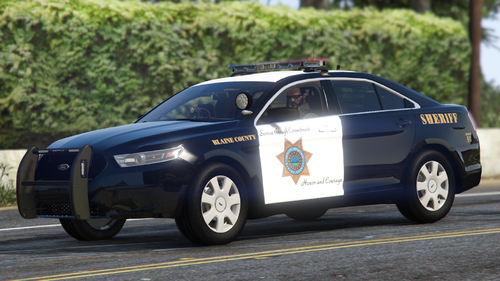 based on the size of this pack, people will certainly appreciate an addon included
 -
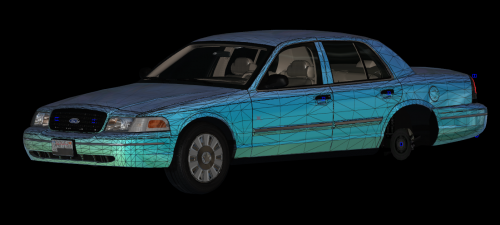 what is the problem?
 -
-
-
-
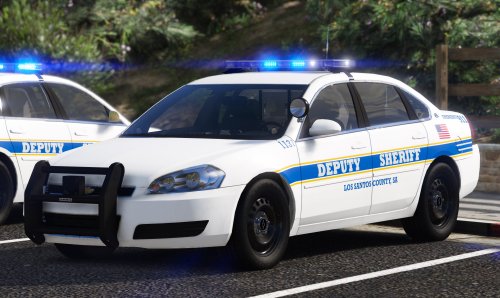 Reddit cannot be posted on nor requested to be posted on so saying to utilize resources mentioned in the lead (Reddit is the only one) is not ideal
- 13 comments
- 1 review
-
-
-
-
-
-
.thumb.png.a82baefc3938aa67f909ec687d421119.png) still a template would be good, some PDs (at least in europe) use this marked and it can also be used for stuff such as recruitment
still a template would be good, some PDs (at least in europe) use this marked and it can also be used for stuff such as recruitment -
rename the files that are in dlc.rpf
-
 I believe the bot uses the version of this site to check, its made by @Charlie686so he should know more
- 297 comments
- 17 reviews
-
-
Why do I sometimes spawn as Michael even if I haven’t unlocked him yet? Probably because I launch RPH too late, and the game loads before LSPDFR does.
-
-
-
would be nice to write after what is the plugining, getting on duty, ending a previous event, etc.
- 297 comments
- 17 reviews
-
-
-
-
 I gave him some different info and told him to ask Opus (instead of some support server) if he ''need'' more info
- 1,007 comments
- 63 reviews
-
-

- 1
-
-
as far as I know (ask Opus for more info if u need it) plugins (including super callouts apparently) are built on the API and need its files to work
- 1,007 comments
- 63 reviews
-
-
- 1
-




.thumb.png.a82baefc3938aa67f909ec687d421119.png)