



JM Modifications
Members
-
Joined
-
Last visited
-
Currently
Viewing File: [PolicingRedefined/CDF] - BetterBackup
Everything posted by JM Modifications
-
 Ok. No worries.
 -
 works like a charm but the issue im having is the traffic redirection is not working as intended (Cars going through the cones and not merging into another lane). Works good so far but the Traffic Redirection just need some improvements. Overall a must have mod.
- 248 comments
- 18 reviews
-
-

- 1
-
-
-
-
So just don't take the callout then?
-
-
 Pure bad ass. Great work. 5/5
 -
Astro with another bad ass plugin. Works great!
-
-
 Ignore what i've said about the damage system. It's just the default GTA V base.
- 446 comments
- 17 reviews
-
-
 If you want it to keep crashing on you, that's your decision. I am not responsible for your game/game files. It's HIGHLY Recommend to have Callout Interface 1.4.1 installed cause it relies on that version of that mod.
- 356 comments
- 25 reviews
-
That's what your Rage Log says. If it says corrupted memory means you're modding files while in game which causes the crash. There is no other explanation but that. Next time, join Venoxity's discord and create a ticket.
- 446 comments
- 17 reviews
-
-

- 1
-
-
Issue is that you were trying to modify the game files while in game. Make sure you install simplectrl before you launch the game. You can't modify game files while the game is running. That's your issue. Check my tutorial out for the proper way: https://www.youtube.com/watch?v=VPXCbu0_7bE&ab_channel=JonJonGamesOfficial
- 446 comments
- 17 reviews
-
-
-
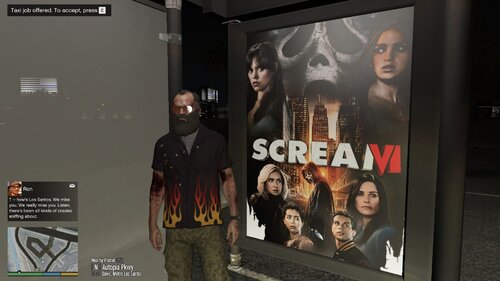 Info: This movie poster bus stop ads replaces the default GTA V bus stop ads. I will be adding more in the future. Any Suggestions are welcome. Make sure you back up the files first before installing this mod. REQUIREMENTS OpenIV Installation GTA V/mods/x64h.rpf/levels/gta5/props/roadside/v_utility.rpf/ Install & Showcase by @GeoffreyGamer: This file contains 3 folders (as of now) and goes into the same directory path in the installation path in the readme file! The images and logos used are property of their respective owners. No Copyright Infringement intended.
 -
-
Ok. Yeah, make sure to have that installed cause it relies on Callout Interface 1.4.1.
- 356 comments
- 25 reviews
-
-
-
.thumb.jpg.090734a51854d25c87128010b5898bde.jpg) sorry for the late response but I will do that as a separate mod. This will likely to be released in November. 🙂
sorry for the late response but I will do that as a separate mod. This will likely to be released in November. 🙂 -
-
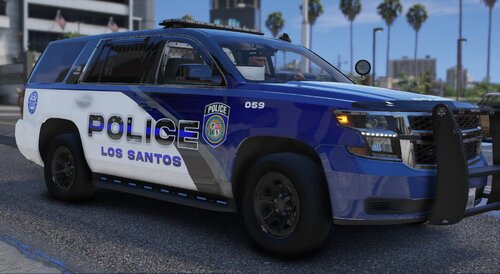 awesome pack.
 -




.thumb.jpg.090734a51854d25c87128010b5898bde.jpg)
.thumb.png.e3bf002b373d17b026eaf89a45a32aa8.png)