




Fartknockr
Members
-
Joined
-
Last visited
Everything posted by Fartknockr
-
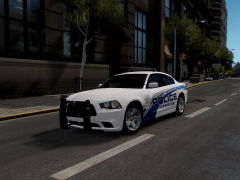 Also took some advice from a few people and the Rambar is not as big, and with the Valor, almost every light is dual colored. Only lights that arent, are in the back window. Lights on the rambar, grill, and Valor are dual colored.
 -
From the album: Fartknockr(FacePalm Studios)
Vehicle is finished and skins to be voted on within the community for the next vehicle and skin pack. Second Version is the same except with a Tomar Scorpion. -
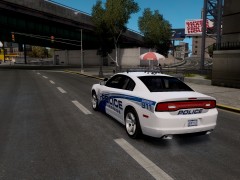
From the album: Fartknockr(FacePalm Studios)
Vehicle is finished and skins to be voted on within the community for the next vehicle and skin pack. Second Version is the same except with a Tomar Scorpion -
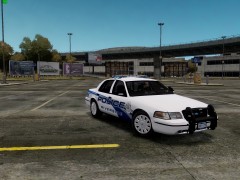
From the album: Fartknockr(FacePalm Studios)
Title says it all, Vehicle is equipped with lightbar mounted ALPR(Thanks to KevinDV for the model from the Arjent) -
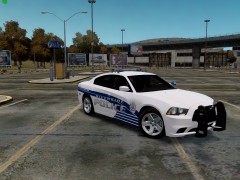 This was was just done super quickly to see what it would possibly look like, The rambar is made for that car, I think its the angle its set at that gives it a giant look, I have another one that is the medium size from Setina, Its about the same size, few different curves. From the side, its pretty small. The basic skin was done from Kildeer. In the end, the whole strip will probably follow the curvature of the door indent or something like that. Besides that, Thank you.
 -
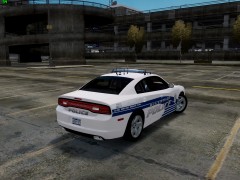
From the album: Fartknockr(FacePalm Studios)
Just a vehicle with a test skin. Could possible become the new design. Charger custom to Riverside DVS -
From the album: Fartknockr(FacePalm Studios)
Just a vehicle with a test skin. Could possible become the new design. Charger custom to Riverside DVS -
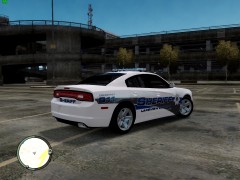 The skins were for an old community before RDVS, I will go ahead and release those in a few days. They are featured for the CVPI, Charger, and Tahoe. RDVS is an IV Community Im with. If you want to know more, Message me.
 -
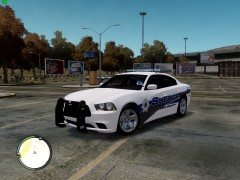 Thank you. I just threw the skin together super quickly, I only needed something to go on it so I can take a picture. The car has a Tomar Scorpion but in the end, it will have an FS Valor.
 -
From the album: Fartknockr(FacePalm Studios)
Charger given to me by a friend of mine. This one actually has proper EVERYTHING! unlike the old one I had. Vehicle only available to RDVS. -
From the album: Fartknockr(FacePalm Studios)
Charger given to me by a friend of mine. This one actually has proper EVERYTHING! unlike the old one I had. Vehicle only available to RDVS. -
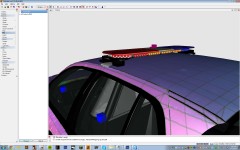 Guys, Its a fucking lightbar, get over it. Yes people will download it and probably over use the damn thing, but oh well. There are better lightbars out there anyways. Even if its like the Liberty, who cares, only the good cars will be downloaded with it on it anyways. Shitload of people only add the lightbar and nothing else to the car. Why download it? Start adding equipment into it, more lights, make it interesting, then it might get downloaded. I do agree that it will unleash hell but it will subside over time. Yes, the liberty was a disaster once released. Why? Because it looks good on anything. You see almost every single department using it anymore. I dont see people bitching about the Tahoe Bugs released, do I? He released it to help modders and what not do their own vehicles with it. I dont see it over used? What makes you think the lightbar will also?
 -
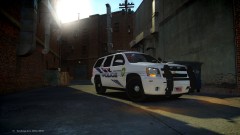 Model is custom made for community, I will be releasing a few others though once Im done with the community pack Im making.
 -
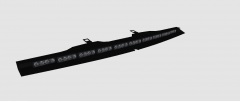 Beautiful, Did a good job on it.
 -
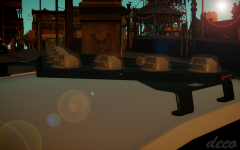 Excellent job. Just beautiful.
 -
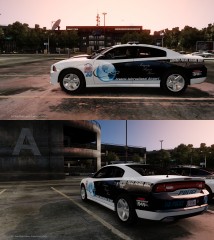 Very Nice skin. Love it, Will be definitely using in the future.
 -
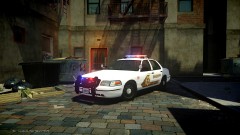 You better, I want that! The way it is right now, is perfect, so if you want to ship it over to me right now. ILL TAKE IT!!!
 -
It all depends on where you are placed at. Ive seen both versions all over. The other Apple Valley Police still says San Bernardino County Sheriff on the back. Reason why it does, is because Apple Valley PD is contracted out of SBCSD. All they do, is mainly patrol Apple Valley area, and no where else. Ive already made the Apple Valley Police skin if you want it.
- 14 comments
- 15 reviews
-
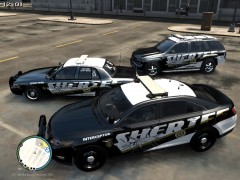 Not bad. I like it alot actually.
 -
You forgot some of the ALPR equipment on there. KevinDV did an Arjent with ALPR, You can take it off that and add it on. I noticed that Apple Valley mainly uses them alot. Havent noticed too many on Hesperia or VictorVille. Im not in Barstow enough to even tell. Also, Its not SBSD. Its SBCSD.
- 14 comments
- 15 reviews
-
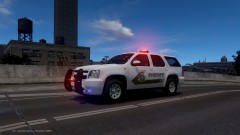 I am from San Bernardino County and they are switching to FS Valor. Some Substations still have the Arjent on them currently, along with front bumpers and even the rambars. They started removing the rambars on the CVPI. Both front bumper and rambar are being taken off of the tahoe. In the more popular areas, they do not have the rambar, even on the new vehicles. They have 2012 Chargers, Taurus, Caprice, Explorer, etc. Besides that, I WANT THAT ENB
 -
![[REL] Liberty State Police Skin Pack](//s3-gallery.int-cdn.lcpdfrusercontent.com/gallery/album_1761/sml_gallery_10683_1761_196709.jpg) Glad to see you based the skin off the Belle Isle PD.
Glad to see you based the skin off the Belle Isle PD. -
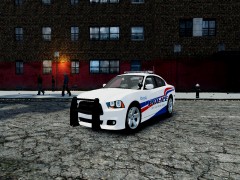
From the album: Fartknockr(FacePalm Studios)
Vehicle edited and pieced together by Carper Charger by VooDoo Equipment by BxBugs123/NickieB/PFCBareFoot Lightbar by SSanchez10 -
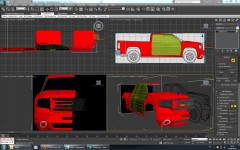 2014 GMC Sierra?
 -
![2013 Dodge Charger Unmarked - [WIP]](//s3-gallery.int-cdn.lcpdfrusercontent.com/gallery/album_1038/sml_gallery_13885_1038_1539176.png) Dear god that looks so sexy. Just a wonderful job on it. Looking forward to a download
Dear god that looks so sexy. Just a wonderful job on it. Looking forward to a download

![[REL] Liberty State Police Skin Pack](http://s3-gallery.int-cdn.lcpdfrusercontent.com/gallery/album_1761/sml_gallery_10683_1761_196709.jpg)
![2013 Dodge Charger Unmarked - [WIP]](http://s3-gallery.int-cdn.lcpdfrusercontent.com/gallery/album_1038/sml_gallery_13885_1038_1539176.png)