
brenden.iannetta
Members
-
Joined
-
Last visited
Everything posted by brenden.iannetta
-
There's a chance it could be a RAGENativeUI.dll issue. Please download it from this link, then drag and drop "RAGENativeUI.dll" from the .zip file info your GTAV root. If this doesn't solve your problem, please send your whole RAGEPluginHook.log file as a quote to this comment. Edit: Damn that worked 👀
-
No problemo. I think I had this issue too at some point lol. Glad yours is good now!
-
Good to hear! Have a good one.
-
This issue was fixed in the latest LSPDFR build. All you have to do is drag and drop the new RAGEPluginHook.exe file into your GTAV directory. Please follow this tutorial if you don't know how to replace RAGEPluginHook.exe: https://i.darkvypr.com/update-rph.mp4 LSPDFR Download:
-
Follow this: https://i.darkvypr.com/update-rph.mp4 LSPDFR Download:
-
Please try this:
-
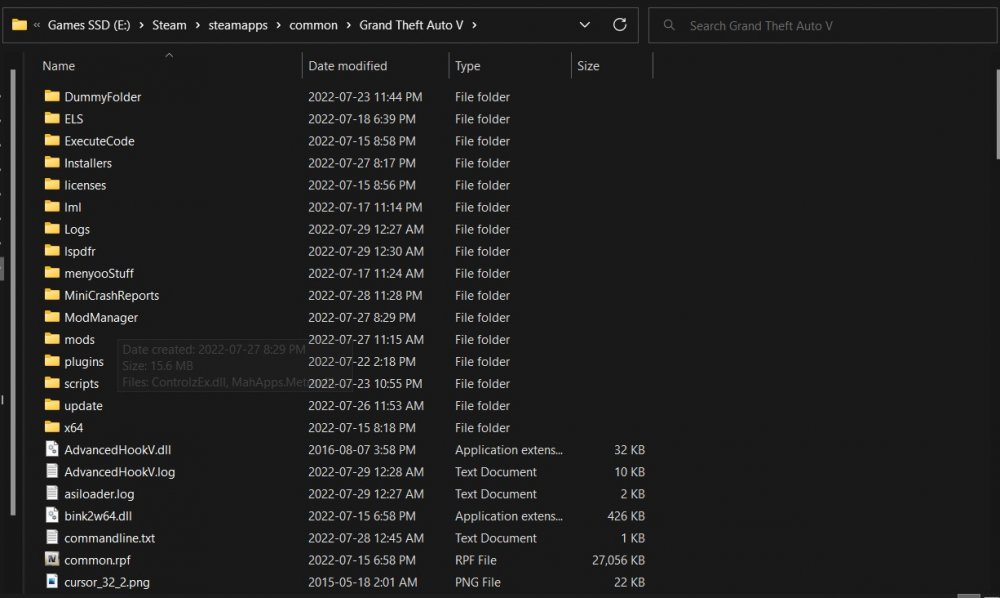
May I see a photo of the folders in your main GTAV directory? Something like this:
-
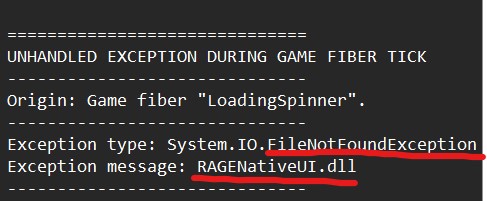
Can you send a new log please? This was 110% the issue for the previous log you sent.
-
Pretty sure yes. I've never seen the error, but i'd say the best practice is to rebuild your mods folder in the way I suggested.
-
Glad it did! Have fun!
-
This might seem a bit repetitive, but please follow this: If you don't know what I mean by extracting the update.rpf, see this: https://i.darkvypr.com/replacing-update-rpf.mp4
-
Do you have LML?
-
Follow this: https://i.darkvypr.com/replacing-update-rpf.mp4
-
Looks like this came back to bite me 😂 Glad u got it fixed! Enjoy!
-
I was thinking about this too. 🤷♂️ Should try and give it a shot. @itzLenny72
-
Hmm. Not quite sure. The RAGENativeUI.dll worked for someone else I helped, so i'm not too certain on what is wrong with yours. Best of luck 🙏 One last thing, do you have a custom gameconfig.xml, HeapAdjuster and Packfile Limit Adjuster installed?
-
Is there a different error, or the same one? Please send a new log with the error you are facing.
-
If you find that renaming your mods folder did the trick (as @JACKisBACKsuggested), try these steps: - Update Lenny's Mod Loader (if you have it) - Install a custom gameconfig.xml As a last resort or if the above didn't work, follow this:
-
Looks like a RAGENativeUI.dll issue. Please download it from this link, then drag and drop "RAGENativeUI.dll" from the .zip file info your GTAV root.
-
RAGE log link won't work, try uploading the file itself here.
-
Do you have LML installed? If so, update it if you already haven't. Also yea i'd recommend installing a custom gameconfig.xml, as well as: https://www.gta5-mods.com/tools/heapadjuster (Make sure to rename mods folder to "mods" after you do all this 😉 )
-
Hmm. Still looks like an old version of RAGE. This is an issue that was just fixed in RAGE version 1.96. Maybe try re-downloading the LSPDFR manual installer, and replacing ONLY your RAGEPluginHook.exe with the one from the lspdfr .zip.

-
New RAGEPluginHook.log please.
-
Please refer to this, and let me know if it works: You can also try disabling the NVidia GeForce Experience overlay, although this has a low chance of doing anything.
-
Please try this for a broken mods folder, and/or a stuck RPH loading screen, this is what fixed it for myself: Update.rpf is the big culprit for lots of people's broken mods folder.