
Keith.
-
Joined
-
Last visited
Everything posted by Keith.
-
From the album: Officer Wades photos
-
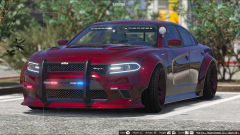
From the album: Officer Wades photos
-
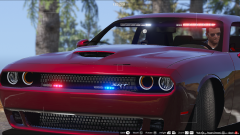
From the album: Officer Wades photos
-
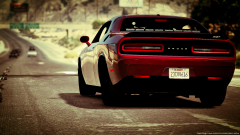
From the album: Officer Wades photos
-
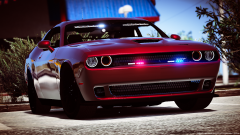
From the album: Officer Wades photos
-
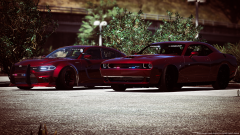
From the album: Officer Wades photos
-
From the album: Officer Wades photos
-
From the album: Officer Wades photos
-
Good to see you back Avs
-
From the album: Officer Wades photos
-
From the album: Officer Wades photos
-
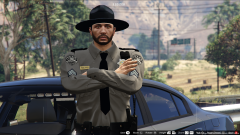
From the album: Officer Wades photos
-
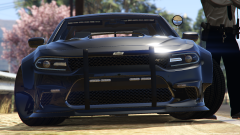
From the album: Officer Wades photos
-
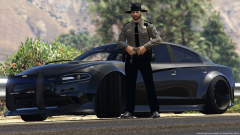
From the album: Officer Wades photos
Still feel like runnin ? -
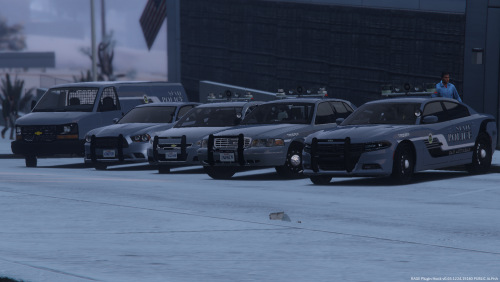 Police4. If you're not going to download them, What's the point of commenting ? Just look at the pictures and keep scrolling.
- 14 comments
- 8 reviews
-
-

- 2
-
-
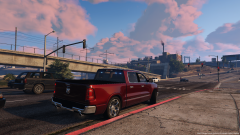 At the moment I think the DEV model is still being worked on. It has a few bugs here and there. It still needs a template and a licence plate. I can release it in a 'as is' state, it'll just be an undercover vehicle though. But you can change the colour to suit.
 -
From the album: Officer Wades photos
-
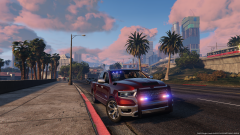
From the album: Officer Wades photos
-
-
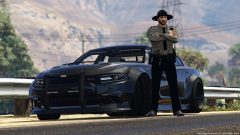
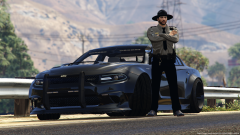
Please do not upload to any other site. Credits and Install are in the download. Here's my San Andreas State Police pack. Just the sedans and inmate transport for now. SUV's should follow soon. I've combined Solo's Mars skybolt lightbar and Otaku's LED Gumball beacons to give you...... The Mars Scumball ( patent pending 😉) You must install the VCF files for these to work as intended. Some of the glass does spawn black, not sure why, but only on the van and slicktop charger. You can change this with a trainer. RIGHT. vehicles in order are. police - CVPI police2 - 2015 Charger police3 - Impala police4 - Slicktop Charger policet - Chevy Van Feel free to use for clans FiveM YouTube etc etc etc. If used for a YouTube video please post a link to this page or my YouTube channel https://www.youtube.com/channel/UCs6f68OjkgCPmPvSprG2j_w?view_as=subscriber Enjoy
- 14 comments
- 8 reviews
-
-
- 6
-
-
-
Thanks bud. Looks like I'm delaying my State Police pack a little bit longer than 😀
-
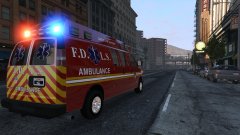 I've made a Chevy Vanbulance but it kept going wrong somewhere so I gave up on it 😂
 -
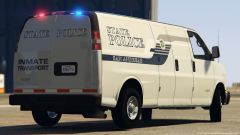
From the album: Officer Wades photos
-
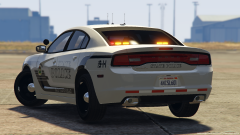
From the album: Officer Wades photos