




Keith.
Members
-
Joined
-
Last visited
Everything posted by Keith.
-
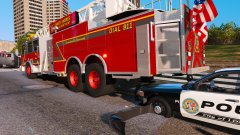 I've got the perfect model cvpi for accidents 🤣
 -
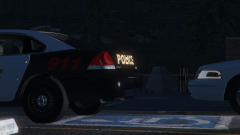
From the album: Officer Wades photos
-
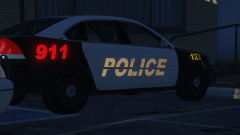
From the album: Officer Wades photos
If everything works out as I hope it will. I will make a complete pack where people will be able to create their own reflective textures without all the fuss -
Just so you know Sam, It's now February 😃
-
Or used as back up weapons
-
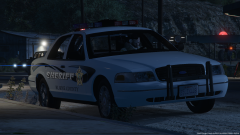 I'm going to experiment with reflective textures tonight, i have an idea that I hope works, so it can be shared with everyone here. 👍 Whelen Edge 9000 with the horn on top 👌
 -
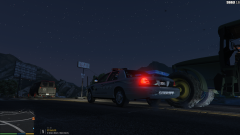
From the album: Officer Wades photos
-
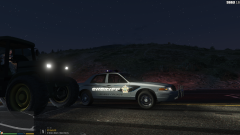
From the album: Officer Wades photos
-
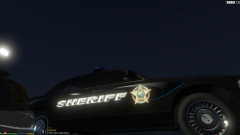
From the album: Officer Wades photos
-
From the album: Officer Wades photos
-
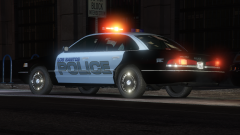 I will do eventually. Having a bit of trouble with the texture at the minute tho. Hence the blueish tint to the doors
 -
From the album: Officer Wades photos
-
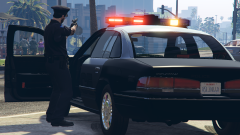
From the album: Officer Wades photos
-
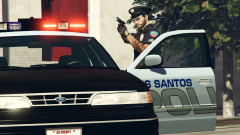
From the album: Officer Wades photos
-
I'll be releasing a new EUP uniforms pack soon. Mostly small tweaks to patches and badges, but all new state police uniform in grey and black
-
Navigate to your carcols using OPEN IV, instead of opening the file, right click on it and click EDIT in the drop down box. Now click on 'SEARCH' and type policeold1 It should take you to the required section. Also what pack are you using ? Do you have a link ?
-
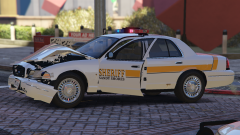
From the album: Officer Wades photos
-
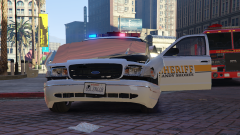
From the album: Officer Wades photos
-
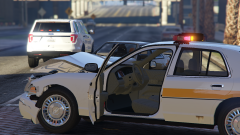
From the album: Officer Wades photos
-
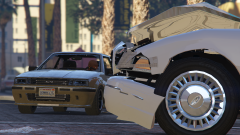
From the album: Officer Wades photos
-
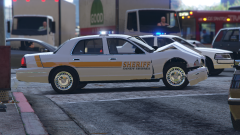
From the album: Officer Wades photos
-
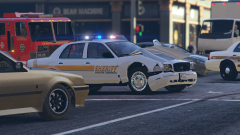
From the album: Officer Wades photos
-
-
-
ELS goes into your main game folder. Just drag and drop ( or copy and paste ) the files in the 'INSTALLATION FILES' folder To create a car ( I'll assume you want to make a police vehicle ) you need Zmodeler3. You can buy the licence monthly, but it's relatively cheap and there's plenty of tutorial videos on youtube. As for the visual mods. There should be instructions with them. A READ ME file or something similar.



