
Sgt. Aaron Shelby
Members
-
Joined
-
Last visited
Everything posted by Sgt. Aaron Shelby
-
 😞 just to know, what was the plan behind it, like was it just an exterior map or also interior ?
 -
You will need to edit the agency.xml file (make an "agency_[blabla]" file in the "custom" folder so that you don't edit the original). As to the vehicles in your garage, it's all again in the "agency" file ; every single car you put below an agency will appear in the garage in that same agency you put it into. More info in the official LSPDFR guide for the agency file and the custom folder.
-
I believe the issue is coming from Rich's Police Enhancements ambient backup, which should be disabled. It fixed it for me at the firt try but I don't know if it's consistent.
-
I believe the issue is coming from Rich's Police Enhancements ambient backup, which should be disabled. It fixed it for me at the firt try but I don't know if it's consistent.
-
I believe the issue is coming from Rich's Police Enhancements ambient backup, which should be disabled. It fixed it for me at the firt try but I don't know if it's consistent.
-
I believe the issue is coming from Rich's Police Enhancements ambient backup, which should be disabled. It fixed it for me at the firt try but I don't know if it's consistent.
-
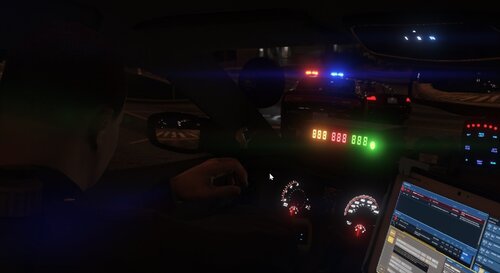 I believe there is an issue due to the ambient backup option, which makes appear default mp characters near or on top of police cars, that sometimes spawn in the middle of the street. I simply fixed it by disabling it but I have done this only once so I actually don't know if that's the ultimate problem.
- 394 comments
- 30 reviews
-
-

- 1
-
-
I believe the issue is coming from Rich's Police Enhancements ambient backup, which should be disabled. It fixed it for me at the firt try but I don't know if it's consistent.
-
-
-
I don't reallly know if that's the issue but is it an ELS car ? and do you have ELS installed ? If that's the case then it probably is related to it, since it works with the car extras
-
still no updates?
-
Turns out that i can confirm this theory, and it actually sits right because dlcs are for GTA Online, so "maybe" they don't load when offline (at least some of them because most of eup models and textures work). My story is that i put my PC to sleep for a moment then i came back and of course i was disconnected from the ingame social club and at that moment the ranks decals disappeared.
-
My case : I wanted to add some more EUP outfits to the LSPDFR Police locker so that first these outfits can be used for random officers and LSPDFR backup (not Ultimate Backup). So i added new <Outfit>...</Outfit> lines in the outfits_lspd_eup.xml file in the Custom folder, but it didn't worked. Solution : After some long research, I found out that you need to add the script name that you gave to your outfit, in the <Peds>...</Peds> section (like the other ones listed where it says "for outfits selection" (careful to the gender character)) in the correct agency inside the agency_eup.xml, again in your Custom folder.
-
My case : I wanted to add some more EUP outfits to the LSPDFR Police locker so that first these outfits can be used for random officers and LSPDFR backup (not Ultimate Backup). So i added new <Outfit>...</Outfit> lines in the outfits_lspd_eup.xml file in the Custom folder, but it didn't worked. Solution : After some long research, I found out that you need to add the script name that you gave to your outfit, in the <Peds>...</Peds> section (like the other ones listed where it says "for outfits selection" (careful to the gender character)) in the correct agency inside the agency_eup.xml, again in your Custom folder.
-
Still no fixes ?
-
It's gta 5 + lspdfr + stp, that's it. UB works fine even with other plugins, but STP is the opposite thing. (both STP and UB have already their localization.ini in their folder so i don't see how they could disappear from the game folder)
-
I already have this .ini. It's already inside STP folder.
-
For me it's LSPD First Response.dll Has Crashed or something like that but when you forceduty, in which case i can move after, but yeah when you do this at the station it freezes you and you have to reload lspdfr but without the plugin or the thing that makes it crash, then go to the switch character tab and exit it to restore your ability to move.
-
As the title says, i have a really rare error that doesn't seem to go away and it's caused because of STP. The things i did : Reinstall completely GTA 5 (Epic Games version) Reinstall completely LSPDFR manually Install Stop The Ped from Bejoljo's website without any other plugin (so it means latest version, RageNativeUI too) ...aand it still didn't worked. And all over this, i called then ULSS server support and Bejoljo's support, that coudn't help me for the moment. Here's my RPH log after the list of things i did : (plz help).
-
Actually, i reinstalled the cleanest way possible gta 5 with the lspdfr setup instead of manual install and it worked
-
Now it's the same but the game doesn't crash
-
In the event viewer, it says "Exception code: 0xe0434352", but without RPH game goes fine. Can someone help me please ?
-
*sadness*
-
I was thinking about why not develop the agency part for LSPDFR 0.5, like fib, iaa... Having their two buildings as "police stations" to go on duty from there, and have some human activity like in mission row pd (agents chatting, working on PCs, walk around with a folder in hand...). Maybe some new kind of callouts like the old LS noire which features long investigation missions on crimes.