




Yasd
Community Team
-
Joined
-
Last visited
Everything posted by Yasd
-
Hi! Post your Ragepluginhook.log from the main gta folder. Post your ELS.log from the main gta folder. Post your AdvancedHook.log from the main gta folder.
-
Simply update RageNativeUI. https://github.com/alexguirre/RAGENativeUI/releases
-
Hi! The problem is your vehicle FBI2. While try to preload it, the game crashes. Remove the vehicle.
-
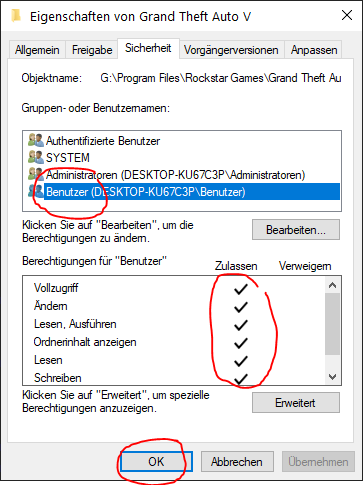
add your whole gta folder as an exception in your antivirus, if you do not have one installed, you still have to add it to default win 10 antivirus. tutorial: https://support.microsoft.com/en-us/windows/add-an-exclusion-to-windows-security-811816c0-4dfd-af4a-47e4-c301afe13b26 try to start rph as an administrator. make sure, geforce overlay is deativated. make sure, rph has great access to your gta folder. go to your gta folder, right click, properties and make sure all hooks are set under user.
-
-
The newest gta version is compatible to the newest ragepluginhook and lspdfr version, one of yours is outdated.
-
Simply update RageNativeUI. https://github.com/alexguirre/RAGENativeUI/releases
-
Simply update RageNativeUI. https://github.com/alexguirre/RAGENativeUI/releases
-
set this in your lspdfr.ini -> C:\Program Files\Rockstar Games\Grand Theft Auto V\lspdfr\lspdfr.ini Ambient.DisableEscapedSuspectEncounter = true WorldEvents.IntervalMultiplier = 0 WorldEvents.MaxNumberOfEvents = 0
-
Your gta version does not match the ragepluginhook version. i recommend updating gta and lspdfr+rph, you should start with a clean gta folder, which means a lot of installing.
-
Simply update RageNativeUI. https://github.com/alexguirre/RAGENativeUI/releases
-
post your ragepluginhook.log from the main gta folder. what i noticed at 1:26 it says the callout ended without even starting one.
-
rename your mods folder to _mods
-
Simply update RageNativeUI. https://github.com/alexguirre/RAGENativeUI/releases
-
-
this is an english forum. pls post in english. post your ragepluginhook.log from the main gta folder here as an attachment.
-
post your ragepluginhook.log from the main gta folder. 👍🏽
-
rename your mods folder to _mods
-
MoreRadioChatter threw an error: Install NAudio, Version=1.8.4.0, this file is missing.
-
Hi! 🙂 Add your whole gta folder as an exception in the antivirus. If you dont have an antivirus installed, add it to the default windows antivirus. Tutorial on that can be found here: https://support.microsoft.com/en-us/windows/add-an-exclusion-to-windows-security-811816c0-4dfd-af4a-47e4-c301afe13b26 Greetings Chris
-
Hi! 🙂 Add your whole gta folder as an exception in the antivirus. If you dont have an antivirus installed, add it to the default windows antivirus. Tutorial on that can be found here: https://support.microsoft.com/en-us/windows/add-an-exclusion-to-windows-security-811816c0-4dfd-af4a-47e4-c301afe13b26 Otherwise, you can remove that file from "C:\Program Files (x86)\Steam\steamapps\common\Grand Theft Auto V\lspdfr\stats.dat" This file is generated when starting GTA with LSPDFR loaded. Greetings Chris
-
link is not working buddy, instead describe it and post your ragepluginhook.log from the main gta folder.
-
poste dein ragepluginhook.log vom gta hauptverzeichnis.
-
There is no way to find this out via log. Only you can find that by removing some temporarily, or one by one.
-
it crashed with the error message: Rage.Ped.get_IsFemale() Try to remove TrafficPolicer. Its outdated and may be the reason for the crash.


