
RoguePlus
Members
-
Joined
-
Last visited
Everything posted by RoguePlus
-
-
-
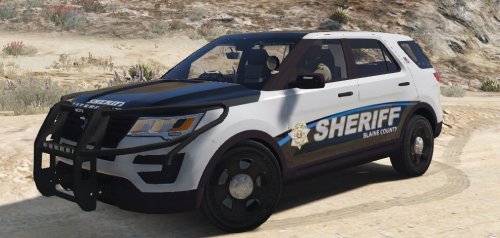 looks better then the one I made.
 -
-
.thumb.jpg.61de846de400ca98f85d205992527de1.jpg) Wondering if you can add the "Flags" line for people that don't use the package installer? Its annoying that the push bumper falls off without the flags line
Wondering if you can add the "Flags" line for people that don't use the package installer? Its annoying that the push bumper falls off without the flags line- 265 comments
- 83 reviews
-
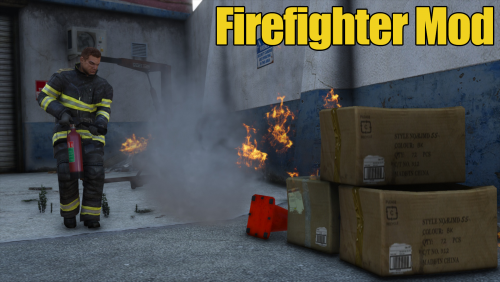 Update hype!!
 -
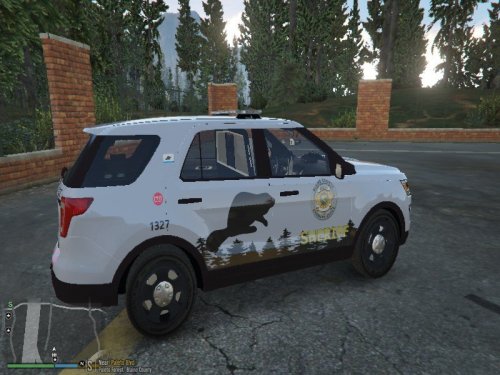 I'm guessing you got the inspiration from the picture and my skin?? good attempt.
 -
-
-
-
From the album: Rogue's Photos
Testing the photo quality of "Make visuals great again" -
From the album: Rogue's Photos
-
 daamm those are cool.
 -
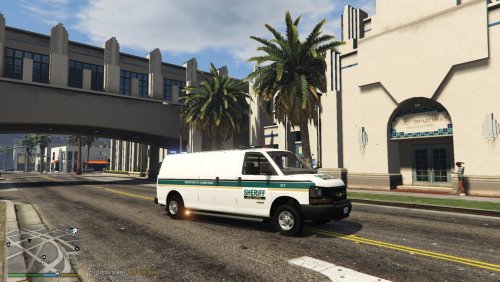 Ok... but its not the same as the picture.
 -
link to van?
-
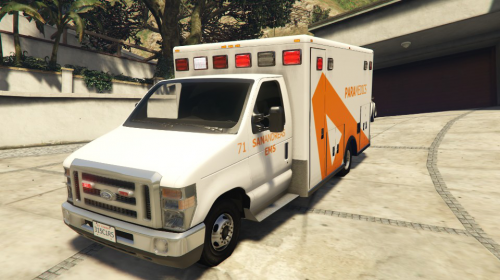 Would be a cool if you could make the "A" blank and then use the trainer to change the color.
 -
-
-
-
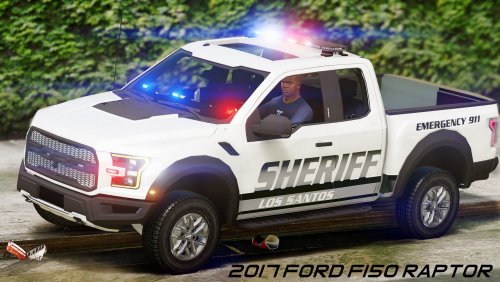 I'm not a fan of ford raptor police trucks but this is really nice. I do think that the front led's should be placed in the grill since I can not see the lights when the headlights are on.( not a big deal ).
- 35 comments
- 5 reviews
-
-

- 1
-
-
-
-
 I cant wait for that truck.
 -
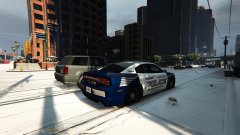
From the album: Skins Showcase
© NSD
-
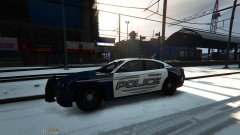
From the album: Skins Showcase
© NSD

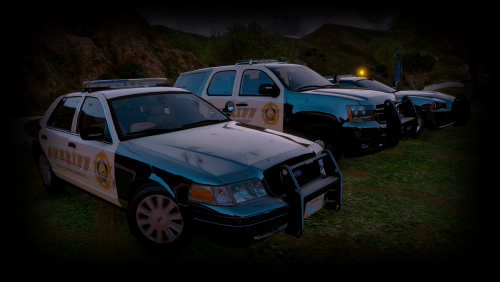
.thumb.jpg.61de846de400ca98f85d205992527de1.jpg)