Skip to content
View in the app

A better way to browse. Learn more.

LCPDFR.com

A full-screen app on your home screen with push notifications, badges and more.

To install this app on iOS and iPadOS
  1. Tap the Share icon in Safari
  2. Scroll the menu and tap Add to Home Screen.
  3. Tap Add in the top-right corner.
To install this app on Android
  1. Tap the 3-dot menu (⋮) in the top-right corner of the browser.
  2. Tap Add to Home screen or Install app.
  3. Confirm by tapping Install.

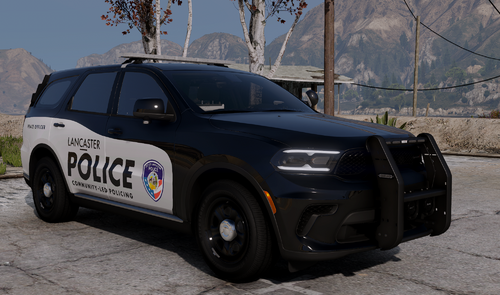
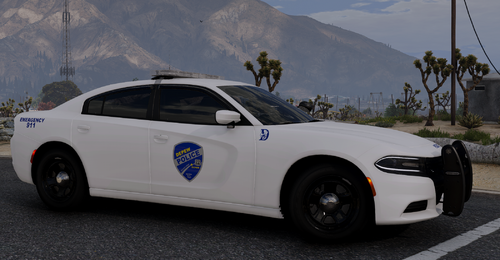
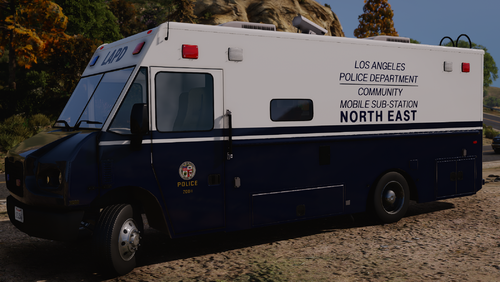
Springfield Police Dept. Inspired LSPD Textures [For Captain14's LSPD Pack] 1.0.0

(1 review)

9 Screenshots


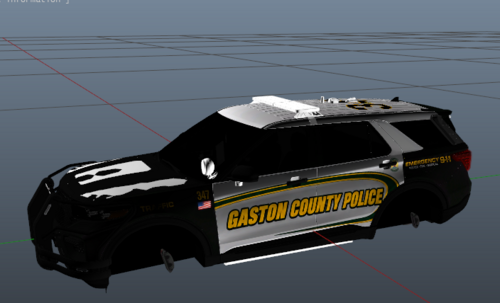
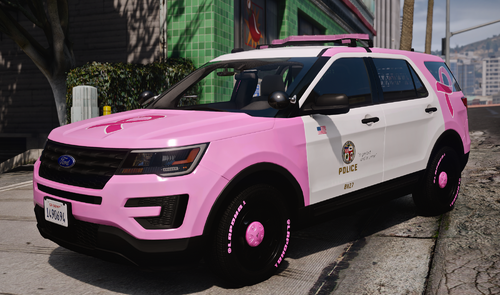
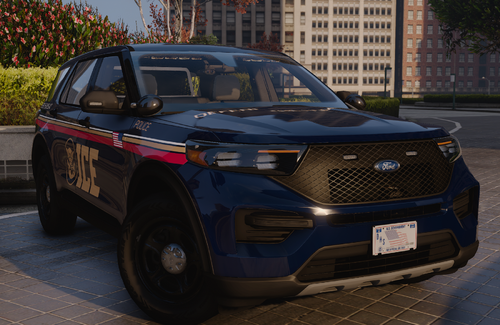
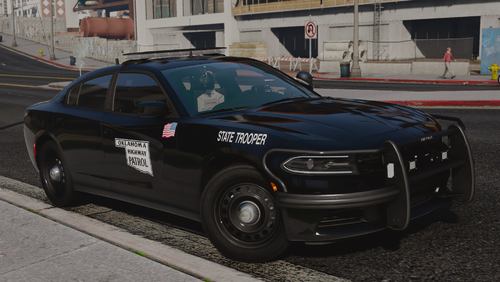
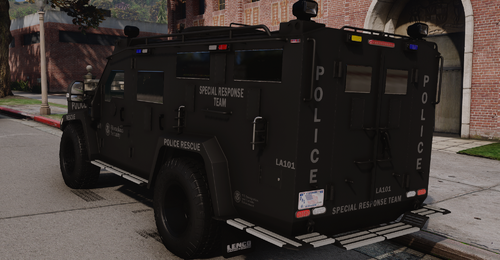
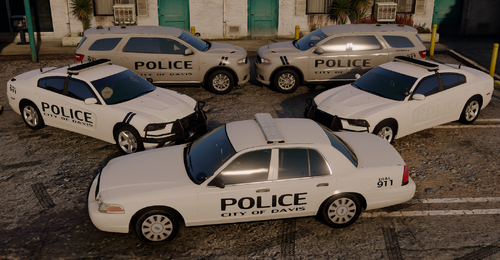
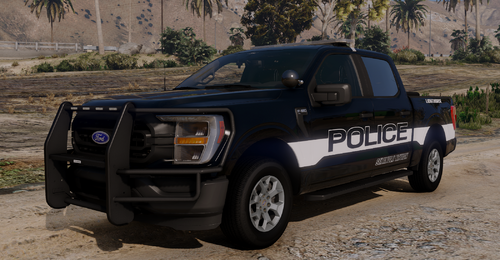
I got bored saw the Springfield ford explorer and thought it would look cool if i made it into a skin for LSPDFR. I hope everyone likes it! Please read the ReadMe for the installation information!


These are NOT full models. Just textures for models by @Captain14

You can find the models here: 


Let me know what you think in the comments and give it a rate! Please keep in mind these are the first skins i have ever made and uploaded! Any and all advice will help me a lot!


User Feedback

Recommended Comments

RoguePlus

Members

The scale is a bit off and the font, but other the that really good

Kevbot327

Members Author

49 minutes ago, neonlazer said:

Agreed, more realistic motto, new font, resize tweaking, and you did excellent on the stripping!

Font cheat sheet below.

http://gtapolicemods.com/showthread.php?5461-Official-Font-Knowledge-Sharing-Thread&s=d0a05ad7bb88c1bc9cad2e0cc640ce34

Thanks man i just used paint.net so i do not have much choice in the font :/ and i dont wanna spend money on photoshop, know of any other good programs? Also it wont let me go to the site you linked, something about being harmful! Also i just used the motto used by the LSPD on the default cars.

mattsacky13

Members

Hey what up


Create an account or sign in to comment

Latest Mods

Account

Navigation

Search

Search

Configure browser push notifications

Chrome (Android)
  1. Tap the lock icon next to the address bar.
  2. Tap Permissions → Notifications.
  3. Adjust your preference.
Chrome (Desktop)
  1. Click the padlock icon in the address bar.
  2. Select Site settings.
  3. Find Notifications and adjust your preference.