




GrandTheftPD
Members
-
Joined
-
Last visited
Everything posted by GrandTheftPD
-
.png.b8fc82c9f26c661c65783bacefab48cf.png)
From the album: Custom Textures / Works In Progress
Longsleeve EUP Uniform for the Blaine County pack (based on El Paso County Colorado) Vehicle skin by harrison90 EUP Belt and Bodycam by CodeyWynne© GrandTheftPD
-
.png.8b84ef37f49c51383a67a314ce28f8d4.png)
From the album: Custom Textures / Works In Progress
Back of The Longsleeve EUP uniform for the Blaine County Pack (based on El Paso County Colorado). EUP belt and radio by CodeyWynne Tahoe skin by harrison90© GrandTheftPD
-
.png.0ab2a9cd16b994a89630c3a7e4eb8444.png)
From the album: Custom Textures / Works In Progress
Shortsleeve EUP Uniform for the Blaine County Pack (based on El Paso County Colorado)© GrandTheftPD
-
.png.128e5cae9c5ba4ccec47b83ce7f2f946.png)
From the album: Custom Textures / Works In Progress
Female Sheriff Peds for the Blaine County Uniform Pack (based on El Paso County Colorado)© GrandTheftPD
-
.png.12f101897835cb05821fe06a067195cd.png)
From the album: Custom Textures / Works In Progress
Male Sheriff Peds for the Blaine County Uniform pack (based on El Paso County Colorado). Vehicle skins by harrison90© GrandTheftPD
-
-
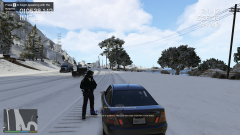
-
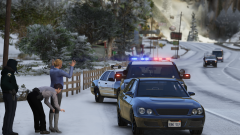
From the album: Just Doing My Job
Love the female backup unit option in on scene backup @bejoljo© GrandTheftPD
-
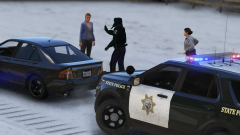
From the album: Just Doing My Job
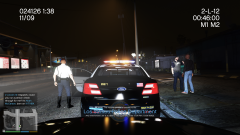
2 suspects detained after narcotics detected on a traffic stop -
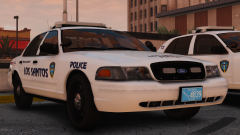 Any ETA on these? Or are they going in that pack with the black and unmarked cvpi you're working on? @t0y
 -
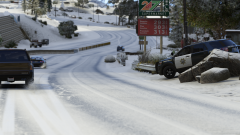
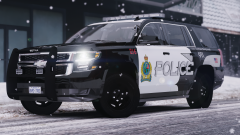 I use simple trainer and you can fully control the time of day, weather, etc. You can turn on just the snow falling or turn on full snow everywhere like when they do the xmas updates. Theres also several choices for the type / amount of snow you want (light snow, snow, blizzard, etc.)
 -
.thumb.png.8bfe60acaa82196bbb1d6e1af8289312.png) That sheriff helmet tho 😍 These look great nice job and thanks for recommending my vest pack 👍@Xander6478
That sheriff helmet tho 😍 These look great nice job and thanks for recommending my vest pack 👍@Xander6478- 46 comments
- 15 reviews
-
-

- 1
-
-
.png.2bd55cfb3e779d047c010486173a3993.png) Thanks bud and yeah that'd be cool! I've been working on an actual el paso county pack as a request for someone and started making these lore versions on the side for myself. Went looking for a vehicle just for some screenshots and couldn't believe I actually found one lol been hooked on that tahoe since I found it. I'll give you a shout when I finish the uniforms up and I'll link to your skins too.
Thanks bud and yeah that'd be cool! I've been working on an actual el paso county pack as a request for someone and started making these lore versions on the side for myself. Went looking for a vehicle just for some screenshots and couldn't believe I actually found one lol been hooked on that tahoe since I found it. I'll give you a shout when I finish the uniforms up and I'll link to your skins too. -
-
.png.4a23231046d81428c5a1597c9d25c563.png)
From the album: Custom Textures / Works In Progress
Working on a Blaine County Sheriff uniform pack based on El Paso County Colorado. Chevy Tahoe skin by harrison90© GrandTheftPD
-
From the album: Custom Textures / Works In Progress
Working on a Blaine County Sheriff uniform pack based on El Paso County Colorado© GrandTheftPD
-
From the album: Just Doing My Job
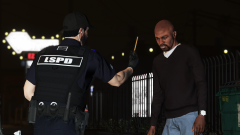
Perfoming Field Sobriety Tests on a suspected drunk driver.© GrandTheftPD
-
-
 Hey been busy with work i responded to this on the comment you left on the eup vest page
- 67 comments
- 5 reviews
-
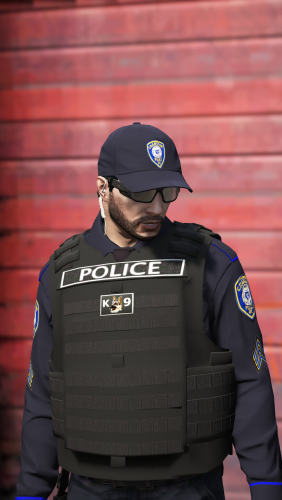 So for the hat I would double check and make sure you installed the texture in the correct location it needs to be in a different eup folder (eup_componentpeds_p) than the one the uniforms go in (eup_componentpeds). You could also try cycling through the textures for the hat and see if its in there but sounds like you might not have installed it in the right spot. As far as the vests you are looking in the incorrect spot they are both working fine for you I'm sure. The vest in the bottom pic is the vest i refer to as the light/smaller vest in my pack. The vest in the middle pic is not in my pack at all. If you go to wardrobe > create outfit > armor they are #13 and #28. Then just cycle through the textures for those two numbers and you will see the different options. Unfortunately no I've been wanting to make one but haven't had time yet sorry.
- 158 comments
- 21 reviews
-
I think most of the uniform shirts do that's why I use that vest for plain clothes but there are other shirts that fit under it (like the turtleneck in #1). That vest model is in a different category in the menu then the others so it doesn't conflict with selecting the handset. It is however in the same category as the duty belts which means you cant select a ususal belt with a radio. I found the radio on the belt in the category with the holsters which means you wouldn't be able to add a holster with that radio on the waist. So long story short its tricky but can be done I'm hoping I find some other ways that work too and don't conflict with selecting a belt or holster. Also I think just about anything could be done by editing the actual models themselves or making new ones but I have no knowledge when it comes to modeling clothes/peds. I know people have made and edited ped models and stuff but I don't know how.
- 158 comments
- 21 reviews
-
So #1 is the vest and handset/radio setup I found. #2 shows how the uniform shirts all clip through the vest. #3 is that other ugly vest I was talking about. Seems the biggest issue is that most of the vest models and handsets are in the same category in the eup menu so they can't be equipped at the same time.
- 158 comments
- 21 reviews
-
Its one of the vanilla eup vests. I did manage to get a handset radio and vest working with the plain clothes vest model that i used in my pack. The only problem is that most of the uniform shirts clip through that vest which is why I use it as a plain clothes vest. I'll drop a screenshot in here when i get home in a few so you can see what I mean and see the ugly vest i was talking about.
- 158 comments
- 21 reviews
-
I've never gone looking to find out so I'm not sure but if I find a way while messing around with the vests I'll let you know. I think there's a vest model that has a radio on the back of the shoulder but its the actual radio not the handset piece and its an ugly vest model if i remember correctly.
- 158 comments
- 21 reviews
-
I think that happens when you dont hqve the law and order pack for eup installed. Id start by making sure you hqve thqt and then check the install location for the uniforms again.
- 67 comments
- 5 reviews
.png.b8fc82c9f26c661c65783bacefab48cf.png)
.png.8b84ef37f49c51383a67a314ce28f8d4.png)
.png.0ab2a9cd16b994a89630c3a7e4eb8444.png)
.png.128e5cae9c5ba4ccec47b83ce7f2f946.png)
.png.12f101897835cb05821fe06a067195cd.png)
.thumb.png.8bfe60acaa82196bbb1d6e1af8289312.png)
.png.2bd55cfb3e779d047c010486173a3993.png)
.png.4a23231046d81428c5a1597c9d25c563.png)
