
AlphaJr
Members
-
Joined
-
Last visited
Everything posted by AlphaJr
-
-
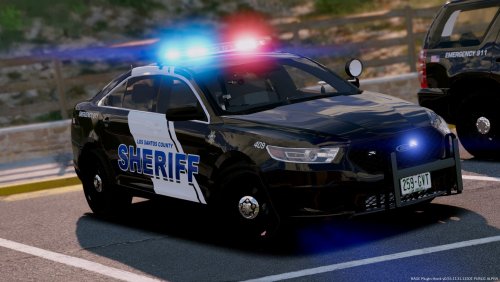
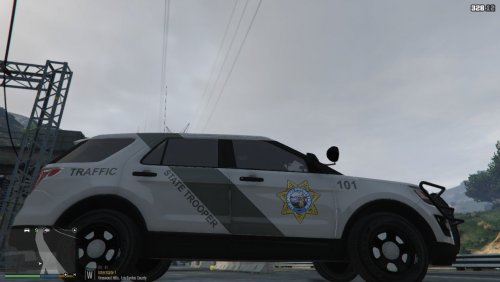 I really like the texturing of this pack, but it only has livery's for the FPIU.
- 5 comments
- 1 review
-
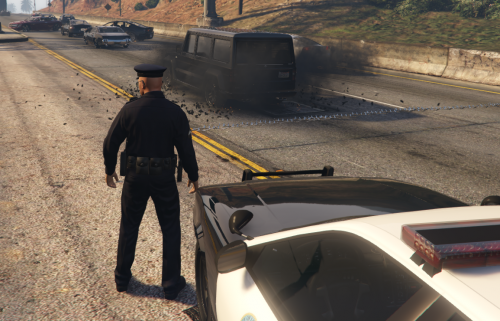
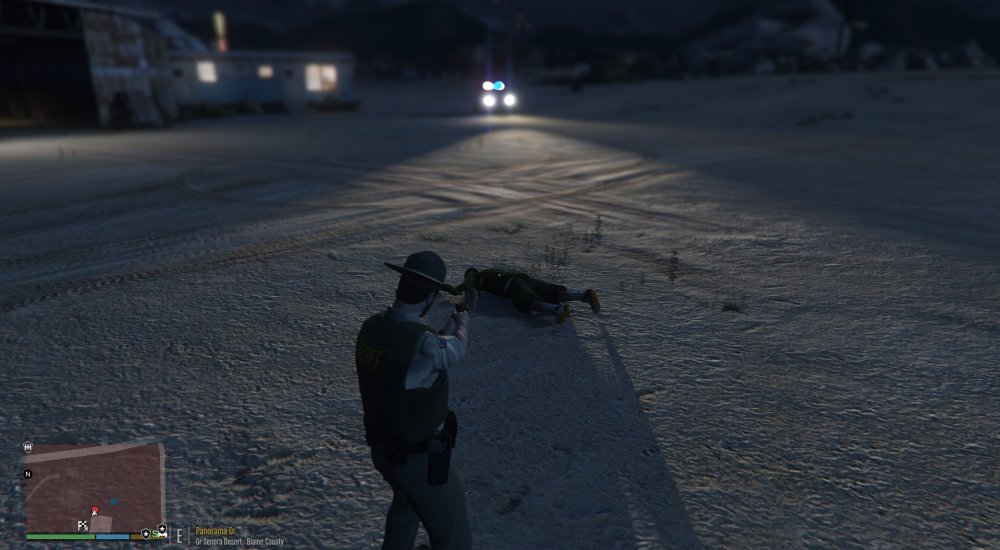
I know it's not cinematic with the HUD, but it was in the moment.
-
Whatever suits you.
-
I recently got into the LSPDFR community and I decided to mod my game. I got it to work a few times, and now I can't get past the "Loading and populating game world". I've tried everything, reinstalling GTA V itself, reinstalling mods, nothing works. Please, if you have any idea what to do or how I can help you help me, let me know promptly.
-
-
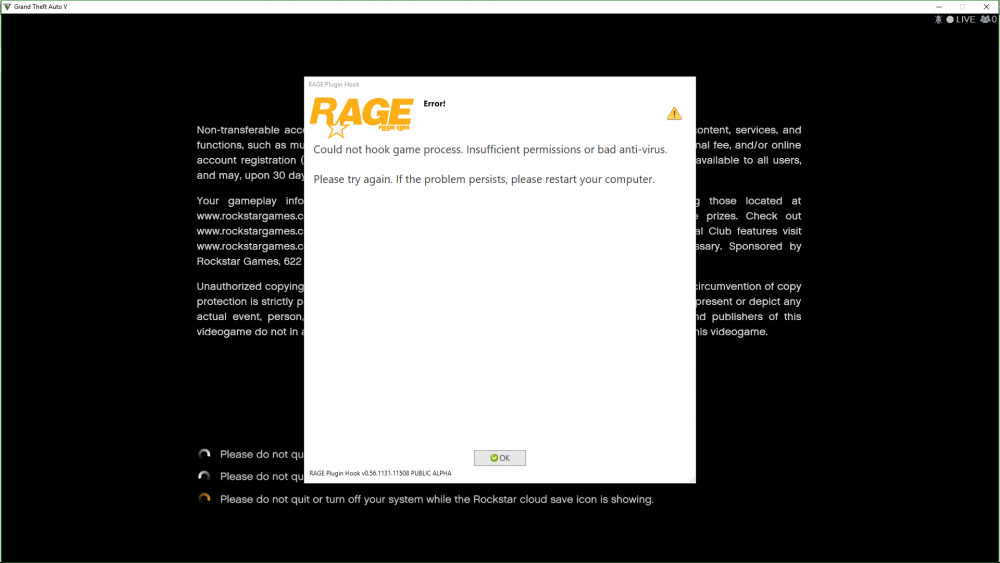
So I've got a problem. I've had no problems with Rage before and then I decided to play LSPDFR. Then I get this window (pictured) and rage says my system is slow or insufficient permissions. So I've restarted my PC and I've even tried running rage with administrator. Nothing will work.
-
Could you provide a few screenshots for me? I need one of your main GTA 5 directory, your plugins folder, and your LSPDFR folder inside your plugins folder.
-
-
-
Do you have ELS installed? Do you have a brighter lights mod installed? If so, which one?
-
-
-
-
-
-
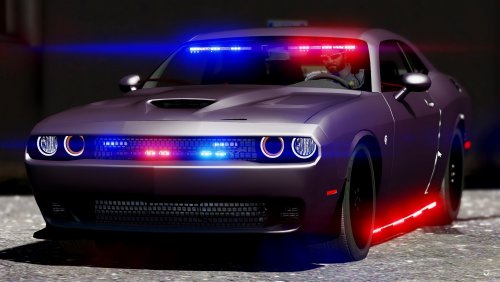
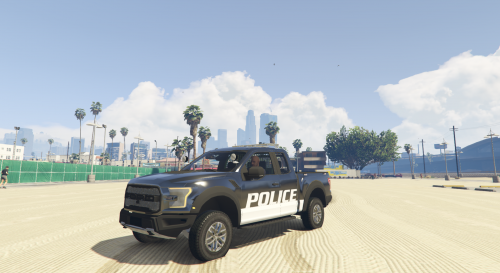 I just loved the looks, light patterns, and the handling. All around great job!
- 36 comments
- 15 reviews
-