



FKDZ
Members
-
Joined
-
Last visited
Everything posted by FKDZ
-
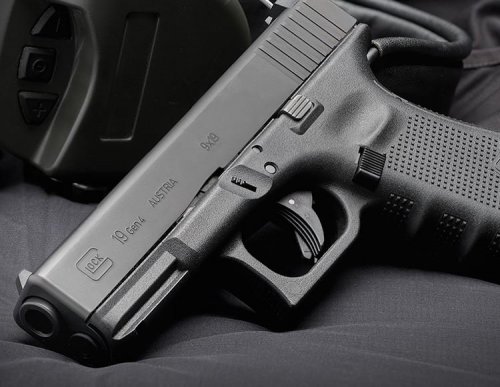 Replaced weaponanimations.meta only and works perfectly! Thanks. I compared my own weapons.meta to yours and didn't see any difference so I'm not sure what changed you made exactly. Or I missed something, but everything seems to work
- 18 comments
- 5 reviews
-
All I can say is..I can't wait!
-
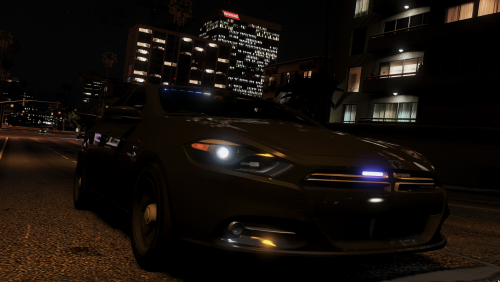 Fantastic mod. Good model but a little high on the poly count. For a first mod amazing though.
- 19 comments
- 19 reviews
-
 How would I be able to use the manual1.wav / manual2.wav with ELS in the ''Galls Street Thunder 800 Siren'' folder? The main MANUAL TONE doesn't work in ELS as far as I can see.
- 221 comments
- 40 reviews
-
 It is weird that I am the only one reporting on this now. So I just grabbed a file from your mod that had the most blatant popping and I don't think the problem is on my part. So I grabbed your ''DISPATCH_INTRO_02'' and threw it simply in Audacity and then toggled the viewer to give me a spectrogram log(f) view and look at this: At those exact 2 spikes you see, the audio pops. I listened to it in 0.1 speed and it is very noticeable. You can also see a slight pop at the start. There are more files like this with lesser popping but this one shows it the best. So...I am not an audio expert or anything but if its in the files then the problem can't be on my end right?
- 30 comments
- 15 reviews
-
Great mod and sounds but there is a lot of audio popping on certain sounds. Hope you can fix that in the future as I love the sounds themself!
- 30 comments
- 15 reviews


