


Him1250
Members
-
Joined
Everything posted by Him1250
-
Don't use it. I already imported it and it looked really 'funky' and plus there is no template.
- 33 comments
- 12 reviews
-
CVPI rims look really...Odd. Yeah! Let's say that. I'd suggest throwing on some F-350 rims from D:SF.
- 28 comments
- 4 reviews
-
Do you want one or no?
-
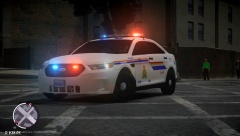 The car hasn't been released as I think Slimory and Stickace want the car to remain private.
 -
I might make a Criminal Minds Suburban.
-
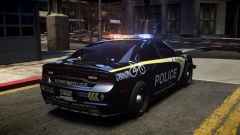 It's Scales.
 -
Nice! Not Bad! Congrats on Code 3 Customz aswell!
-
I could do it if you want the D:SF model.
-
-
 He said it might be.
 -
Yes, it is. It's like the most made car for LCPDFR.
-
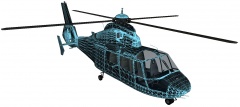 Nice to see you back! Nice Job!
 -
It really doesn't bother me. I think it's kind of cool. If someone wants to buy a retired vic so be it. It gives more money to the PD's that are selling them.
-
![[WIP] 2014 GMC 3500 Ambulance V2.2](//s3-gallery.int-cdn.lcpdfrusercontent.com/gallery/album_722/sml_gallery_3386_722_165949.jpg) Looks mighty fine nick! You make me wanna do some ambos aswell!
Looks mighty fine nick! You make me wanna do some ambos aswell! -
My fleet is somewhat basic :P 2 Ford CVPI's 3 Charger's 3 Tahoe's 1 Impala Bearcat Helicopter Also, All of the vehicles (excluding the bearcat and Helicopter) were made by Myself.
-
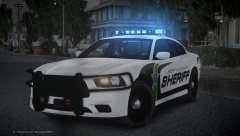 Looks Great Voodoo!
 -
Look here and here.
-
WTD files are the textures files which in some cases it can be larger. The WFT files are the vehicle models themselves and No, they will NOT cause any errors, well the shouldn't.
-
-
A hotfix was released and its recommended that you try it. It works for me just fine.
-
That's EVI's 2012 Charger. It can be found in his files.
-
No.
-
I haven't had this problem. I've just had issues with my game crashing when I go about 10 or so feet away from my safehouse. Consider yourself lucky.
-
My photo <333333
-
 Nice! <3


![[WIP] 2014 GMC 3500 Ambulance V2.2](http://s3-gallery.int-cdn.lcpdfrusercontent.com/gallery/album_722/sml_gallery_3386_722_165949.jpg)
