


Him1250
Members
-
Joined
Everything posted by Him1250
-
As long as you put something like No Copyright infringement intended or give credit you should be good,
-
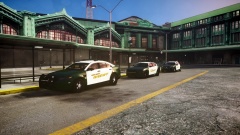 The reason the Taurus won't see a release is because I don't want it getting ripped. There may be a release sooner or later.
 -
We are in the process of rebuilding it.
-
Not bad!
-
Scale them down.
-
McAwesome, PM Me. Let's not thread highjack.
-
I'm taking a LOA
-
I might be able to do one. But not right now.
-
It's unlocked. Download it and open it in zmod. I had the same model before I got a better one and that one is unlocked.
-
-
Nice Job Chris! :D :D :D
-
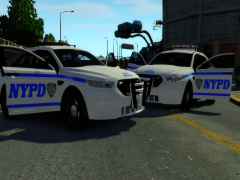 Nice! Had a fun time watching these being made in real time! :D
 -
Depends for me. I like night time or early-mid morning. I sometimes sync the time to my PC.
-
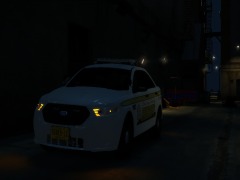 Yup!
Yup! -
Try 50-60 unlocked model requests. I've gotten SO many I keep a word doc and just copy and paste the words tell em no.
-
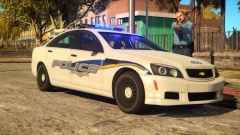 Thanks! And No Problem! :D
 -
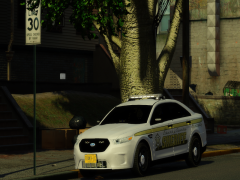 It won't be anytime soon. I can say that much.
 -
Looks SO good! <33333333333333
-
<33333333333
-
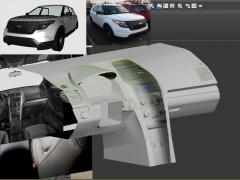 Nice! It's coming to say the least. :)
 -
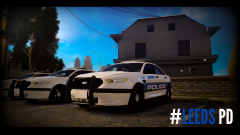 LOL! You'll see more tauruses using this base model in the coming days.
 -
It's my taurus and he won't be releasing it at this time.
-
I've played like 800 some hours.
-
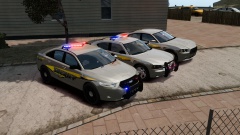 -Nothing to see here-
 -
He did update the Police Helper awhile ago and never got around to releasing it.


