
MichaelV
Friends of LSPDFR
-
Joined
-
Last visited
Everything posted by MichaelV
-
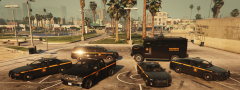 Yep, based on NYSP. I try. :) There are some things a bit more fictional, like the Riot and Insurgent skins, though.
 -
The models were not created by me. You can find them in the description. The skins are made by me and will be released eventually.
-
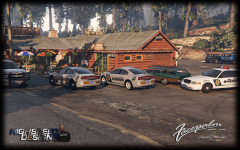
Few more skins and will be ready for release. Models Featured: Bravado Bison Bravado Buffalo (First Generation)Brute RiotDeclasse Granger HVY Insurgent Vapid Police Interceptor Vapid Stanier Skins for Models Planned: Buckingham Police Maverick
-
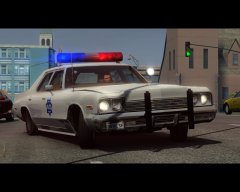 It's not lore!
 -
This is a glitch in our forum software. When a file is moderated in some way, the first commenter becomes the author of the file. The author has been restored. Thank you for your letting us know.
-
Topics merged. Once again, please stick to this topic regarding your GTA 5 LSPDFR SP series.
-
Happy Birthday, Yard!
-
You gain reputation when another user likes something you have posted. It may be in the form of a post, a gallery image, or a file submission. Posting helpful and quality content may help you gain reputation.
-
Please stick to your other topic: If you feel this topic has been closed in error, please report this post.
-
Moving to GTA V Support. This topic has been moved to the appropriate forum. Please post in the correct location in the future.
-
Is this for GTA IV or V? Also, do you have a legal copy of GTA?
-
Topics merged. Please stick to one topic regarding your GTA 5 LSPDFR SP series.
-
Your topic has been moved to LCPDFR Support Requests. Please post in the correct location in the future.
-
This topic has been closed by G17 Media Community Team Staff as it is a topic regarding support for the RAGE Plugin Hook. We are unable to provide support for the RAGE Plugin Hook, and require all support topics pertaining to this be posted over on the official RAGE Plugin Hook forums: http://forums.ragepluginhook.net/ If you feel this topic has been closed in error, please report this post.
-
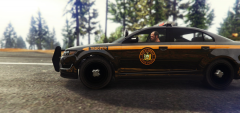 Haha, I'll release it in a large pack when I have the time.
 -
Moving to GTA IV Support. This topic has been moved to the appropriate forum. Please post in the correct location in the future.
-
Moving to GTA V Modding Discussion & Information. This topic has been moved to the appropriate forum. Please post in the correct location in the future.
-
 Comments cleared. Either stop the arguing or take it to PM. Further off topic posts will be hidden.
 -
-
Moving to GTA V Modding Discussion & Information. This topic has been moved to the appropriate forum. Please post in the correct location in the future.
-
We do not allow clan ads to be posted on the forums. Please look through members' signatures, and profiles for clans to join. Closing to prevent a recruitment drive. If you feel this topic has been closed in error, please report this post.
-
 Comments cleared. If you're looking to argue, either take it to PM, or don't argue at all.
 -
Ayy, Happy Birthday Ben!
-
Moving to LSPDFR Media. This topic has been moved to the appropriate forum. Please post in the correct location in the future.
-
Awesome idea! Some fonts that I would use for certain departments: Washington, DC (MPDC) Arial Black for main "Police" text as well as unit numbers Berlin Sans FB Demi Bold for MPDC text in back fenders, as well as the "Metropolitan" text on the trunk Arial Bold for unit numbers on the roof Toronto Police Service Univers LT Std 85 Extra Black for main "Police" text, both side and rear, as well as the city's name Arial Black for unit types, unit numbers, "Police" text on the hood of the car Arial Bold for the "Call 9-1-1" decal I used Freestyle Script Regular for the motto portion, but this may not be the exact font I will edit in more departments soon.