


Reddington
Members
-
Joined
Everything posted by Reddington
-
To add to this, you can fix this yourself by going into the vehicles.meta line for the car and look under the LOD distance section. Set all values to 500. Here's an example: <lodDistances content="float_array"> 500.000000 500.000000 500.000000 500.000000 500.000000 500.000000 </lodDistances>
-
I have never used modding dlcpack, so I can't comment. However, I can tell you that you would still need to do the editing yourself. There is no file that will do it all for you.
-
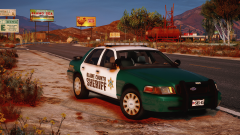 Love the texture on the car. Looks sexy!
 -
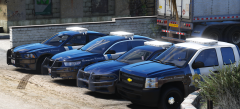 Don't worry, I'll make sure he adds one. :P
 -
I don't believe there is, but it's not hard at all to get a meta and carvariation line for the cars. For the vehicles.meta, just go into update-->update-->common-->data-->levels-->gta 5. Take the "POLICE" meta line and copy it. Now you can paste it in another vehicles.meta, such as the one in mpchristmas2. I strongly encourage you read my tutorial on installing these - I also provide a functioning carvariations in case you need one for the car(s).
-
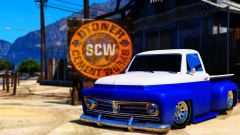 I like how you make a plethora of law enforcement textures, yet upload pictures of normal cars. :P
 -
Yes, try using a working VCF for the ones that won't work. The only other thing I can think of is an ELS error, or one with the actual cars if it only happens to specific ones.
-
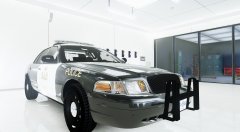
From the album: Red's LSPDFR chaos
-
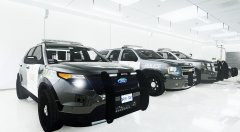
From the album: Red's LSPDFR chaos
-
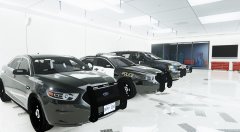
From the album: Red's LSPDFR chaos
-
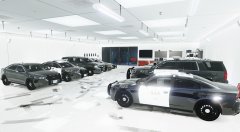
From the album: Red's LSPDFR chaos
-
This topic has been moved to the appropriate forum. Please post in the correct location in the future.
-
I'm not entirely positive on what you're asking. Are you asking if there's a way to use add-on vehicles without them having a vehicles.meta or carvariations? If so, then no there isn't. They have to have both to work properly.
-
Go to the folder where the Glock says to install to. Now click "edit mode" in OpenIV. It should warn you that you're not using a mods folder and give you the option to create that path in the mods folder. Do it. This topic has been moved to the appropriate forum. Please post in the correct location in the future.
-
You're most welcome! Good luck. :)
-
Your topic has been moved to GTA V Support, this is not LSPDFR related. Please post in the correct location in the future.
-
You're welcome, and good luck. :)
-
Hi there, While I can sympathize, because sometimes the captcha is difficult as hell, and I personally have had to re-do it 3 three times, there's nothing we can do to change it. I've found that the captcha is very random - sometimes your first captcha will be easy, while the next one stumps you for a few seconds. The best advice I can give is to keep trying. I'm not sure if this would be beneficial to you or not, but if you hold CTRL and move your mouse wheel up, you can enlarge the page and the captcha, making it bigger and a bit easier to read. You can then do the same thing, just move the mouse wheel down to get the page back to normal size.
-
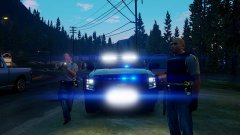 I know, they really don't look that good.
 -
Some plugins do affect your cars, depending on what it does. The best way to check before doing that is renaming your mods folder to _mods Now load into the game and try spawning and getting into a vehicle. What happens?
-
Thanks. :)
-
From the album: Red's LSPDFR chaos
-
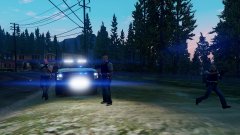
From the album: Red's LSPDFR chaos
-
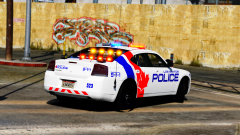 The cat would be out of the bag eventually. :P
 -
I don't mind Canadian based textures, but at least for me, I don't want to drive around with a giant Canadian leaf on my car. :P Honestly I'd like the first texture more if the leaf wasn't on it, but I get it's based off some place in Canada.


