


Reddington
Members
-
Joined
Everything posted by Reddington
-

From the album: Red's LSPDFR chaos
-

From the album: Red's LSPDFR chaos
-

From the album: Red's LSPDFR chaos
-
 The white/red has really peaked my curiosity! I want!
 -
-
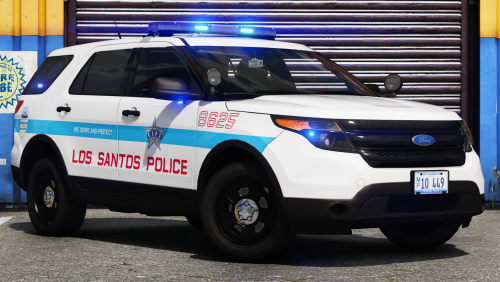 Sad this isn't a full or mega pack, we're in need of a good full CPD based pack.
- 24 comments
- 3 reviews
-
-

- 6
-
-

From the album: Red's LSPDFR chaos
-
I watch Ambuchannel on Youtube and noticed every time their computer information updates it has an audio cue. This would be a nice feature to have in LSPDFR when we receive callouts. Either we can get the notification for callout plugins that use Computer+ (audio that tells us to check the computer), or it can ping every time we accept a callout. This could really add to both realism and roleplay.
-

From the album: Red's LSPDFR chaos
-
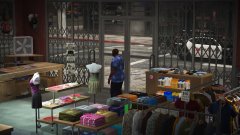
From the album: Red's LSPDFR chaos
-
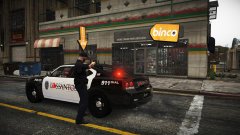
From the album: Red's LSPDFR chaos
-
Turn off all the extras in the VCF.
-
-
 I'm not sure where to install them, lol. Same exact location as the original EUP files?
- 108 comments
- 19 reviews
-
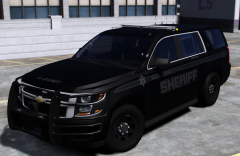 This is sexy!
 -
 https://www.lcpdfr.com/files/file/16144-ambient-fx/
 -
@TrpCharles A bit confused about the new EUP clothes since the installation doc wasn't accurate. Are these clothes we can add so there's more variety? Or are they optional ones we can use?
- 108 comments
- 19 reviews
-
The ambient fx mod here on LCPDFR.
-
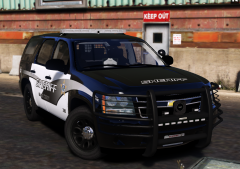 Love the look of this!
 -
This topic has been moved to the appropriate forum. Please post in the correct location in the future.
-
This topic has been moved to the appropriate forum. Please post in the correct location in the future.
-

From the album: Red's LSPDFR chaos
-
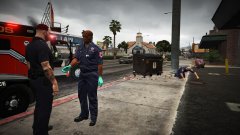
From the album: Red's LSPDFR chaos
-
GTA V support.
-
This is being handled. If you feel this topic has been closed in error, please report this post.


