


J.J Dawkins
Members
-
Joined
-
Last visited
Everything posted by J.J Dawkins
-
.thumb.png.72ffd37d3094cf4d965be073797bcf31.png) man i like that highway patrol texture and my buddy @CG Blaze made the same kind that he let me borrow
man i like that highway patrol texture and my buddy @CG Blaze made the same kind that he let me borrow- 8 comments
- 1 review
-
-

- 1
-
-
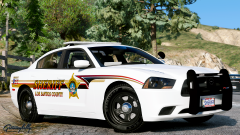 PREFECT...
 -
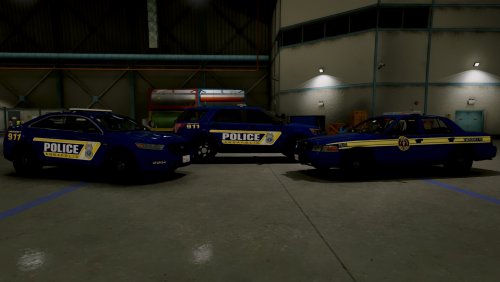 See if is why i love you skins so much is cause you always think about the lore friendly guys... I will be adding this to my fleet as while Thank you so so much. I'm a fan of you now Keep up the awesome work
 -
-
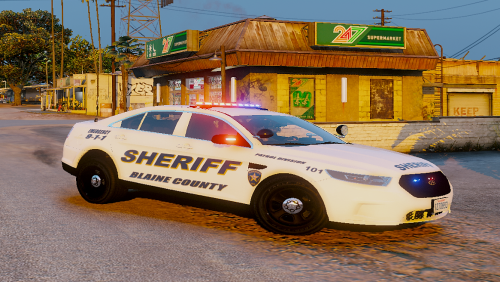 yeah i'm liking this and thank you so much for making skin for my model i really do thank you
- 1 comment
- 1 review
-
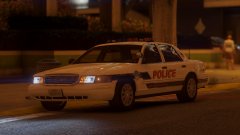 now this is a beautiful cvpi holy moly....great job i really love this
 -
![Los santos Police Pack #9 [Sneak Peek]](//s3-gallery.int-cdn.lcpdfrusercontent.com/monthly_2017_04/small.20170404232429_1.jpg.d3d1c067c34335fbd3eeed31f9afae3e.jpg) man it's good to see you back making these 100% top notch skins you are the best at this HANDS DOWN
man it's good to see you back making these 100% top notch skins you are the best at this HANDS DOWN -
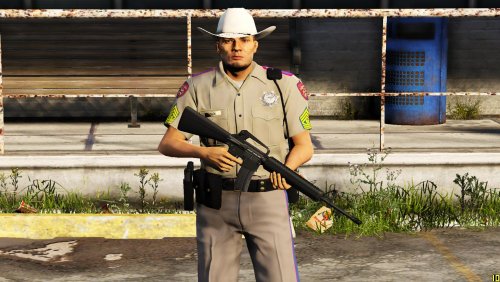 now this is going to be perfect for the pack @xCraftingFabe & i working on..
 -
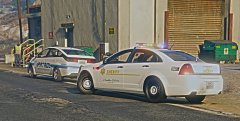 too sexy...
 -
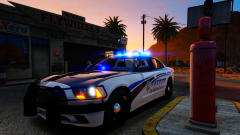 i should have known @OfficerFive0 had something to do with model hands hand down gorgeous work he do..
 -
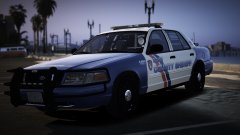
From the album: My First Model
Model by @JJDawkins Skin by @NoNameSet -

From the album: My First Model
Model by @JJDawkins Skin by @NoNameSet -
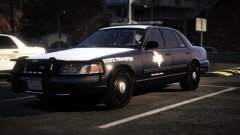
From the album: My First Model
Model by @JJDawkins Skin by @xCraftingFabe -

From the album: My First Model
Model by @JJDawkins Skin by @xCraftingFabe -
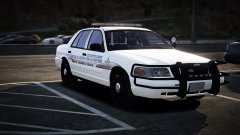
From the album: My First Model
Model by @JJDawkins Skin by @NoNameSet -
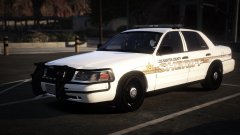
From the album: My First Model
Model by @JJDawkins Skin by @NoNameSet -
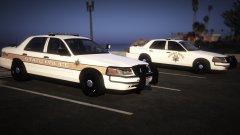
From the album: My First Model
Model by @JJDawkins Skin by @NoNameSet & @JJDawkins -
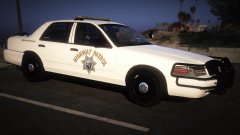
From the album: My First Model
Model by @JJDawkins skin by @NoNameSet -
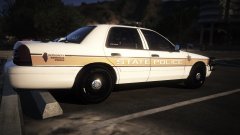
From the album: My First Model
Model by @JJDawkins Skin by @JJDawkins -
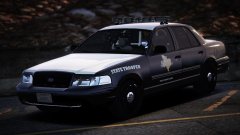
From the album: W.I.P Packs
skin & collaborator by By @xCraftingFabe -
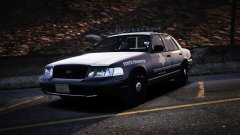
From the album: W.I.P Packs
skin & collaborator by By @xCraftingFabe -
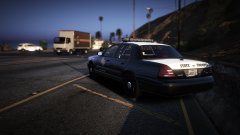
From the album: W.I.P Packs
skin & collaborator by By @xCraftingFabe -
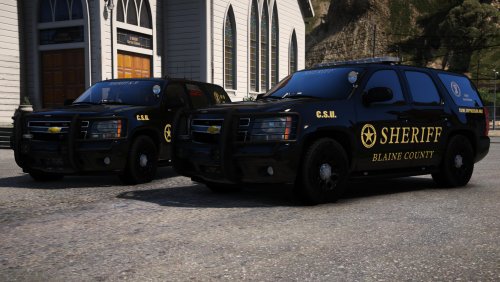 YESSSSSSSS SHE IS FINALLY HERE O GOD THANK YOU...Gump you are Hands Down the best at what you do much luv to ya
- 59 comments
- 42 reviews
-
-
- 1
-
-
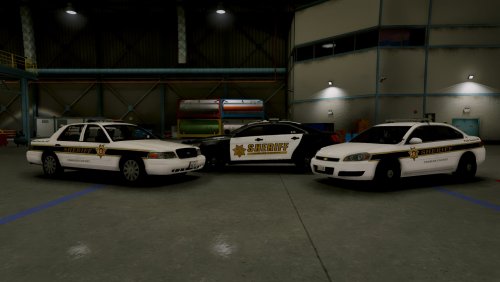 how i'm the first to give you 5/5 stars cause this right here is hella sexy thank you for the hard work and making a lore friendly skin for us also...i'm a fan of your now great job sir
- 1 comment
- 5 reviews
-
-
- 1
-
-

.thumb.png.72ffd37d3094cf4d965be073797bcf31.png)

![Los santos Police Pack #9 [Sneak Peek]](http://s3-gallery.int-cdn.lcpdfrusercontent.com/monthly_2017_04/small.20170404232429_1.jpg.d3d1c067c34335fbd3eeed31f9afae3e.jpg)
