


Hello!
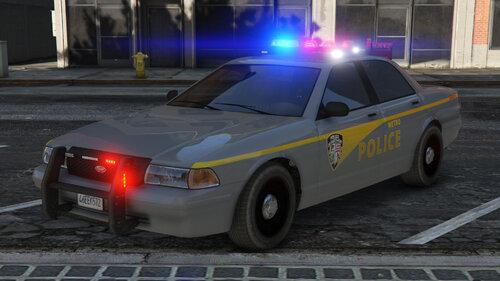
Another installment in my Maryland agencies series. This one being the Charles County Sheriff's Office. I made one for the FPIS, Impala and CVPI for this pack. While I am reasonably sure they use the Utility as well, I couldn't get my hands on some good photos so, I didn't make one for this pack. If I can get some better photos and If there is enough interest, I can make a Utility texture at a later date.
For added realism, the CCSO CVPI and Impala don't have pushbars and the CVPI's usually have hubcaps. I used bxbugs123's great CVPI wheel pack to make the screens for this one. I recommend getting it.
As before, if anyone notices any issues/problems with these textures, please let me know right away and I will attempt to rectify the problem.
More MD agencies to come so, keep an eye out!
I used these templates to make the textures.
Chevy Impala - Officer Underwood
'16 FPIS - Officer Underwood
'11 CVPI - Officer Underwood and Bxbugs123
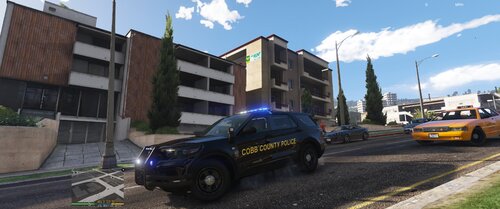
Links to the vehicles used in the screenshots are below. These vehicle files were used as they are some of my favorites but, any vehicles using these templates will do just fine. Thanks to these modders for their excellent work!
Chevy Impala - HDGamerzPC
2016 FPIS
2011 CVPI
Here is the link to Bxbugs123's wheel pack for the hub caps.
Templates: Chevy Impala - Officer Underwood / '16 FPIS - Officer Underwood / '11 CVPI - Bxbugs123 and Officer Underwood





Recommended Comments
Create an account or sign in to comment