


585ny14603
Members
-
Joined
-
Last visited
Everything posted by 585ny14603
-
Just drop it in your GTA 5 directory. Should be in the same folder as your GTAV.exe
-
Do you have a portfolio?
-
Can't exactly decipher what you're asking but here are the two FIRST RESPONSE download links. THIS ONE IS FOR GTA 5 = AND THIS ONE IS FOR GTA 4 =
-
You can trace them or you can make them from scratch or you can pull them right off from the picture.
-
Put them in patchday8ng\x64\levels\vehicles.rpf. Also make sure you have the OpenIV loader asi installed.
-
They need to be in the proper DLCPACKS folder because R* has updated some of those vehicles and those updated files are found in the various Patchday#NG files, which overwrite the one that you likely put them in (x64e). Look through your Patchday#NG folders until you fine the most recent one that has a vehicles.rpf and put all of your files in there; it will overwrite everything prior to it.
-
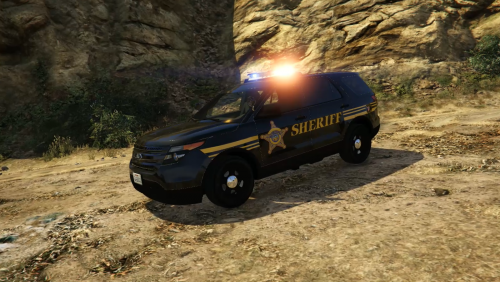 Overall it's very nice except there are some oversights to the actual requirements for the vehicle designs; the two most noticeable ones are that the "E" in "SHERIFF" is split by the door and the stripes extend onto the door panel.
- 2 comments
- 4 reviews
-
Sheriff agencies often don't patrol areas that are already patrolled by a larger municipal force like the Los Angeles Police Department. It's just a waste of resources to have two agencies covering the same area. Around where I live the sheriffs do not patrol the city or a few large towns that have police departments.
-
Not an LSPDFR plugin, it works fine.
-
I can't find the exact fonts but I found some similar ones. For the top one I tried TTF Franklin Gothic and the bottom one was Brown. https://gyazo.com/ad67b02123f66a739804a17c22dff719
-
I'm sure there's a way to just assign an invisible blip, I don't know how though.
-
If you have it setup as being an active pursuit then they should automatically engage in the chase.
-
Or you could just turn your radar off. But that could work, seems pretty simple to not attach a blip until <50 feet.
-
Just trying to make it as accurate as possible, especially when it comes to exactly where the vinyl is on the car; though it won't be the same as in the pictures because those are the '10 charger. The one thing I don't have though, is a good quality version of the logo they use on the cars. The one I'm using right now is somewhat low quality and I could remake it but that could take a while. Also it just so happens that I have the exact font that they use so that sped things up a bit.
-
Should be just a bit longer, I just have to invert the side logo to get it accurate on the other side. Also do you know that the second stealth picture is just the same car but with the flash turned on? Actually I'll have to finish it up tomorrow but don't worry, it's coming along.
-
I'll give it a shot right now but no guarantees.
-
You have to click the button that says "Edit mode"
-
Keep Calm isn't an LSPDFR plugin so theoretically it should be able to work.
-
If you don't have patchday8ng then put then in patchday7ng, and if you don't have that then put them in patchday4ng.
-
-
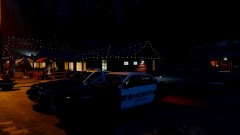
From the album: 21st Century Policing
Utilizing a quiet night to get some reports done. -
Copy and paste your vehicles.meta lines for the SHERIFF2 vehicle. Odds are there's an error in your syntax.
-
\x64e\x64\levels\gta5\vehicles.rpf, I believe that is the one. So just rename your car file to "policet" and replace it in the vehicles.rpf
-
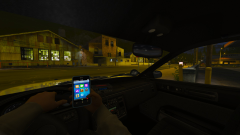
From the album: 21st Century Policing
-
You have to use EUP and Skin Control to make a multiplayer character that looks like that and then add the belt/radio accessory.

