cp702
Friends of LSPDFR
-
Joined
Everything posted by cp702
-
Also: There is no NYPD "CSI Unit" as such. The unit is called the Crime Scene Unit, and doesn't even seem to use cars or SUVs (they seem to just use vans/trucks, which would make sense given that they would need cargo space and don't need to rush to a scene). Furthermore, NYPD vehicles have a unit number painted on the side, along with the precinct or division. They use a fairly small san-serif font for this. Bottom line: This is a TV or movie prop.
-
-
Because that gives people more control over their local police.
-
Would EVI be OK with that? I think we should check first.
-
That looks like a run-of-the-mill Whelen Liberty. Edit: Ninja'd :ninja:
-
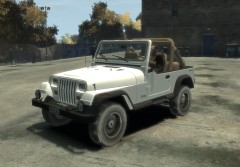 Classic Army?
 -
m_m_fbi
-
Paint.NET GIMP
-
I'm trying to make one, but I am having a lot of trouble (I haven't done proper 3d modeling before). I'm sure I'll be able to figure it out, though.
-
Correct. As for your question, m_y_cop is located in the TBOGT folder, as is m_y_ciadlc2 (the young FBI guy with vest/raid jacket). All of the other cops are in the EFLC root.
-
Do you mean that when you select him in LCPDFR, you want him wearing a helmet? If so, hit Alt+U after selecting him.
-
TBOGT uses vehicles from both GTA IV and a special tbogt/ folder. Any vehicles found in GTA IV are located in *eflc root*/pc/models/cdimages/vehicles.img, while new TBOGT-only vehicles are in tbogt/pc/models/cdimages/vehicles.img. This isn't just for vehicles; the way it works is that TBOGT-specific stuff goes in tbogt/, but anything that is shared with GTA IV goes in the standard files. In some cases, a resource will be in both folders (e.g. m_y_cop is in both the standard componentpeds.img and the tbogt componentpeds.img); in this case, the one in the tbogt folder takes precedence (the cop in the tbogt folder is a new cop model with different heads; in contrast, since m_y_strooper is the same in EFLC and IV, it is not found in the tbogt folder, and since m_y_ciadlc02 isn't in IV at all, it is only in the tbogt folder). Also, you use the same scripthooks as for IV. If you use SNT, you need to use their TBOGT trainer for EFLC (it's in the same download as the regular SNT).
-
ELS and ELM work very differently. ELS uses the vehicle extras system (the same system that lets you customize your car; e.g. a Turismo can have a roof or be roofless). In this case, the extras are given "emissive" textures, which mean that they look like they've lit up (the emissive textures are also how ads on taxis look illuminated). Extras 1 through 4 are controlled by the primary lights, 5 through 7 by the secondaries, and 8 and 9 are the takedowns. When the primaries are on, extras 1 through 4 are turned on and off rapidly (if you did this with a non-ELS vehicle, like a turismo, you would see the roof flashing on and off). The extras themselves are a "dummy" model, existing solely to allow the emissive texture to be displayed. To be more precise, they are a set of dummy models. Extra 1 may contain a light on the front of the lightbar, one on the back, one on the pushbar, and one in a headlight enclosure. They can be different colors; the only reason it matters that they are all "extra 1" is because it means that they must all be on or all be off (you can't have the front on and not the back, for example). A pattern is just a set of instructions, saying "turn 1 on, 2 on, both 1 and 2 off, 3 on, ...". ELM doesn't use the extras system at all (and in fact, I doubt it works exactly the same in both games anyway). ELM uses the headlight system. I don't know enough about that system to tell you about how to use it, but you shouldn't look to ELS (unless you're converting back from IV to SA, in which case you should know what the different extras mean).
-
ELS will let you use the sirens, but cars don't pull over.
-
-
Why the emphasis on LCPD models? You realize that model and livery are separate, right?
-
Out of curiosity, how much does your county spend on schools? That seems like it'd be a better investment.
-
-
When I disable keys in SNT, some options continuously turn off and on. One such option is "Special God Mode". When keys are enabled, it behaves normally, but when keys are turned off, the whole game becomes very messed up (e.g. I can't use weapons on foot; they get put away as soon as I take them out).
-
Thanks! Last question (I promise): I have a pretty good idea what geometry, job, sunny, and wet do. What are mat1, bulk, and audio id (if you know)?
-
Thanks! Another question: Is there a way to force an uppr and a lowr to always occur together? Like, could I make it so that uppr_001 and lowr_001 are always together, and uppr_000 always has lowr_000?
-
The prop works if I manually spawn it, but it doesn't spawn on natural peds.
-
Any time I post about pedVariations, my thought process is "PM Custo? or put it on public forums?"
-
How do I make it so that props will spawn with a ped? Specifically, I've added Bxbugs's paramedic helmet to the game, and I want it to spawn on all pmedics.
-
Says the soon-to-be police officer :biggrin: