
ISPfan12
Members
-
Joined
-
Last visited
Everything posted by ISPfan12
-
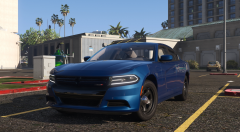 That looks soooo bad ass! I can not wait to make some models out of this sexy thang
 -
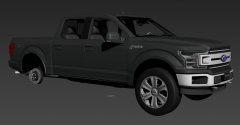 lol these wheels
 -
-
Awesome! Looking forward to it! Any chance it will come with the Ford SSV wheels?
-
I hope this becomes a thing
-
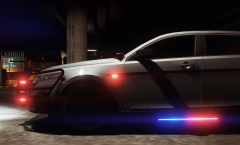
From the album: The WIP's
-
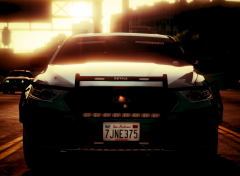
From the album: The WIP's
In case Da Hoe isn't your style -
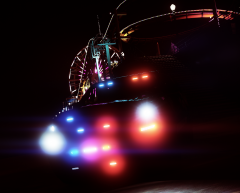 Very very soon
 -
My Tahoe projects
-
From the album: Da Hoe's
If you like lights your gonna love this! If your seizure prone your gonna hate this! -
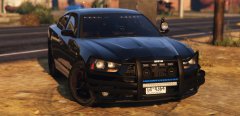
-
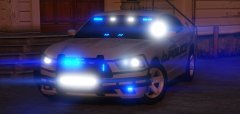 It looks great so far. Cant wait to see the finished product! Great to see you back on the Mopars lol
 -
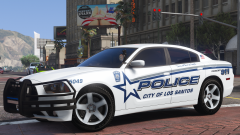
Yesss!!! The world is in desperate need of another world famous Gump Charger!
-
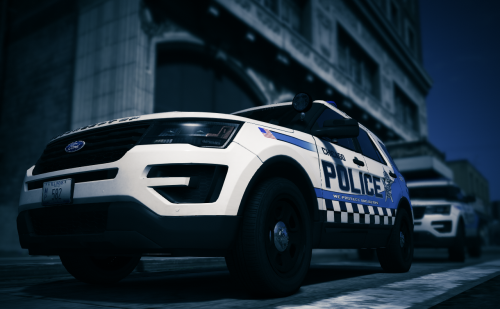 The checkered stripe was put in there to match along with the checkered stripe that goes around the hats the coppers wear.
- 20 comments
- 6 reviews
-
-

- 1
-
-
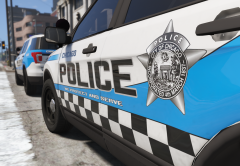 It was confirmed on the CPD facebook page a couple of weeks ago. Ive heard from folks in Chicago and they have confirmed they are on the streets. Only a few have hit the streets so far so they are probably hard to find at this point.
 -
I agree 100%. The blue stripe look was hands down my favorite scheme of all time. It was one of the most iconic things about Chicago. It will be hard to see them change since it has been around since the early 70's. Yes it is! When you think of American police cars, LAPD, NYPD, and Chicago are the first to come to mind. It seems that with this scheme change they are turning the page into the next century. They are updating the lights, computers, radios, and adding new technology that the rest of the country has been using for years. Before this change they were one step above Detroit in terms of technology and equipment condition. Sad part is that its not like Chicago doesn't have the money unlike Detroit.
-
The one you pictured was a test scheme that was not chosen. It was announced on social media a couple weeks ago that the one on the car I made was the winner.
- 20 comments
- 6 reviews
-
Chicago Police Department 2018 Ford Police Interceptor Utility Welcome to Riverdale! I present to you the pride of the windy city! This 2018 Ford Interceptor Utility is outfitted with the latest SoundOff Signal technology Take those uncooperative suspects to The Silos in style! Representing Chicago's finest with their brand new scheme for 2018! Complete with authentic CPD lighting, Gotta love those blue lights! From Riverdale to Rogers Park Wrigleyville to O'Hare The best ride in Chi Town is in service! Q&A 1. Can you make it with red and blue lights? NO! This is a CPD specific vehicle and was made to only work with all blue lights. 2. Can you remove the sign on the light bar? NO! That is a Beat Tag and is a signature tradition of CPD. This was not made to be a universal vehicle and is built to CPD specifications. 3. Does CPD use that skin? YES! It is the new design that was chosen by Superintendent Eddie Johnson to replace the "out dated" blue stripe car that has been used since the early 1970's
- 20 comments
- 6 reviews
-
-
- 12
-
-
Tbh I didn't care for it at first. I loved the old blue stripe red block letter look and I was not really happy when I heard they were searching for a new scheme. However..... now that I have put this together and had a chance to work with the new look I absolutely love it! Keeping the CPD blue and incorporating the checkered pattern the matches the copper's hats was a really cool touch. I cant wait to see these in person!
-
From the album: The WIP's
CPD's new design now hitting the streets of The Windy City -
 I cant answer that question. I know that stuff is controlled by the meta file but I'm not sure what command line does it. I recommend just changing it with your native trainer.
- 23 comments
- 14 reviews
-
The spawning by default is not part of my model. It is a command line in your vehicle meta file. You will need to edit that to change the default option.
- 23 comments
- 14 reviews
-
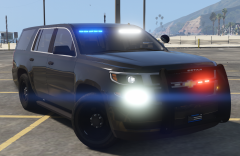
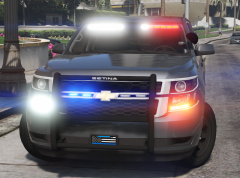
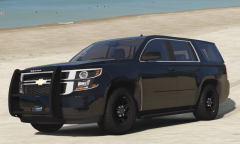
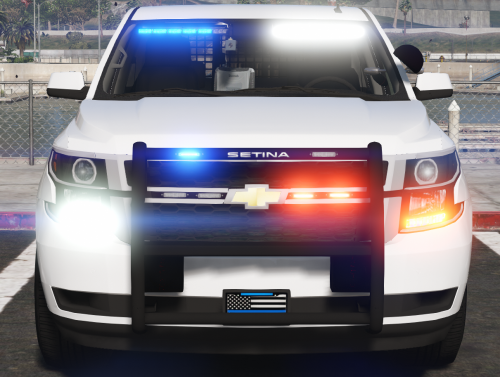
2015 Chevy Tahoe Slicktop/Unmarked Due to upload limitations I have put a link in the .7z file Follow link to dropbox to download the vehicle file I present to you for your entertainment, my latest release A brand newish 2015 Chevy Tahoe This vehicle was built to be used as a slicktop or unmarked vehicle It features a realistic lighting setup with split colors in the visor lights A very simple yet effective setup with texture files included for red/blue/white as well as blue/blue/white Please remember to use the included ELS vcf file for correct light effects Other features include Setina Single Person Partition on the passenger side Working full visor takedown lights Optional bike and bike rack (extra 8) I hope everyone enjoys this model!! Stay Thirsty Mis Amigos!!
- 23 comments
- 14 reviews
-
-
- 12
-
-
-
 Dude!! I need that light bar bad!!!