GreenAid
Members
-
Joined
-
Last visited
Everything posted by GreenAid
-
Yes I have it. Ok thanks I had forgot to install these, recently reinstalled Windows so yeah... ----------------------------------------------------------------------- EDIT: Bad news guys.. not working even tho I put those... Could it be related to AdvanceHook? ----------------------------------------------------------------------- EDIT2: Here are the logs:
-
So I have this problem that whenever I go ingame, LCPDFR crashes with an error, ELS V8 doesn't work, indicator script crashes too, and only some scripts, like trainer, work. So I tried running as admin & I tried replacing many times ScriptHook, but I can't manage to sort it out. Anybody has ever experienced this & knows how to fix it pls? Also ENB works fine.
-
Somebody made it on sketchup. You really plan on using that? It's basically a toy car.
-
Try ChickamruRealTraffic, dunno if it fixes the textures but it's the best traffic loader in terms of performance.
-
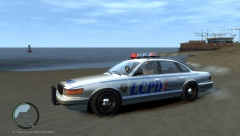 He uses no ENB.
 -
 I'd rather do an Explorer :p
 -
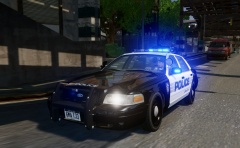 Why, they are screws & they are right...
 -
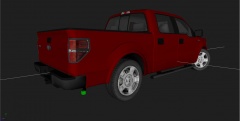 Btu are you going to release something or what?
 -
Yeah but he asked for accurate, those are pretty fancy :)
-
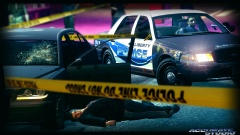 Yeah but the cop looks badass for the shot xD
 -
Today's society is stupid.
-
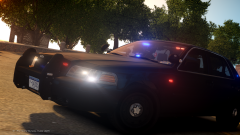 Thanks!!
 -
Ask Bugs if he can make a Taxi CVPI! To match his unmarked one? ;)
-
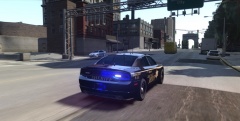 That.. is very fancy.
 -
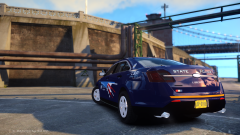 Could you explain me pls what pattern you use to make the reflective stripes?
 -
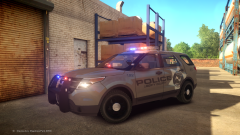 No, I just preferred police skins....
 -
:/
-
Already told you, you should get bored more often!
-
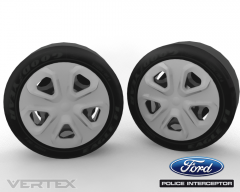 Just misses the Ford logo & it will be golden.
 -
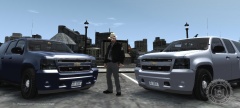 You got it! -But why are the headlights so dark?- -Snipped meme ~Staff
 -
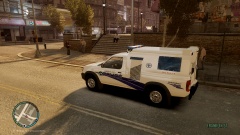 I guess in LC everything is possible.
 -
Yeah, pretty sure you have to convert it & put it in the correct place into the hierarchy.
-
 Still too high.
 -
Change lighting patterns?
-
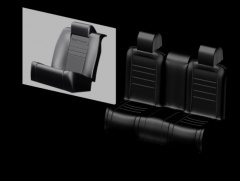 Nice but it's nowhere close to the pic?