GreenAid
Members
-
Joined
-
Last visited
Everything posted by GreenAid
-
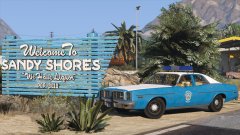 Damn that's so cool :)
 -
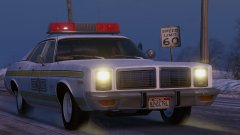 Very sexy.
 -
 Last item I checked Los Santos was in US tho.
 -
Just a little detail, but seeing how it's an Us car, it would say Harbor rather than Harbour :)
-
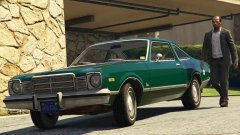 I hope you release the Civ version too :D
 -
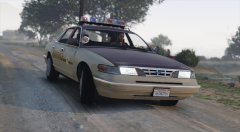 Not sure about the newer gen headlight textures....
 -
-
-
 The car is matte?
 -
-
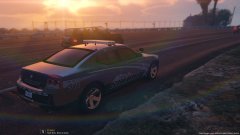 I thought hubcaps were made of plastic?
 -
Who made that car?
-
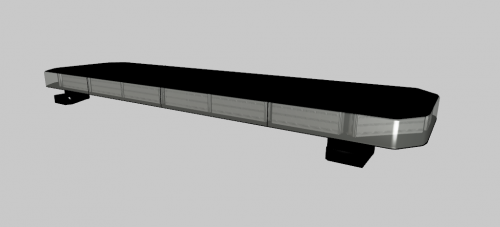 Sorry but what are you trying to say? The archive includes vehshare.ytd ('td' stands for texture dictionary, opposed to 'ft' which stands for fragment) and this texture archive can be opened with OpenIV, it's the stock vehshare found in the game.
 -
.ytd is a texture archive what do you want to convert it to....
-
You do know that .dff is the .ytd of San Andreas? OpenIV can export the textures just fine.
-
-
-
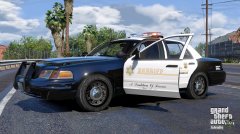 Nice rims...
 -
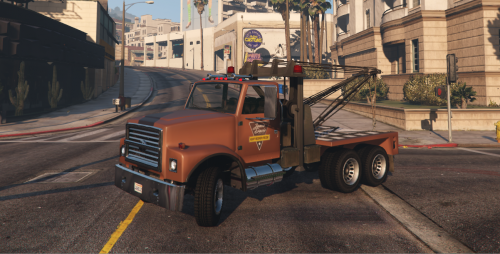 Why don't you listen to me?? If you replace just the vehshare_worn and not the other two you will have it looking non-rusty, red and with original Davis logo. Last time I say it.
- 6 comments
- 2 reviews
-
-

- 1
-
-
-
@TheBigBang914 I think if you just replace the vehshare worn it stays original with no rust.
- 6 comments
- 2 reviews
-
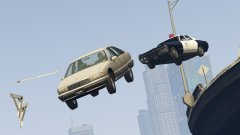 FRONT LICENSE PLATE
 -
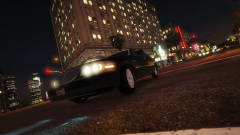 Cruising* :p Cursing is another thing haha
 -
-