thegreathah
Friends of LSPDFR
-
Joined
Everything posted by thegreathah
-
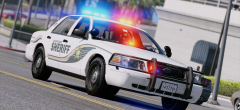
From the album: thegreatHAH's Screenshots
-
-
Yes
-
-
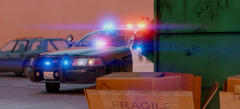 make me a gud model then hoe
 -
From the album: thegreatHAH's Screenshots
-
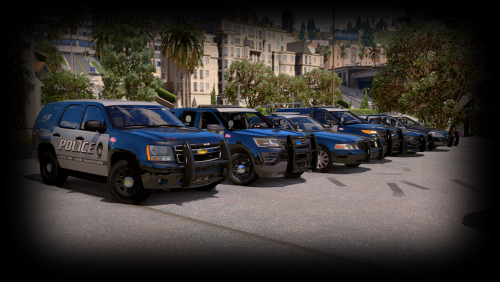
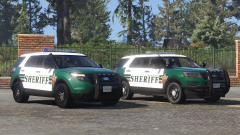 WOW. Words can't explain how excited I am for this pack (I've been looking at Andrew Kim's pictures way too much on flickr). Definitely gonna do some more skins based on the pacific northwest when these are out <3
 -
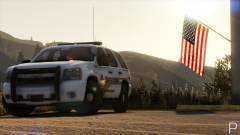 Wow m8 Beuatiful; both the screen and car.
 -
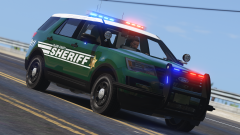 Dude. Yes. Papa bless
 -
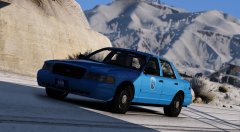 Wow! Really nice work!
 -
-
-
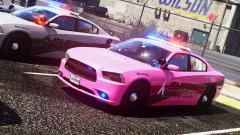 Came out absolutely beautiful!
 -
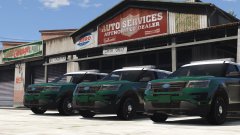 Oooh Boy. I see myself making a lot of textures for those bad boys.
 -
Love
-
-
-
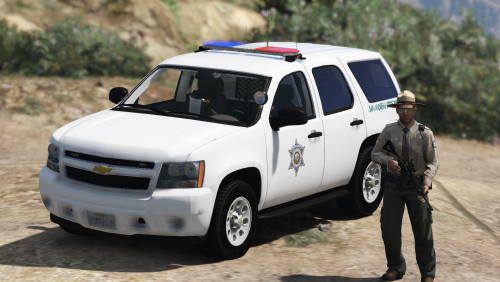 THE Perfect replacement for the Park Ranger Granger. Awesome lighting set up, awesome assortment of extras, and perfect quality overall.
- 18 comments
- 4 reviews
-
-

- 2
-
-
Going to be uploading a new version of the Snohomish County Pack tonight. Be on the lookout.
-
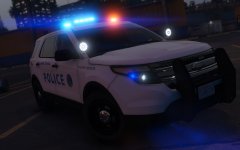 In love!
 -
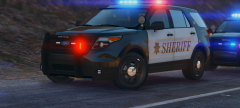
From the album: thegreatHAH's Screenshots
MMMMM -
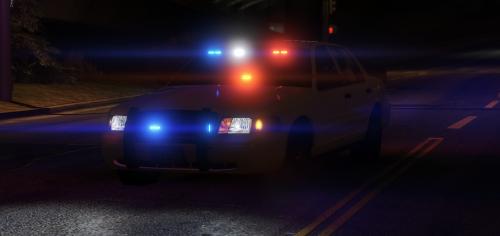
I think he means one side of the light bar (In Florida departments often turn off their front lights in day traffic stops).
-
I believe that will be possible in ELS
-
-
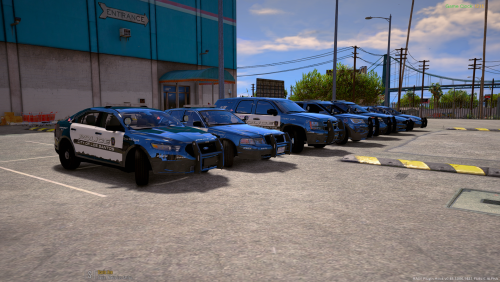 The only work around that works as far as I know is copying the custom sirensettings from this to the original carcols, but it's pretty time consuming.
- 779 comments
- 187 reviews