thegreathah
Friends of LSPDFR
-
Joined
Everything posted by thegreathah
-
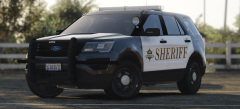
From the album: HAH's WIP Pics
Yes. I am working on a pack of vehicles accurate to Snohomish County Sheriff WA. Will include their current fleet setup (will still be somewhat lore based however). My plan is to make a 2015 Tahoe, 2015 Explorer, and a 2016 Explorer model. The Tahoe and '16 Explorer are almost entirely finished so you can expect the release to be very soon. -
The entire Star Wars cast has made an impact on my life. How I learn, what I enjoy, what I believe in. She was a huge influence on me and I'm sure many others. Deeply saddening. May the force be with you, Carrie...
-
Click 1
-
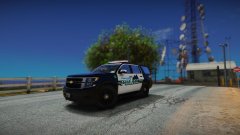 DAMN. What ENB are you using? Looks great!
 -
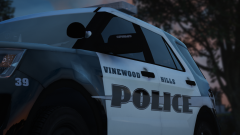 Oh wow.
 -
I believe if you change the traffic advisor pattern on an ELS enabled vehicle it should help.
-
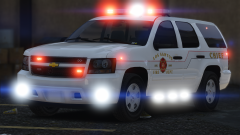 Shit. Now I have to make RDE work...
 -
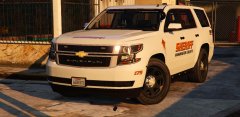 Yes. Yes! YES!
 -
-
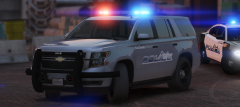 Well the LibII is my favorite bar so... Better release that one first! lol
 -
All Three! haha.
-
*cough* both *cough*
-
That was my thought exactly (Now I've gotta update the skin pack lol)
-
From the album: thegreatHAH's Screenshots
A wip by @ablaze. Will be released soon! -
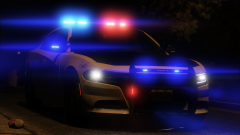 Oh god. Too sexy.
 -
I would try http://www.accuratestudio.com/
-
Whats funny is I have barely done it this year. Just picked up Transport Fever and will probably get Watchdogs 2 as well.
-
What visual modifications are you using?
-
What are your PostFX and other GTA settings? Based on your link, it seems like cruise lights are working but are very dim and washed out.
-
You are, but he didn't enable any.
-
-
-
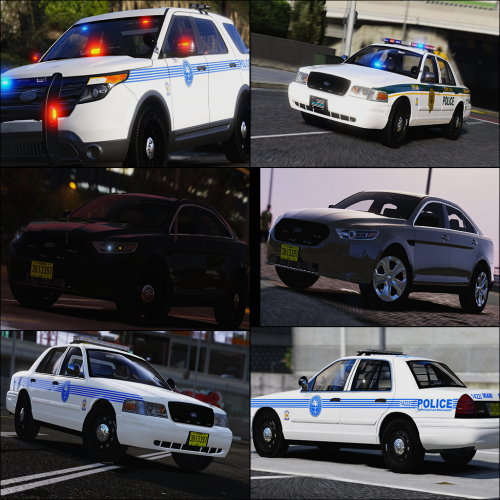 Dude. How? This is by far the best pack from you so far. And with ELS! Game changer man.
- 93 comments
- 28 reviews
-
-

- 3
-
-
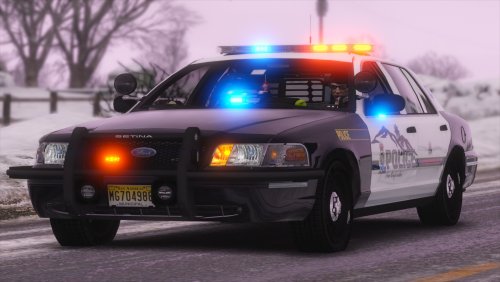
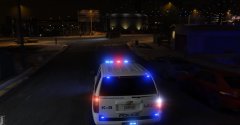 I think it needs at least three more light sticks on the rambar. lol Good work Maurice!
 -