Dylan02
Members
-
Joined
-
Last visited
Everything posted by Dylan02
-
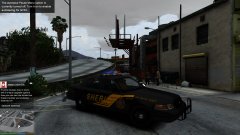 Feedback is appreciated.
 -
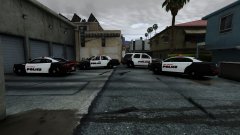 Skin pack I might release if I can get the guts to make some credits.
 -
-
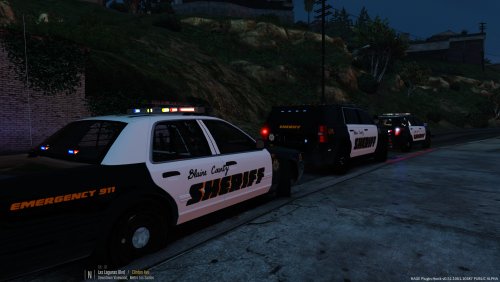 I was thinking of doing an LSSD based on Maricopa County with some artistic liberties, same with here.
- 14 comments
- 1 review
-
Or like in LCPDFR, where you could shout over your loudspeaker on your car to pull over and stuff during pursuits.
-
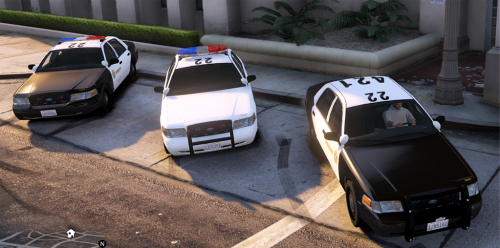 Beautiful, and no bugs to boot. I love how you included the optional amber lights.
- 146 comments
- 24 reviews
-
 ITS BOOTYFUL
 -
mfw
-
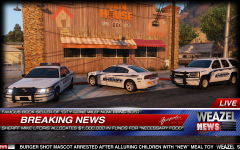 "Burger Shot mascot arrested after alluring children with 'new' meal toy"
 -
-
-
-
-
Will it come with a program to configure it, like LCPDFR 1.0 did?
-
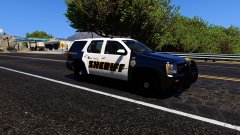 Skin will be coming out in the next update, along with a supervisor skin and k-9 skins for the cvpi.
 -
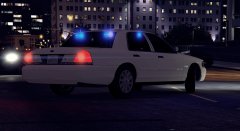 HHNG YEEEES *heavy breathing* Those hubcaps look really nice, and this is from someone who normally loathes them.
 -
Dooya want me to make a skin for release( I mean the skin that comes with the model stock)? Because I would love to make a skin for this.
-
I made a pair of k-9 skins that will be in the next version, along with a tahoe skin ;)
- 14 comments
- 1 review
-
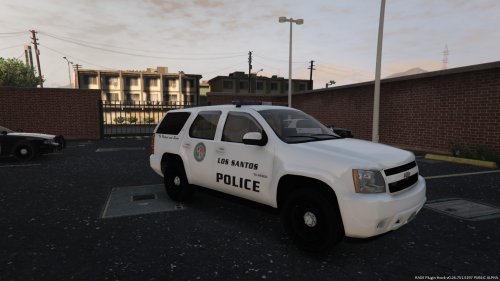 Glad I could be of help, this kickass tahoe begs for a bcsd skin in my style.
- 183 comments
- 38 reviews
-
-
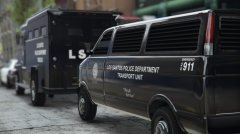 Dayum, you got reflections maxed out?
 -
I loved running around and being competitive.
WHAT. SWEETFX/ENB. IS. THAT.