
Albo1125
Insiders
-
Joined
Everything posted by Albo1125
-
 NEver put it in the Plugins folder, that will not work. Have you sent Kal74 your screenshots and logs?
- 3,646 comments
- 306 reviews
-
-

- 1
-
-
-
You shouldn't be loading the plugin at all. It is automatically loaded by LSPDFR. The files should be in GTA V/Plugins/LSPDFR. That means NOT in GTA V/Plugins. This is clearly stated in the video. If for some reason you are still having a problem please send me screenshots of your GTA V folders.
- 3,646 comments
- 306 reviews
-
 1.1 Includes an ini file to tweak all the settings to your liking.Offers support for controllers.
- 40 comments
- 20 reviews
-
-
- 2
-
-
Watch the installation video. What does it say about loading it? In which folder are the files placed? https://www.youtube.com/watch?v=CijkMpyLy0M
- 3,646 comments
- 306 reviews
-
Please attach your Ragehook log file so I can check it over. Also, please pay attention to the error messages that are displayed when going on duty.
- 3,646 comments
- 306 reviews
-
This is part of the Callouts V mod, it already exists :)
-
Traffic policer didn't start because you hhaven't copied the new audio files into your folder. Please follow the instructions of the installation video.
- 3,646 comments
- 306 reviews
-
-
- 1
-
-
-
This is a ragepluginhook Plugin. Copy the new audio files into the correct folder. I really don't understand what you mean. Can you be a bit clearer?
- 3,646 comments
- 306 reviews
-
-
- 1
-
-
This is nothing to do with traffic policer. It's a feature of lspdfr. Please attach your entire log file so I can check it over for you.
- 3,646 comments
- 306 reviews
-
-
I'll be aadding an ini file to customise all of the settings after the weekend :)
- 40 comments
- 20 reviews
-
-
- 1
-
-
Thanks for the report. The crash was coded by lspdfr's arrest manager service (not mine) and it's a known crash that sometimes randomly occurs. Thank you for sending it in!
- 3,646 comments
- 306 reviews
-
-
-
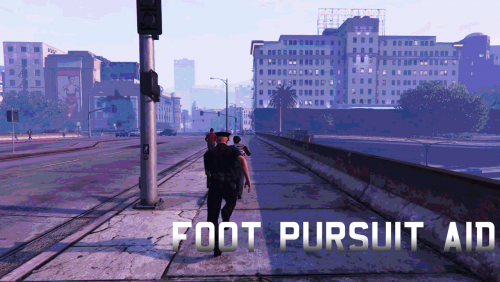
Foot Pursuit Aid Please do not reupload or redistribute this without my explicit permission. Thank you. Thank you CaptainSugarFree for creating this awesome video! Tired of those endless foot pursuits? Do you find yourself unlawfully shooting fleeing suspects in their backs because you're too lazy to chase? This is for you. I've had this running for personal use for ages, but seeing as lots of people were requesting something like this I've decided to share it with you. Foot Pursuit Aid is designed to make foot pursuits more manageable in a realistic way. When you're running, you can press Enter on your keyboard or RightShoulder on your controller to make your character sprint for a short duration. Doing this has a small health cost (but it will never kill you) and there is a cooldown of 3 seconds. This is all configurable. Installation Place FootPursuitAid.dll in your GTA V/Plugins folder. Place FootPursuitAid.ini in your GTA V/Plugins folder. Adjust the settings to your liking. Place Albo1125.Common.dll in your GTA V folder. Add "LoadPlugin FootPursuitAid.dll" to your startup file. Alternatively, load FootPursuitAid from the Rage console (F4 ingame).
- 40 comments
- 20 reviews
-
-
- 23
-
-
-
Going to need your entire log file and a description of what you were doing please. Also, please put your logfile in a spoiler.
- 3,646 comments
- 306 reviews
-
They're all files that Rockstar has made. You can access them via OpenIV. I didn't make them myself.
- 3,646 comments
- 306 reviews
-
 Glad it's resolved! If you enjoy, please consider leaving a 5 star review
- 1,915 comments
- 242 reviews
-
-
Please post your entire log file and provide me with a description of what you were doing before the crash. Thank you!
- 1,915 comments
- 242 reviews
-
Can you please send me your logfile after verifying you have installed everything correctly and there are no error messages upon startup? Thanks!
- 1,915 comments
- 242 reviews
-
That crash appears to have been caused by CalloutsV. Thank you for the screenshot, I will look into that!
- 1,915 comments
- 242 reviews